

Video Tutorial (Optional)
Watch first if you want to see the full wiring and MicroPython setup for the Raspberry Pi Pico W and BMP180.
Project Overview
In this project, you connect a Raspberry Pi Pico W to a BMP180 sensor over I2C to read pressure, temperature, and altitude values in MicroPython.
The BMP180 is a popular sensor for measuring temperature and pressure, which can be translated to altitude. It is cheap, reliable, and easy to use with Arduino, Raspberry Pi, and other microcontrollers.
- Time: 15 to 30 minutes
- Skill level: Beginner
- What you will build: A Pico W + BMP180 I2C setup that prints temperature, pressure, and altitude repeatedly
Subscribe: https://www.youtube.com/@mmshilleh
Parts List
From ShillehTek
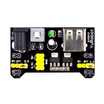
- Breadboard and jumper wires (optional) - makes the 4-wire I2C hookup quick and solderless
- Raspberry Pi Pico 2W - the WiFi microcontroller board used in this build
Additional parts
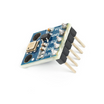
- BMP180 sensor module - measures pressure and temperature (altitude derived)
- 4 jumper wires - connect power and I2C (SDA/SCL)
- bmp085.py BMP180 MicroPython library - required driver file for the example code
Note: The code uses I2C(0) with SDA on GP0 and SCL on GP1. If your setup does not work at the listed I2C frequency, you may need to change it (see Step 3 notes).
Step-by-Step Guide
Step 1 - Wire the BMP180 to the Pico W (I2C)
Goal: Create the physical connection so the Pico W can talk to the BMP180 over I2C.
What to do: Make sure both your BMP180 module and Pico/Pico W have soldered headers (or otherwise reliable connections). Connect 4 jumper wires as shown in the wiring reference image, then power the Pico.

Expected result: The Pico is powered and the BMP180 is connected with power plus SDA/SCL for I2C.
Step 2 - Add the BMP180 library file to your Pico
Goal: Install the MicroPython driver so your code can import and use the BMP180.
What to do: Download the library file and place it in the lib folder on your Raspberry Pi Pico/Pico W:
https://github.com/robert-hh/BMP085_BMP180/blob/master/bmp085.py
If you are not sure how to add files to the Pico filesystem, refer to the video tutorial above.
Expected result: The Pico filesystem contains lib/bmp085.py, ready to be imported by your script.
Step 3 - Create a script and read temperature, pressure, and altitude
Goal: Run a loop that prints BMP180 temperature (C and F), pressure (hPa), and altitude.
What to do: Create a file in the home directory of your device and run the following code.
Code:
from machine import Pin, I2C
from bmp085 import BMP180
import time

i2c = I2C(0, sda=Pin(0), scl=Pin(1), freq=40000)

bmp = BMP180(i2c)
bmp.oversample = 2
bmp.sealevel = 1010.5

while True:
    tempC = bmp.temperature  # get the temperature in degree celsius
    pres_hPa = bmp.pressure  # get the pressure in hpa
    altitude = bmp.altitude  # get the altitude
    temp_f = (tempC * (9/5) + 32)  # convert the temperature value in fahrenheit
    print(str(tempC) + "°C " + str(temp_f) + "°F " + str(pres_hPa) + "hPa " + str(altitude))
    time.sleep_ms(100)  # delay of 100 milliseconds
Expected result: Your serial output repeatedly prints temperature in C and F, pressure in hPa, and altitude values.
Step 4 - Apply the provided code notes (if needed)
Goal: Make the script match your local conditions and hardware behavior.
What to do: Keep these notes in mind when running the code:
- It should run right away if the device is plugged in properly and your hardware is functioning.
- You may have to change the I2C frequency to 1000 instead of 40000, depending on your device.
- Update bmp.sealevel (measured in millibar) to the sea level pressure in your area (you can find it with a quick Google search).
Expected result: Readings are stable, and altitude is more meaningful after setting the correct sea level pressure.
Conclusion
You now have a Raspberry Pi Pico W reading temperature, pressure, and altitude from a BMP180 sensor using MicroPython over I2C. With the library file installed and the sample script running, you can stream environmental readings directly from the Pico.
Want the exact parts used in this build? Grab what you need from ShillehTek.com. If you want help customizing this project or building something similar for your product, check out our IoT consulting services.







.png?v=25000753014097803521791168436)

.png?v=68677308723310773341791168436)


