

Video Tutorial (Optional)
Watch first if you want to see the full AWS IoT Core setup and MicroPython MQTT code for the Raspberry Pi Pico W in real time.
Project Overview
In this project, you connect a Raspberry Pi Pico W to AWS IoT Core and use MQTT (with MicroPython) to toggle the Pico W onboard LED from the cloud.
AWS IoT Core is Amazon's managed cloud service for IoT applications. It lets you connect devices securely to the cloud, collect and analyze data, and take action based on that data.
Subscribe: Youtube
Support: https://www.buymeacoffee.com/mmshilleh
Hire me at UpWork to build your IoT projects: https://www.upwork.com/freelancers/~017060e77e9d8a1157
- Time: 45 to 90 minutes
- Skill level: Intermediate
- What you will build: A secure MQTT subscriber on Pico W that receives cloud messages and turns the onboard LED on, off, or toggles it
Parts List
From ShillehTek
- Raspberry Pi Pico 2W - the WiFi microcontroller board used in this build
External
- Computer with MicroPython editor (the tutorial uses Thonny) to manage files on the Pico W
- AWS account and access to AWS IoT Core (create an account at https://aws.amazon.com/)
- Wi-Fi network credentials (SSID and password)
- AWS IoT Core device files: Device certificate, public key, private key, and Amazon Root CA 2048 file (example filename used: AmazonRootCA1.pem)
- MicroPython MQTT library file: https://raw.githubusercontent.com/micropython/micropython-lib/master/micropython/umqtt.simple/umqtt/simple.py
Note: Keep your AWS IoT Core endpoint, certificates, and keys as private as possible. You will upload the cert/key files onto the Pico W filesystem for TLS MQTT to work.
Step-by-Step Guide
Step 1 - Create a policy, Thing, certificates, and endpoint in AWS IoT Core
Goal: Create the AWS IoT Core resources your Pico W needs to connect securely over MQTT (policy, Thing, certificates/keys, Root CA, and your IoT endpoint).
What to do: Create an AWS account if you do not already have one at https://aws.amazon.com/. Then open the AWS Console, search for IoT Core, and open the service.
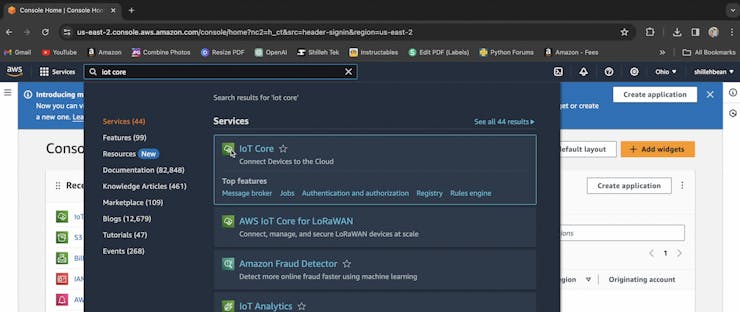
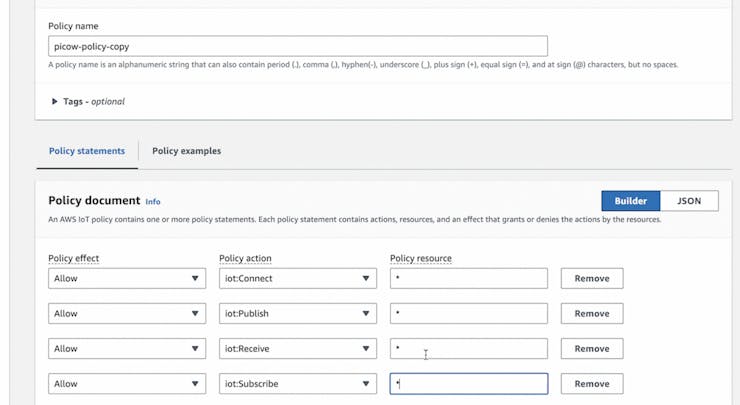
What to do: In the left menu, go to Security and select Policies. Create a policy and customize it for your use case (the original tutorial shows a general-purpose policy setup).

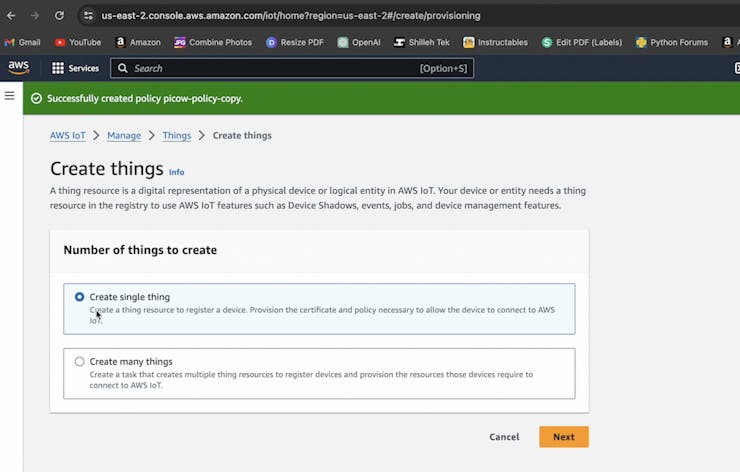
What to do: Create a Thing by going to All Devices in the left menu, then Things and choose Create Things. Name it however you like.


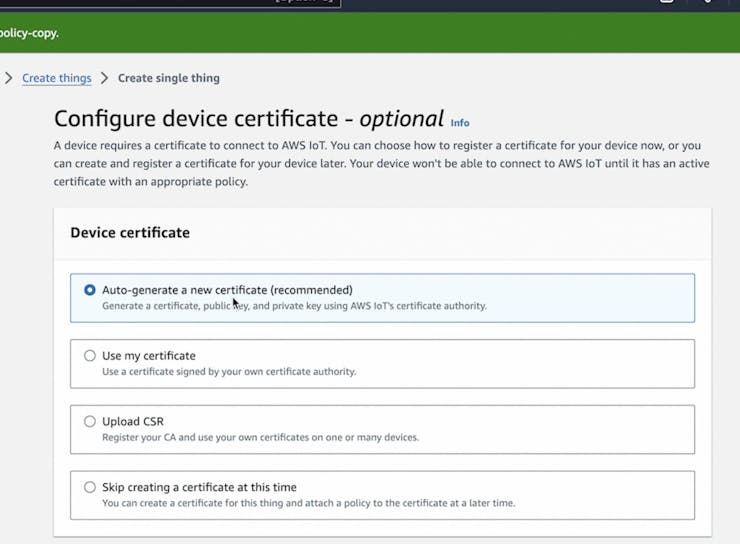
What to do: Generate certificates for your Thing (the tutorial uses auto-generated certificates). Attach the policy you created to the Thing.
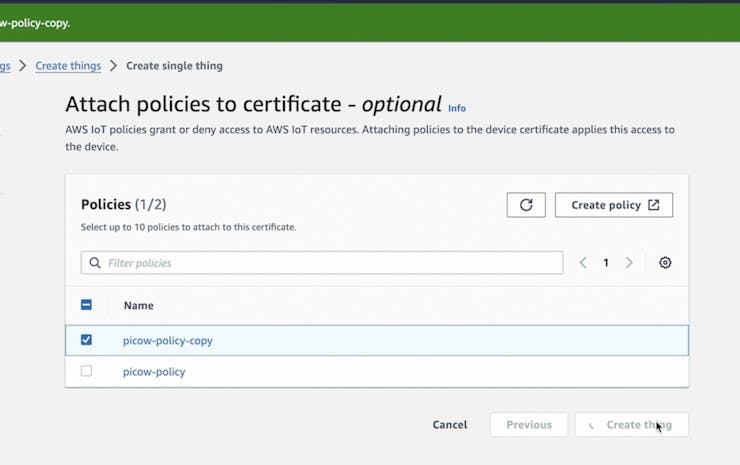
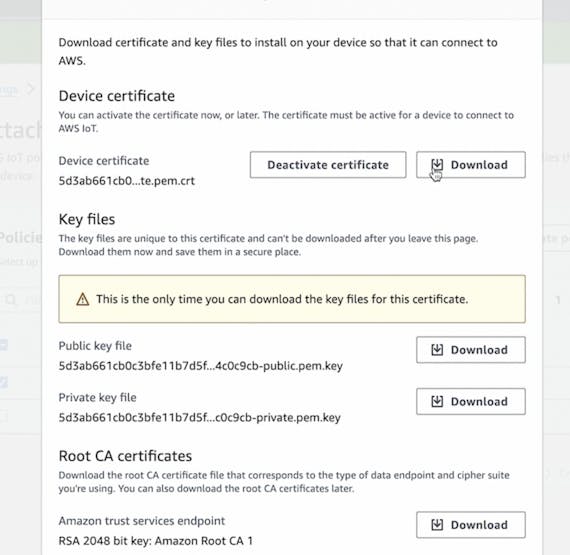
What to do: Download the four device-related files shown in the tutorial: device certificate, public key, private key, and the Root CA 2048 file. You will upload these to the Pico W so the TLS MQTT client can connect.
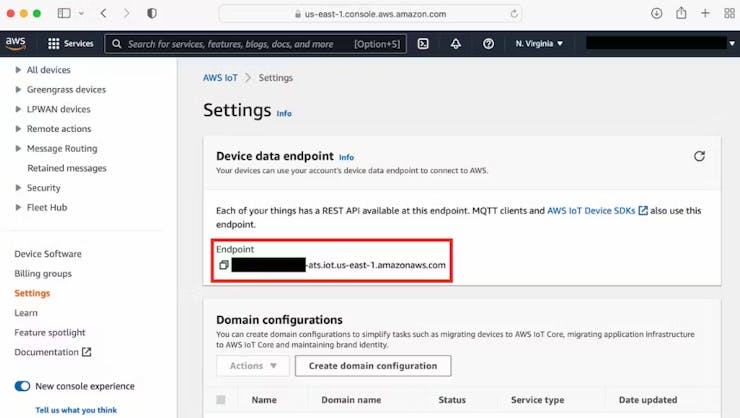
What to do: Save your AWS IoT Core endpoint. In AWS IoT Core, you can find it by going to Settings and locating the Endpoint value. You will substitute it into the MicroPython code.
Expected result: You have a Thing created, a policy attached, certificates and keys downloaded, and your AWS IoT Core endpoint saved for use in code.
Step 2 - Upload files to the Pico W and run the MicroPython MQTT client
Goal: Put the required cert/key files and MQTT library on the Pico W, then run a MicroPython script that subscribes to an MQTT topic and toggles the onboard LED.
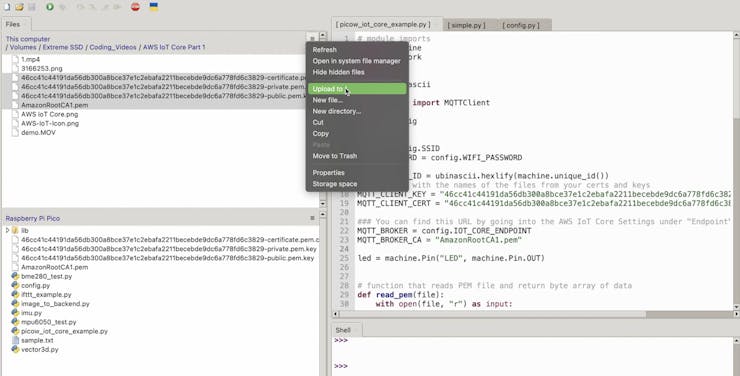
What to do: Open your MicroPython editor (the tutorial uses Thonny) and upload the four AWS files (device cert, keys, and Root CA) to the Pico W.
What to do: Download the MicroPython umqtt library code from this link and add it to your Pico W filesystem:
What to do: Copy the contents into a file in your lib folder. Create a simple.py file and paste the code into it.
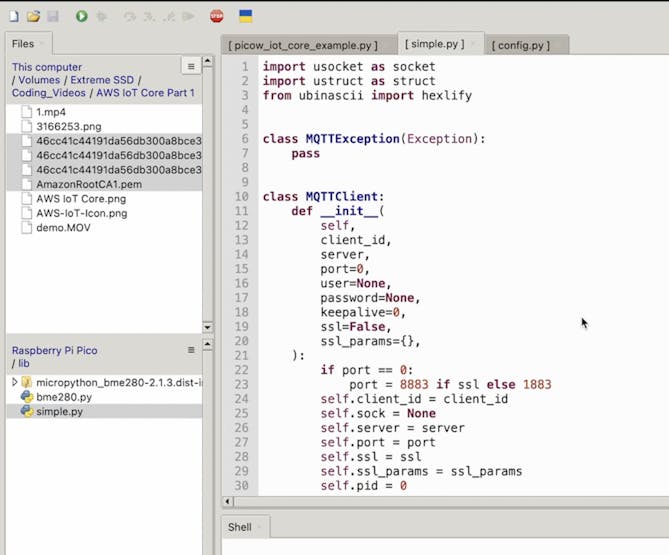
What to do: Create a new Python file in the Pico W root directory and modify the following code to match your Wi-Fi details, certificate filenames, and AWS IoT Core endpoint.
Code:
# module imports
import machine
import network
import ssl
import time
import ubinascii

from simple import MQTTClient

import config


SSID = config.SSID
WIFI_PASSWORD = config.WIFI_PASSWORD

MQTT_CLIENT_ID = ubinascii.hexlify(machine.unique_id())
### Replace with the names of the files from your certs and keys
MQTT_CLIENT_KEY = "46cc41c44191da56db300a8bce37e1c2ebafa2211becebde9dc6a778fd6c3829-private.pem.key"
MQTT_CLIENT_CERT = "46cc41c44191da56db300a8bce37e1c2ebafa2211becebde9dc6a778fd6c3829-certificate.pem.crt"

### You can find this URL by going into the AWS IoT Core Settings under "Endpoint"
MQTT_BROKER = config.IOT_CORE_ENDPOINT
MQTT_BROKER_CA = "AmazonRootCA1.pem"

led = machine.Pin("LED", machine.Pin.OUT)


# function that reads PEM file and return byte array of data
def read_pem(file):
    with open(file, "r") as input:
        text = input.read().strip()
        split_text = text.split("\n")
        base64_text = "".join(split_text[1:-1])
        return ubinascii.a2b_base64(base64_text)


def connect_internet():
    try:
        sta_if = network.WLAN(network.STA_IF)
        sta_if.active(True)
        sta_if.connect(SSID, WIFI_PASSWORD)

        for i in range(0, 10):
            if not sta_if.isconnected():
                time.sleep(1)
        print("Connected to Wi-Fi")
    except Exception as e:
        print('There was an issue connecting to WIFI')
        print(e)


# callback function to handle received MQTT messages
def on_mqtt_msg(topic, msg):
    # convert topic and message from bytes to string
    topic_str = topic.decode()
    msg_str = msg.decode()

    print(f"RX: {topic_str}\n\t{msg_str}")

    # process message
    if topic_str is 'LED':
        if msg_str is "on":
            led.on()
        elif msg_str is "off":
            led.off()
        elif msg_str is "toggle":
            led.toggle()


connect_internet()
# read the data in the private key, public certificate, and
# root CA files
key = read_pem(MQTT_CLIENT_KEY)
cert = read_pem(MQTT_CLIENT_CERT)
ca = read_pem(MQTT_BROKER_CA)

# create MQTT client that use TLS/SSL for a secure connection
mqtt_client = MQTTClient(
    MQTT_CLIENT_ID,
    MQTT_BROKER,
    keepalive=60,
    ssl=True,
    ssl_params={
        "key": key,
        "cert": cert,
        "server_hostname": MQTT_BROKER,
        "cert_reqs": ssl.CERT_REQUIRED,
        "cadata": ca,
    },
)

print(f"Connecting to MQTT broker")
# register callback to for MQTT messages, connect to broker and
# subscribe to LED topic
mqtt_client.set_callback(on_mqtt_msg)
mqtt_client.connect()
mqtt_client.subscribe('LED')


# main loop, continuously check for incoming MQTT messages
print("Connection established, awaiting messages")
while True:
    mqtt_client.check_msg()
The script connects to Wi-Fi, establishes an MQTT connection to AWS IoT Core using TLS/SSL, subscribes to the LED topic, and controls the onboard LED based on received messages.
Note that the tutorial uses a config file to hide sensitive information, but you can also substitute values directly in the script.
What to do: To test it, go back to the AWS console and use the MQTT test client to publish messages to the LED topic (for example: on, off, or toggle).
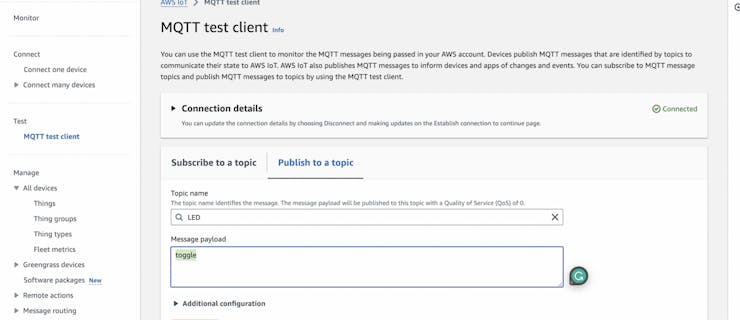
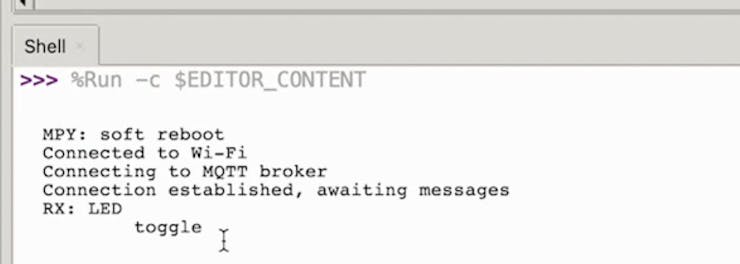
Expected result: You see incoming MQTT messages printed in your MicroPython editor shell, and the Pico W onboard LED turns on, turns off, or toggles based on what you publish to the LED topic.
Conclusion
You connected a Raspberry Pi Pico W to AWS IoT Core using MicroPython, TLS MQTT, and the umqtt library, then subscribed to an MQTT topic to toggle the onboard LED from the cloud.
If you enjoyed this video/tutorial be sure to subscribe to the channel and like the video. Even better consider donating in the BuyMeACoffee link above.
Want parts, tools, and project supplies for your next build? Grab what you need from ShillehTek.com. If you want help customizing this project or building an IoT solution for your product, check out our IoT consulting services.



.png?v=25000753014097803521791168436)

.png?v=68677308723310773341791168436)


