

Project Overview
Arduino Uno + KY-006 Passive Buzzer Module: In this guide, you will wire a KY-006 passive piezo buzzer to an Arduino Uno and generate simple tones by pulsing the signal pin in code.
- Time: 15 to 30 minutes
- Skill level: Beginner
- What you will build: A simple Arduino buzzer circuit that plays two different tones using the KY-006 passive buzzer module

Parts List
From ShillehTek
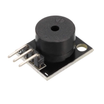
- KY-006 Passive Piezo Buzzer Module - passive buzzer used in this build
- ShillehTek 120pcs 10cm Multicolored Jumper Wire - for connecting the Arduino to the KY-006
- ShillehTek 400-Point Breadboard (optional) - for a cleaner solderless setup
External
- Arduino Uno or compatible board
- USB cable for Arduino
- Arduino IDE
Note: The KY-006 is a passive buzzer, so it does not make a fixed sound on its own. Your Arduino must rapidly pulse the signal pin to generate tones.
Step-by-Step Guide
Step 1 - Understand the KY-006 Pins
Goal: Identify the correct pins before wiring the module.
What to do: The KY-006 module has three pins. Use the S pin for signal and the - pin for ground. The middle pin is not used in this setup.
Expected result: You know which pins to connect and avoid wiring the module incorrectly.

Step 2 - Wire the KY-006 to the Arduino
Goal: Connect the passive buzzer module to the Arduino Uno.
What to do: Connect the S pin on the KY-006 to Arduino digital pin 8. Connect the - pin to GND. Leave the middle pin unconnected.
| KY-006 Pin | Arduino Uno |
|---|---|
| S | Pin 8 |
| Middle | Not used |
| - | GND |
Expected result: The KY-006 is connected with signal on pin 8 and ground to GND, with the middle pin left unconnected.
Step 3 - Upload the Arduino Code
Goal: Make the buzzer play two different tones.
What to do: Open the Arduino IDE, paste in the sketch below, and upload it to your Arduino board.
Code:
int buzzer = 8; // set the buzzer control digital IO pin

void setup() {
  pinMode(buzzer, OUTPUT); // set pin 8 as output
}

void loop() {
  for (int i = 0; i < 100; i++) {  // make a sound
    digitalWrite(buzzer, HIGH); // send high signal to buzzer
    delay(1); // delay 1ms
    digitalWrite(buzzer, LOW); // send low signal to buzzer
    delay(1);
  }

  delay(50);

  for (int j = 0; j < 100; j++) { // make another sound
    digitalWrite(buzzer, HIGH);
    delay(2); // delay 2ms
    digitalWrite(buzzer, LOW);
    delay(2);
  }

  delay(500);
}
Expected result: The buzzer plays one tone, pauses briefly, then plays a second lower tone before repeating.
Step 4 - Understand How the Tones Work
Goal: Learn why the buzzer produces different sounds.
What to do: Notice that the code turns the buzzer on and off repeatedly using different delays. Shorter delays create a faster pulse rate and a higher tone. Longer delays create a slower pulse rate and a lower tone.
Expected result: You understand that passive buzzers rely on pulsed signals rather than a built-in fixed tone.
Step 5 - Try Simple Modifications
Goal: Experiment with different sounds.
What to do: Change the delay(1) and delay(2) values to other small values and upload the code again. You can also change the loop counts to make each tone longer or shorter.
If you do not hear sound, double check that S is connected to Arduino pin 8, - is connected to GND, and that you selected the correct board and COM port in the Arduino IDE. Also confirm you are using a passive buzzer module like the KY-006.
Expected result: The buzzer changes pitch and timing based on your edits.
Conclusion
You now know how to wire the KY-006 Passive Buzzer Module to an Arduino Uno and generate simple tones by pulsing the signal pin in code. This beginner-friendly build demonstrates how timing changes the pitch on a passive piezo buzzer.
Want the exact parts used in this build? Grab the KY-006 buzzer, jumper wires, and breadboard from ShillehTek.com. If you want help customizing this project or building something for your product, check out our IoT consulting services.




.png?v=25000753014097803521791168436)

.png?v=68677308723310773341791168436)


