

Project Overview
WeMos TTgo ESP32 UNO D1 R32 and Arduino IDE setup: This guide shows how to configure the Arduino IDE for the WeMos TTgo ESP32 UNO D1 R32 (an Arduino Uno-shaped ESP32 board) so you can compile and upload sketches successfully. By the end, the ESP32 board package will be installed and your board and port will be selected and ready for development.
- Time: About 10 minutes
- Skill level: Beginner
- What you will build: A working Arduino IDE setup that compiles and uploads code to the WeMos TTgo ESP32 UNO D1 R32.

Parts List
From ShillehTek
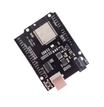
- ESP32 UNO D1 R32 Development Board with WiFi & Bluetooth, 4MB Flash, CH340G, Type-B USB - the ESP32 board used in this setup.
- USB 2.0 A-B Male Printer Cable 0.5m - connects the boards USB-B port to your computer.
External
- A computer running the Arduino IDE (Windows, macOS, or Linux)
- Internet connection - required to download the ESP32 board package
Note: The ESP32 UNO D1 R32 uses a CH340G USB-to-serial chip. If your computer does not recognize the board, install the CH340 driver before continuing.
Step-by-Step Guide
Step 1 - Open the Arduino IDE Preferences
Goal: Open the Preferences dialog so you can add the ESP32 Boards Manager URL.
What to do: Launch the Arduino IDE. From the top menu, click File Preferences. You can also press Ctrl + , (Windows/Linux) or Cmd + , (macOS).

Expected result: The Preferences window opens, showing settings including Additional boards manager URLs.
Step 2 - Add the ESP32 Boards Manager URL
Goal: Tell the Arduino IDE where to download the ESP32 board package.
What to do: In Preferences, find Additional boards manager URLs near the bottom and paste this URL:
https://dl.espressif.com/dl/package_esp32_index.jsonIf you already have other URLs, separate entries with a comma. Click OK to save.


Expected result: The URL is saved, and the Arduino IDE can now locate ESP32 boards in Boards Manager.
Step 3 - Install the ESP32 Board Package
Goal: Install the ESP32 board definitions so the IDE can compile for the ESP32 UNO D1 R32.
What to do: Click Tools Board Boards Manager. When the list loads, search for ESP32. Find the entry named esp32 by Espressif Systems and click Install. The download is around 200 MB, so it may take a while on slow connections.

Expected result: After installation, ESP32 boards appear under Tools Board.
Step 4 - Select the Board and Port
Goal: Select the correct ESP32 target and the serial port for your connected board.
What to do: Plug the ESP32 UNO D1 R32 into your computer with a USB-B cable. In the Arduino IDE, go to Tools Board, scroll to the ESP32 section, and select ESP32 Dev Module. Then go to Tools Port and choose the COM port (Windows) or /dev/cu.* entry (macOS/Linux) that appears when the board is connected.

Expected result: The selected board and port show in the Arduino IDE status area. You are ready to upload sketches (for example, the Blink example) to confirm everything works.
Conclusion
You have configured the Arduino IDE for the WeMos TTgo ESP32 UNO D1 R32 by adding the Espressif package URL, installing the ESP32 board package, and selecting the correct board and port. From here, you can upload WiFi, MQTT, BLE, or web server sketches, and you can also use many Arduino Uno shields thanks to the Uno-style footprint.
Want the exact parts used in this build? Grab them from ShillehTek.com. If you want help customizing this project or building something for your product, check out our IoT consulting services.
Image credit: Photos in this tutorial are credited to Instructables (original guide by MichaelV269).


.png?v=25000753014097803521791168436)

.png?v=68677308723310773341791168436)