

Project Overview
Arduino Uno + MQ135 air quality / gas sensor module: In this project, you wire the MQ135 to an Arduino Uno and print live sensor readings in the Serial Monitor.
The MQ135 is commonly used for general air quality experiments and can respond to gases such as ammonia, smoke, alcohol vapors, benzene, and other airborne compounds. In beginner projects, it is often used as a relative air quality sensor to detect changes in air conditions over time.
- Time: 15 to 30 minutes
- Skill level: Beginner
- What you will build: A working Arduino Uno + MQ135 setup that prints live sensor readings to the Serial Monitor
Parts List
From ShillehTek
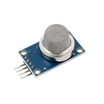
- MQ-135 Air Quality / Hazardous Gas Sensor Module - gas sensor module used to detect changes in air quality
- ShillehTek 120pcs 10cm Jumper Wires - for connecting the MQ135 module to the Arduino
External
- Arduino UNO - microcontroller board used to read the sensor
- USB-A to B cable - powers the Arduino and uploads code
- Breadboard (optional) - helpful for cleaner wiring
Note: Use discount code SHILLEHTEK for 30% off on ShillehTek. The MQ135 module usually includes both AO (analog output) and DO (digital output). This guide uses AO for live analog readings in the Serial Monitor.
Step-by-Step Guide
Step 1 - Physical setup (wire MQ135 to Arduino Uno)
Goal: Connect the MQ135 module to the Arduino Uno so the Arduino can read the analog sensor signal.
What to do: Wire the MQ135 pins to the Arduino Uno as shown below.
Recommended Arduino Uno wiring (analog read):
- MQ135 VCC → 5V on Arduino Uno
- MQ135 GND → GND on Arduino Uno
- MQ135 AO → A0 on Arduino Uno
- MQ135 DO → Not used in this tutorial (optional)
Pin meanings:
- VCC - power input for the sensor module
- GND - ground reference
- AO - analog output (variable voltage based on sensor response)
- DO - digital output (on/off threshold output set by onboard potentiometer)


Expected result: The MQ135 module powers on (typically with an LED indicator), and the Arduino Uno is ready to read the analog signal on A0.
Step 2 - Code setup in the Arduino IDE
Goal: Upload a simple sketch that reads the MQ135 analog output and prints the value to the Serial Monitor.
What to do: Open the Arduino IDE, select your board and port, paste the code below, and upload it.
#define MQ135_PIN A0

void setup() {
  Serial.begin(115200);
}

void loop() {
  int rawValue = analogRead(MQ135_PIN);

  Serial.print("MQ135 Analog Value: ");
  Serial.println(rawValue);

  delay(1000);
}- Go to Tools and select Arduino Uno as the board
- Select the correct Port
- Click Upload
Expected result: The sketch uploads successfully, and the Serial Monitor starts showing changing analog values.
Step 3 - Verify readings in the Serial Monitor
Goal: Confirm the Arduino is receiving live readings from the MQ135 sensor.
What to do: Open the Serial Monitor and set the baud rate to 115200.
Try breathing gently near the sensor (do not inhale fumes and do not test with hazardous gases indoors). You should see the reading change. The module may need a short warm-up period before readings become more stable.
Expected result: You see a live stream of numeric values that rise or fall as air conditions change.
Step 4 - Optional digital threshold output (DO)
Goal: Use the module's onboard comparator output for simple threshold detection.
What to do: If you want on/off detection instead of analog values, connect DO to a digital pin (for example D2) and adjust the onboard potentiometer to set the trigger threshold.
This is useful for quick alarm-style demos where you only need to know whether the air condition passed a set threshold.
Conclusion
You connected an MQ135 gas sensor module to an Arduino Uno and read live analog values in the Serial Monitor. This is a solid starting point for air quality experiments, alert systems, and environmental monitoring projects.
Want the exact sensor used in this project? Grab it from ShillehTek.com. If you want help turning this into a custom prototype, dashboard, or product demo, check out our IoT consulting services.


.png?v=25000753014097803521791168436)

.png?v=68677308723310773341791168436)


