

Project Overview
Arduino UNO + 2-Channel Relay Module: In this project, you will wire a 2-channel relay module to an Arduino UNO and control two separate devices (Relay 1 and Relay 2) using a simple Arduino sketch. This is a clean foundation for switching lights, fans, pumps, solenoids, or any basic on/off load while keeping your Arduino control signals simple and reliable.
- Time: 10 to 20 minutes
- Skill level: Beginner
- What you will build: An Arduino UNO controller that toggles Relay 1 and Relay 2 reliably, plus helper functions you can reuse for button control or automation logic later
Parts List
From ShillehTek
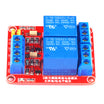
- ShillehTek 2-Channel 5V Relay Module - dual relay board for Arduino and Raspberry Pi
- Jumper wires - for connecting Arduino pins to the relay inputs
External
- Arduino UNO
- USB cable for Arduino UNO
- Recommended: separate 5V power supply for the relay module (best reliability, especially with real loads)
Note: Many 2-channel relay boards are powered from 5V and are often active LOW. Power the relay board from 5V and always share ground between the Arduino and relay module.
Step-by-Step Guide
Step 1 - Identify your relay pins and operating behavior
Goal: Confirm the control pins and avoid common first-power issues.
What to do: Find the control header labels on your 2-channel relay module. Most boards use the following:
- VCC: relay board power (5V)
- GND: ground
- IN1: control pin for Relay 1
- IN2: control pin for Relay 2
Many relay modules are active LOW, meaning the relay turns ON when IN is pulled LOW. If your relay behavior seems backwards later, that is normal for active LOW boards.
If your board also has JD-VCC, it is the opto-isolated style. This guide covers the common VCC/GND/IN1/IN2 style.
Expected result: You know which pins are VCC, GND, IN1, and IN2, and you understand that active LOW behavior is common.
Step 2 - Wire the Arduino UNO to the relay module (control side)
Goal: Make the exact connections needed for reliable relay triggering.
What to do: Wire the control header using these connections:
- Relay VCC to 5V (external 5V supply is best, or Arduino 5V for quick testing with no heavy loads)
- Relay GND to Arduino GND (shared ground)
- Relay IN1 to Arduino D7
- Relay IN2 to Arduino D6
Tip: If your relay clicks once at boot or acts weird, that can be a boot-state/default-pin effect. The code in the next step sets both relays OFF at startup.
Expected result: The relay module has 5V power, the Arduino and relay share ground, and IN1/IN2 are connected to D7/D6.
Step 3 - Upload the Arduino test code (2 relays)
Goal: Run a simple loop that cycles Relay 1 and Relay 2 so you can verify wiring fast.
What to do: In the Arduino IDE, upload the following sketch.
Code:
#define RELAY1_PIN 7  // D7 -> IN1
#define RELAY2_PIN 6  // D6 -> IN2

// Many relay modules are ACTIVE LOW:
// LOW = ON, HIGH = OFF
const bool ACTIVE_LOW = true;

void relayOn(int pin) {
  digitalWrite(pin, ACTIVE_LOW ? LOW : HIGH);
}

void relayOff(int pin) {
  digitalWrite(pin, ACTIVE_LOW ? HIGH : LOW);
}

void setup() {
  pinMode(RELAY1_PIN, OUTPUT);
  pinMode(RELAY2_PIN, OUTPUT);

  // Safe startup: both OFF
  relayOff(RELAY1_PIN);
  relayOff(RELAY2_PIN);
}

void loop() {
  // Relay 1 ON, Relay 2 OFF
  relayOn(RELAY1_PIN);
  relayOff(RELAY2_PIN);
  delay(1000);

  // Relay 1 OFF, Relay 2 ON
  relayOff(RELAY1_PIN);
  relayOn(RELAY2_PIN);
  delay(1000);

  // Both ON
  relayOn(RELAY1_PIN);
  relayOn(RELAY2_PIN);
  delay(1000);

  // Both OFF
  relayOff(RELAY1_PIN);
  relayOff(RELAY2_PIN);
  delay(1000);
}
If your relay turns ON when you expect OFF, flip the logic by changing ACTIVE_LOW to false.
Expected result: Relay 1 and Relay 2 alternate on a 1-second pattern (you should hear clicks and/or see CH1/CH2 LEDs change).
Step 4 - Verify operation with a quick checklist
Goal: Confirm both channels work and your power setup is stable.
What to do: Use this checklist while the code runs:
- You should hear a click or see LED changes on CH1 and CH2.
- If nothing clicks: confirm relay VCC is 5V and GND is shared.
- If only one channel works: swap IN1 and IN2 wires to see if the problem follows the wire or stays on the same relay channel.
- If the Arduino resets: use a separate 5V supply for the relay board and keep wiring short/clean (shared ground still required).
Expected result: Both relays switch reliably without random resets.
Step 5 - Connect your load using COM, NO, and NC (safety first)
Goal: Wire your device to the relay terminals correctly and safely.
What to do: Each relay channel has three screw terminals:
- COM (common)
- NO (normally open): OFF by default, closes when the relay turns ON
- NC (normally closed): ON by default, opens when the relay turns ON
Most projects use NO so the device is OFF unless your code turns it on.
Relays can switch higher voltage loads (including AC mains), but mains wiring can be dangerous. If you are not experienced, stick to low-voltage DC loads for testing. For any AC project, use a proper enclosure, strain relief, correct wire gauge, and a fuse where appropriate.
Expected result: Your load is connected to COM/NO (or COM/NC if needed) and switches when the relay toggles.
Conclusion
You now have an Arduino UNO controlling a 2-channel relay module, including a simple test loop and an active LOW option for common relay boards. With the same wiring and helper functions, you can later swap the loop for button control, timers, or automation logic.
Want the exact parts used in this build? Get the ShillehTek 2-Channel 5V Relay Module and more at ShillehTek.com. If you want help customizing this project or building something for your product, check out our IoT consulting services.



.png?v=25000753014097803521791168436)

.png?v=68677308723310773341791168436)


