

Project Overview
Arduino + 1.8-inch ST7735 TFT (128×160): drive a full-color SPI display. This guide shows how to wire an ST7735 TFT module to an Arduino (UNO or Nano), install the Adafruit libraries, run the graphictest example, and then build a simple custom screen with text and a counter.
- Time: About 25 minutes
- Skill level: Beginner / Intermediate
- What you will build: A 1.8-inch TFT running the Adafruit graphictest demo, then a small custom screen with text and a counter.

Parts List
From ShillehTek
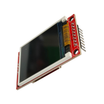
- 1.8-inch TFT LCD Display 128×160 (Pre-Soldered Both Sides) - the ST7735 SPI color TFT module used in this build
- Arduino Nano V3.0 Pre-Soldered CH340G ATmega328P - the Arduino board driving the display (UNO or Nano wiring is the same)
- 820 PCS Metal Film Resistor Kit - you need five 1 kΩ resistors for series protection on control lines
- 830-Point Solderless Breadboard - for quick wiring and resistor placement
- 120 PCS 20 cm Dupont Jumper Wires - to connect the Arduino pins to the TFT module
External
- USB cable + computer running the Arduino IDE
Note: The 1.8-inch ST7735 module is officially 3.3 V logic. On a 5 V Arduino, drop each control line through a 1 kΩ resistor in series so you do not blow the controller inputs over time. Some boards have an on-board level shifter and tolerate 5 V directly, but the resistors are cheap insurance regardless.
Step-by-Step Guide
Step 1 - Identify the Pins
Goal: Make sure you are looking at the right side of the board.
What to do: The breakout has two pin rows. The 8-pin row is for the TFT display itself. The 16-pin row drives the on-board SD card slot, which we will ignore. From the TFT side, you will see these pin labels: RST, CS, D/C, DIN (MOSI), SCLK, VCC, BL, GND.
- RST - reset pin; can be tied to Arduino reset or controlled by software
- CS - SPI chip select
- D/C - data/command select for the ST7735
- DIN (MOSI) - SPI master-out-slave-in
- SCLK - SPI clock
- VCC - 5 V (the breakout has a regulator and reverse-polarity protection)
- BL - backlight; tie to 5 V (or PWM for dimming)
- GND - ground

Expected result: You can find each labelled pin on the back of the module.
Step 2 - Wire the Display
Goal: Connect 8 lines, 5 of them through 1 kΩ resistors.
What to do: Use this pin map (Arduino UNO or Nano are identical):
- RST → 1 kΩ → Arduino D7
- CS → 1 kΩ → Arduino D9
- D/C → 1 kΩ → Arduino D8
- DIN (MOSI) → 1 kΩ → Arduino D11
- SCLK → 1 kΩ → Arduino D13
- VCC → Arduino 5V
- BL → Arduino 5V (or any PWM pin if you want dimmable backlight)
- GND → Arduino GND


Without the resistors the screen often shows streaky noise and a bright glow at the top, which are classic symptoms of overdriving the controller. With them in place the image is clean.
Expected result: Screen powers up white (or noisy) until the sketch initialises it.
Step 3 - Install the Adafruit Libraries
Goal: Get the GFX rendering primitives plus the ST7735-specific driver.
What to do: In Arduino IDE Library Manager, install:
- Adafruit GFX Library - the rendering primitives (lines, text, fills, bitmaps)
- Adafruit ST7735 and ST7789 Library - the controller-specific driver that calls into GFX

Expected result: Examples like graphictest show up under File → Examples → Adafruit ST7735 and ST7789.
Step 4 - Run the graphictest Demo
Goal: Confirm the wiring with the canonical demo.
What to do: Open File → Examples → Adafruit ST7735 and ST7789 → graphictest. Adjust the pin defines at the top of the sketch to match your wiring (D9 for CS, D8 for DC, D7 for RST). Make sure the initialiser line uses the right tab colour for your board:
tft.initR(INITR_BLACKTAB);   // most red-PCB 1.8" modules
// tft.initR(INITR_GREENTAB);   // try this if reds and blues swap
// tft.initR(INITR_REDTAB);     // last resort, older boards
Upload. The demo cycles through colour fills, lines, circles, rectangles, and a Hello-World text test.
Expected result: Smooth animation across the full 128×160 screen with crisp colours.
Step 5 - Your Own Mini Dashboard
Goal: Replace the demo with something you wrote.
What to do:
#include <Adafruit_GFX.h>
#include <Adafruit_ST7735.h>
#include <SPI.h>

#define TFT_CS  9
#define TFT_RST 7
#define TFT_DC  8

Adafruit_ST7735 tft = Adafruit_ST7735(TFT_CS, TFT_DC, TFT_RST);

void setup() {
  tft.initR(INITR_BLACKTAB);
  tft.fillScreen(ST77XX_BLACK);
  tft.setCursor(6, 8);
  tft.setTextColor(ST77XX_CYAN);
  tft.setTextSize(2);
  tft.print("ShillehTek");

  tft.setCursor(6, 36);
  tft.setTextColor(ST77XX_WHITE);
  tft.setTextSize(1);
  tft.print("1.8\" ST7735 demo");
}

unsigned long counter = 0;

void loop() {
  tft.fillRect(6, 60, 120, 16, ST77XX_BLACK);
  tft.setCursor(6, 60);
  tft.setTextColor(ST77XX_YELLOW);
  tft.setTextSize(2);
  tft.print(counter++);
  delay(500);
}
If your colours look wrong (red and blue swapped), change INITR_BLACKTAB to INITR_GREENTAB and re-upload.
Expected result: “ShillehTek” in cyan, sub-line in white, and a yellow counter ticking up twice a second.
Step 6 - Where to Take It Next
Goal: Expand the same wiring and libraries into a real UI for your project.
- Plot live sensor data (DS18B20, BME280, MPU6050) by drawing one pixel per loop and wrapping at the right edge
- Display 128×160 RGB565 bitmaps via the GFX
drawRGBBitmap()call - convert PNGs with an image converter - Use the on-board SD card slot to load images at runtime (use the
SDlibrary; the 16-pin row exposes the SPI signals) - Wrap it in a small enclosure and you have a clip-on display for any sensor project
Expected result: You have a working baseline sketch and clear next steps to turn the TFT into a dashboard.
Conclusion
The 1.8-inch ST7735 TFT is an inexpensive way to add a full-color 128×160 SPI display to an Arduino project while keeping the familiar Adafruit GFX API. After wiring with simple series resistors, you can run the graphictest example and then build your own screens quickly.
Want the exact parts used in this build? Grab them from ShillehTek.com. If you want help customizing this project or building something for your product, check out our IoT consulting services.


.png?v=25000753014097803521791168436)

.png?v=68677308723310773341791168436)


