

Project Overview
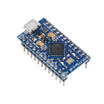
Arduino Pro Micro + push-buttons USB HID macro pad: In this tutorial, you wire four push-buttons to an Arduino Pro Micro (ATmega32U4) and make it behave like a real USB keyboard that sends key presses to your computer.
Unlike the Uno or Nano, the Pro Micro has native USB support, so your computer recognizes it as a keyboard, mouse, or game controller without extra drivers. Here, we use it to send media-style shortcuts using keys you can map in your OS.
- Time: About 30 minutes
- Skill level: Beginner
- What you will build: A 4-button macro pad that sends real keyboard shortcuts to your PC.

Parts List
From ShillehTek
- Arduino Pro Micro (ATmega32U4, 5 V/16 MHz) - the ATmega32U4 provides native USB HID support.
- 120 PCS Dupont Jumper Wires - for quick wiring from the Pro Micro to buttons and ground.
External
- 4 push-buttons (any 6 mm tactile switches will do) - one per macro input.
Note: This build uses the Pro Micro internal pull-up resistors, so each button connects directly from a digital pin to GND (no external resistors needed).
Step-by-Step Guide
Step 1 - Why the Pro Micro works for USB HID
Goal: Understand why this board can act like a keyboard.
What to do: The ATmega328P on a Nano or Uno has no native USB; it relies on a separate USB-to-serial chip (like CH340 or FT232) that only supports serial communication. The ATmega32U4 on the Pro Micro includes native USB, so it can present itself as a keyboard, mouse, MIDI device, or joystick.
The Arduino Keyboard and Mouse libraries work directly on ATmega32U4 boards.

Expected result: You know why other Arduinos (like Uno/Nano) cannot behave like a native USB keyboard using Keyboard.h.
Step 2 - Wire four buttons to the Pro Micro
Goal: Connect each button between a digital pin and ground.
What to do: Wire each push-button so that pressing it shorts the pin to GND:
- Button 1: D2 to GND
- Button 2: D3 to GND
- Button 3: D4 to GND
- Button 4: D5 to GND


Expected result: A breadboard with four buttons, each one pulling its pin to ground when pressed, with no external resistors.
Step 3 - Select the correct board in the Arduino IDE
Goal: Make sure the IDE targets an ATmega32U4 USB board.
What to do: In the Arduino IDE, choose Tools → Board → Arduino AVR Boards → Arduino Leonardo. For this project, the Pro Micro is electrically equivalent to the Leonardo, and the Leonardo entry is included by default.
You can also install SparkFun’s Pro Micro entry through Boards Manager if you want the exact label.
Expected result: Plugging in the Pro Micro shows a new COM/tty port within a couple of seconds.
Step 4 - Upload the sketch (four key presses)
Goal: Send real keyboard events on each button press.
What to do: Paste and upload the code below. It enables internal pull-ups on pins 2 to 5, then sends one key press per button (F13 to F16 by default).
Code:
#include <Keyboard.h>

const uint8_t PINS[] = {2, 3, 4, 5};
const uint8_t KEYS[] = {
  KEY_F13,        // map to anything in your OS
  KEY_F14,
  KEY_F15,
  KEY_F16
};
bool prev[4] = {HIGH, HIGH, HIGH, HIGH};

void setup() {
  for (uint8_t p : PINS) pinMode(p, INPUT_PULLUP);
  Keyboard.begin();
}

void loop() {
  for (uint8_t i = 0; i < 4; i++) {
    bool now = digitalRead(PINS[i]);
    if (prev[i] == HIGH && now == LOW) {
      Keyboard.press(KEYS[i]);
      delay(15);          // crude debounce
      Keyboard.release(KEYS[i]);
    }
    prev[i] = now;
  }
}
After uploading, open any text editor. Pressing the buttons should produce F13 through F16. Map those keys to actions (OBS scenes, mute toggles, media controls, etc.) using your OS shortcut settings.
Expected result: Each button click sends a real, OS-recognized key event.
Step 5 - Bootloader recovery (if a sketch prevents enumeration)
Goal: Recover the Pro Micro if a bad sketch makes it disappear from your computer.
What to do: If you upload a sketch that crashes too fast for the bootloader to enumerate (for example, using Keyboard.print() in loop() with no debounce), the Pro Micro may stop appearing as a serial port. To recover, short-press the RST pin to GND twice within 750 ms. The bootloader stays active for about 8 seconds, during which you can click Upload on a known-good sketch.
Expected result: The bootloader enumerates long enough to re-upload a working sketch.
Step 6 - Where to take it next
Goal: Identify safe, practical upgrades you can add later.
- Add an OLED to show the active layer or current macro
- Use
MousealongsideKeyboardfor jiggle/scroll macros - Use a rotary encoder plus
ConsumerHID for volume control - Build a fully custom QMK firmware once you outgrow stock
Keyboard.h
Expected result: You have a clear path for expanding the macro pad without changing the core wiring.
Conclusion
You turned an Arduino Pro Micro into a native USB HID device by wiring four push-buttons and sending real keyboard key codes to your computer. Once you have reliable key events, you can map them to shortcuts for streaming, productivity, or media control.
Want the exact parts used in this build? Grab them from ShillehTek.com. If you want help customizing this project or building something for your product, check out our IoT consulting services.


.png?v=25000753014097803521791168436)

.png?v=68677308723310773341791168436)


