

Project Overview
Arduino Nano + TTP223B capacitive touch module: In this build you will use a hidden touch pad to toggle a relay, creating a no-hole "button" that can switch a real lamp through acrylic, wood, or plastic.
Buttons get sticky, need holes drilled in your enclosure, and wear out after repeated presses. Capacitive touch sensors solve all three. The TTP223B is a low-cost chip that detects a finger touching a copper pad through non-conductive material like acrylic, glass, wood, and fabric. Installed inside a device, your "button" becomes an unmarked spot on the surface.

- Time: 20 to 40 minutes
- Skill level: Beginner
- What you will build: A hidden capacitive touch switch that toggles a relay-controlled light.
Parts List
From ShillehTek
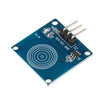
- TTP223B Pre-Soldered Capacitive Touch Switch Module - detects touch through non-conductive materials.
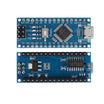
- Arduino Nano V3.0 - reads the touch signal and toggles the output.
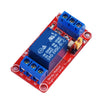
- 1-Channel 5V Relay Module - switches a real lamp or other load (as used in this guide).
- DuPont Jumper Wires - quick, reliable breadboard and module wiring.
External
- A piece of acrylic, wood, or thin plastic for the touch surface.
- A lamp (AC mains or 12V LED).
- Optional: a piece of copper tape if you want a larger touch area.
Note: The TTP223B module works on 5V and typically also on 3.3V. If you are switching AC mains with a relay, use proper electrical safety practices and an enclosed, rated relay solution.
Step-by-Step Guide
Step 1 - Understand how the TTP223B detects touch
Goal: Know what the sensor is doing so you can mount it correctly and avoid false triggers.
What to do: The TTP223B is a single-channel capacitive sensor. Its IC measures the self-capacitance of an attached copper pad. When your finger approaches (adding capacitance to ground through your body), the IC detects the change and pulls the OUT pin HIGH.
The chip auto-calibrates at power-up. Whatever capacitance the pad has at the moment you apply power becomes the "no touch" baseline.
Expected result: You understand why powering up after mounting is important, and why large environmental changes can affect readings.
Step 2 - Wire the TTP223B and relay to the Arduino Nano
Goal: Connect the touch output to a digital input and connect a relay input to a digital output.
What to do: Make the following connections.

TTP223B    Arduino Nano
VCC    ->  5V (works on 3.3V too)
GND    ->  GND
SIG    ->  D2

Relay      Arduino Nano
VCC    ->  5V
GND    ->  GND
IN     ->  D7 (active LOW)
COM & NO -> lamp circuit
Expected result: The Arduino can read touch on D2, and it can control the relay module from D7.
Step 3 - Upload the touch-to-toggle relay sketch
Goal: Toggle the relay on each new touch.
What to do: Upload the following sketch to your Arduino Nano. This code detects a rising edge on the touch signal and flips a stored state. It also includes a simple delay for debounce.
Code:
const int TOUCH = 2;
const int RELAY = 7;
bool state = false;
bool last = LOW;

void setup() {
  pinMode(TOUCH, INPUT);
  pinMode(RELAY, OUTPUT);
  digitalWrite(RELAY, HIGH);   // active LOW: HIGH = off
}

void loop() {
  bool now = digitalRead(TOUCH);
  if (now == HIGH && last == LOW) {   // rising edge = new touch
    state = !state;
    digitalWrite(RELAY, state ? LOW : HIGH);
    delay(200);   // simple debounce
  }
  last = now;
}
Expected result: Each touch toggles the relay output (on then off) rather than only turning on while you touch.
Step 4 - Choose the TTP223B jumper mode (A/B pads)
Goal: Set the module behavior (momentary vs toggle, active HIGH vs active LOW) to match your project.
What to do: Check the two solder jumpers on the back of the module labeled A and B. Bridging them changes the mode:
- Neither bridged (default): Momentary output, HIGH only while touching.
- A bridged: Active LOW momentary.
- B bridged: Toggle mode, each touch flips the output (can reduce the need for Arduino-side debounce).
Expected result: You can select a signal style that best matches your wiring and code approach.
Step 5 - Mount the sensor behind the surface (touch through material)
Goal: Make the touch control invisible from the outside.
What to do: Stick the module to the back of the acrylic/wood/plastic with double-sided tape, leaving the rest of the board inside the enclosure. From the outside, the touch location is just an unmarked spot on the surface.
The chip works through up to about 3 mm of acrylic, wood, or glass. To extend the sense area, solder a small copper foil patch (about 1 cm² works) to the touch pad on the module.
Expected result: Touching the surface in the sensor area toggles the lamp without any exposed button or drilled hole.
Step 6 - Reduce false triggers (power, moisture, and relay noise)
Goal: Keep the touch input stable in real enclosures and around switching loads.
What to do: Apply the following practices if your build shows phantom touches or inconsistent behavior:
- Noisy power supply: Capacitive sensors can react to switching supply ripple. If you see phantom triggers, add a 10 µF capacitor across VCC and GND.
- Wet hands or water on the surface: Moisture can change the baseline. The chip re-calibrates on power-up, but a stable wet drip can look like a continuous touch.
- EMI from a relay coil: If the relay clicking causes a false touch, add a snubber across the relay coil and route the touch wire away from the relay wiring.
Expected result: Touch input remains consistent when the relay switches and during normal environmental changes.
Step 7 - Apply the pattern to other projects
Goal: Reuse the same hidden-touch approach in other builds.
What to do: Use the same wiring and mounting idea for hidden touch switches inside furniture (under a desk lip or coaster), capacitive volume buttons on a Bluetooth speaker, a no-button kitchen timer (touch the side of the case), wake-up inputs for battery-powered projects, and interactive art installations.
Expected result: You have a repeatable design pattern for premium-feeling touch controls without mechanical buttons.
Conclusion
The Arduino Nano and TTP223B capacitive touch module make it easy to add hidden touch controls that toggle a relay and switch a lamp through acrylic, wood, or plastic. The result is a cleaner enclosure with no drilled holes and no mechanical wear.
Want the exact parts used in this build? Grab them from ShillehTek.com. If you want help customizing this project or building something for your product, check out our IoT consulting services.
Credit: This guide was inspired by "Control Home Lights With TTP223 Touch Sensor & Arduino" on Instructables. Images credited to the original author.



.png?v=25000753014097803521791168436)

.png?v=68677308723310773341791168436)


