

Video Tutorial (Optional)
Watch first if you want the full build in real time.
Project Overview
Build a Real-Time BMP180 Dashboard: Use an Arduino with a BMP180 pressure and temperature sensor to send live readings to Node-RED so you can view a real-time temperature and pressure dashboard in your browser.
- Time: 20 to 45 minutes
- Skill level: Beginner to Intermediate
- What you will build: A live web dashboard showing BMP180 temperature and pressure updates from an Arduino using USB serial and Node-RED

Parts List
From ShillehTek
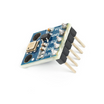
- ShillehTek Pre-Soldered BMP180 sensor - breakout used to read temperature and pressure
- Jumper wires - for wiring the sensor to the Arduino
External
- Arduino Uno, Nano, or similar - runs the BMP180 reading sketch
- Mac or PC with USB port - runs Node-RED and connects to the Arduino
- Node.js (LTS) - required to install and run Node-RED
Note: The BMP180 breakout runs at 3.3V logic. Use the Arduino 3.3V pin for VCC or ensure proper level shifting on 5V boards. I2C pins vary by Arduino variant (A4/A5 on classic Uno).
Step-by-Step Guide
Step 1 - Install Node-RED
Goal: Install and start Node-RED locally so you can build the dashboard.
What to do: Install Node.js (LTS) from nodejs.org, then install Node-RED globally and start it.
Code:
npm install -g --unsafe-perm node-redCode:
node-redExpected result: Node-RED runs and the editor is available at http://localhost:1880.
Step 2 - Install Dashboard and Serial Nodes
Goal: Add the UI and serial support to Node-RED.
What to do: In the Node-RED editor, open the menu -> Manage palette -> Install, then install the following packages:
- node-red-dashboard
- node-red-node-serialport
Expected result: You will have ui_gauge, ui_chart, and serial nodes available in the palette to build the dashboard and read the Arduino.
Step 3 - Connect BMP180 to Arduino
Goal: Wire the BMP180 breakout to the Arduino over I2C so the sketch can read sensor data.
What to do: Wire the BMP180 as follows:
- VCC -> 3.3V
- GND -> GND
- SDA -> A4
- SCL -> A5
Expected result: The BMP180 is powered and connected to the Arduino I2C bus and ready for the sketch to initialize.
Step 4 - Upload Arduino Code
Goal: Run a sketch that reads temperature and pressure from the BMP180 and prints JSON to serial.
What to do: In the Arduino IDE install these libraries: Adafruit BMP085 Unified and Adafruit Unified Sensor. Then upload the sketch below.
Code:
#include <Wire.h>
#include <Adafruit_BMP085.h>

Adafruit_BMP085 bmp;

void setup() {
  Serial.begin(9600);
  if (!bmp.begin()) {
    Serial.println("Sensor not found!");
    while (1);
  }
}

void loop() {
  float temp = bmp.readTemperature();
  float pressure = bmp.readPressure() / 100.0;

  Serial.print("{\"temp\":");
  Serial.print(temp);
  Serial.print(",\"pressure\":");
  Serial.print(pressure);
  Serial.println("}");

  delay(2000);
}
Expected result: The Arduino prints JSON lines like {"temp":24.3,"pressure":1013.2} over serial at 9600 baud.
Step 5 - Build the Node-RED Flow
Goal: Read the serial JSON from the Arduino, parse it, and display temperature and pressure on the dashboard.
What to do: Create a flow with a serial in node, a json node, a ui_gauge for temperature, and a ui_chart for pressure. Add a function node to extract pressure for the chart.
Function node code:
return { payload: msg.payload.pressure };Wiring in Node-RED:
[serial in] → [json] → [ui_gauge]
                        → [function] → [ui_chart]
Configuration notes: Set the serial in node to 9600 and select the correct COM/tty device for your Arduino. For the gauge use value {{msg.payload.temp}}.

Expected result: Parsed messages update the dashboard gauge and chart with live sensor values.
Step 6 - Deploy and View the Dashboard
Goal: Make the dashboard live and confirm data is flowing.
What to do: Click Deploy in Node-RED, then open http://localhost:1880/ui in your browser.
Expected result: You should see a live temperature gauge and a real-time pressure chart updating with readings from the BMP180.
Step 7 - Export and Share Your Flow
Goal: Save the flow so you can restore or share it later.
What to do: Select all nodes in the editor, right-click → Export → Clipboard, then save the JSON.
Expected result: You can re-import the flow or share it with others for quick replication.
Conclusion
You built a real-time temperature and pressure dashboard using an Arduino and a BMP180 sensor with Node-RED visualizations. The Arduino publishes JSON over serial and Node-RED parses and displays the data in gauges and charts.
Want the exact parts used in this build? Grab them from ShillehTek.com. If you want help customizing this project or building a production dashboard, hire us on UpWork: UpWork profile.




.png?v=25000753014097803521791168436)

.png?v=68677308723310773341791168436)


