Overview
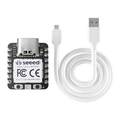
The Seeed Studio XIAO RP2040 is a thumbnail-sized development board based on the Raspberry Pi RP2040 — a dual-core ARM Cortex-M0+ chip running up to 133 MHz. With 2 MB of flash, 264 KB of SRAM, programmable I/O (PIO), and the same form factor as every other XIAO (21 × 17.5 mm), it's the smallest official RP2040 board you can find that still gives you 11 GPIOs and a full USB-C connector.
Unlike the larger Raspberry Pi Pico, the XIAO RP2040 has castellated edge connectors for surface-mount soldering, native USB-C, and an addressable RGB LED — making it perfect for wearables, badge electronics, and tight spaces where a Pico simply doesn't fit.
Program it with the Arduino IDE (Earle Philhower's RP2040 core), CircuitPython, MicroPython, or the official Pico C/C++ SDK. PIO is the killer feature: it gives you two state machines you can program to bit-bang protocols (custom DSI, NeoPixel, WS2812, even VGA) that an MCU this size shouldn't be able to do.
At a Glance
Specifications
| Parameter | Value |
| Microcontroller | Raspberry Pi RP2040 (dual-core ARM Cortex-M0+) |
| Maximum Clock | 133 MHz (overclockable to 250+ MHz) |
| Flash Memory | 2 MB (external QSPI) |
| SRAM | 264 KB |
| USB | USB-C 1.1, native USB device + host |
| GPIO | 11 pins (D0-D10) |
| Analog Input | 4 channels (A0-A3) on 12-bit ADC |
| I2C | SDA=D4 (GP6), SCL=D5 (GP7) |
| SPI | SCK=D8 (GP2), MISO=D9 (GP4), MOSI=D10 (GP3) |
| UART | TX=D6 (GP0), RX=D7 (GP1) |
| PIO | 2 PIO blocks, 4 state machines each |
| On-board LEDs | User RGB LED (WS2812 on D2/GP12) + power LED |
| Buttons | RESET (R) and BOOT (B) |
| Power Input | 5V via USB-C, or 3.7V LiPo via solder pads |
| Dimensions | 21 × 17.5 mm |
Pinout Diagram

Wiring Guide
Power and Programming
USB-C provides 5V power and acts as a native USB device for programming. To enter the bootloader for first-time flashing, hold the BOOT button while plugging in the USB cable — the board appears as a USB drive named RPI-RP2 onto which you can drag a UF2 firmware file.
| Pin | Function | Notes |
|---|---|---|
| USB-C | 5V power + UF2 flashing | Hold BOOT while plugging in to enter bootloader |
| 5V | +5V input/output | Pass-through from USB-C |
| 3V3 | 3.3V regulator output | ~600 mA available for sensors |
| GND | Ground | |
| BAT pads | 3.7V LiPo input | On back of PCB |
LEDs & Button
The XIAO RP2040 has a single addressable RGB LED (WS2812) on D2/GP12, plus separate red/green/blue dim LEDs and a power LED. Add an external button on any GPIO with internal pull-up.
| Component | XIAO Pin | Details |
|---|---|---|
| RGB LED (WS2812) | D2 / GP12 (built-in) | Use NeoPixel or PIO to drive |
| NeoPixel power enable | NEOPIXEL_POWER (GP11) | Set HIGH to enable LED power |
| External LED + 220Ω → GND | D0 (GP26) | Anode to GPIO, cathode to GND through resistor |
| Button → GND | D1 (GP27) | Use INPUT_PULLUP |
I2C Devices
I2C uses D4 (SDA, GP6) and D5 (SCL, GP7).
| Sensor Pin | XIAO RP2040 Pin |
|---|---|
| VCC | 3V3 |
| GND | GND |
| SDA | D4 (GP6) |
| SCL | D5 (GP7) |
SPI Devices
SPI is on D8 (SCK, GP2), D9 (MISO, GP4), D10 (MOSI, GP3). Use any free GPIO for chip-select; D7 (CSn, GP1) is the conventional pick.
| SPI Signal | XIAO Pin | RP2040 Pin |
|---|---|---|
| SCK | D8 | GP2 |
| MISO | D9 | GP4 |
| MOSI | D10 | GP3 |
| CS | D7 | GP1 (or any free GPIO) |
UART / Serial
UART0 is on D6 (TX, GP0) and D7 (RX, GP1). Use the USB-C port as default Serial for the Arduino IDE Serial Monitor.
| UART Signal | XIAO Pin | RP2040 Pin |
|---|---|---|
| TX (Serial1) | D6 | GP0 |
| RX (Serial1) | D7 | GP1 |
| Serial Monitor | USB-C | Native USB CDC |
Code Examples
Arduino — Built-in NeoPixel Cycle
// XIAO RP2040 - Cycle the on-board WS2812 RGB LED
// Library: Adafruit NeoPixel (Library Manager)
// Board: "Seeed XIAO RP2040" (Arduino-Pico core by Earle Philhower)

#include <Adafruit_NeoPixel.h>

#define NEOPIXEL_PIN  12     // D2 / GP12
#define NEOPIXEL_PWR  11     // GP11 enables NeoPixel power

Adafruit_NeoPixel pixel(1, NEOPIXEL_PIN, NEO_GRB + NEO_KHZ800);

void setup() {
  pinMode(NEOPIXEL_PWR, OUTPUT);
  digitalWrite(NEOPIXEL_PWR, HIGH);   // Enable LED power
  pixel.begin();
  pixel.setBrightness(40);
}

void loop() {
  pixel.setPixelColor(0, pixel.Color(255, 0, 0));   pixel.show(); delay(400);
  pixel.setPixelColor(0, pixel.Color(0, 255, 0));   pixel.show(); delay(400);
  pixel.setPixelColor(0, pixel.Color(0, 0, 255));   pixel.show(); delay(400);
}
Arduino — Read Analog Sensor on A0
// XIAO RP2040 - Read 12-bit analog on A0 (GP26)

void setup() {
  Serial.begin(115200);
  analogReadResolution(12);
}

void loop() {
  int raw = analogRead(A0);
  float volts = raw * (3.3f / 4095.0f);
  Serial.print(raw);
  Serial.print(" -> ");
  Serial.print(volts, 3);
  Serial.println(" V");
  delay(500);
}
CircuitPython — Hello World
# XIAO RP2040 - CircuitPython Hello World
# Flash the official Adafruit CircuitPython UF2 for "Seeed XIAO RP2040",
# then drop this as code.py on the CIRCUITPY drive.

import board
import neopixel
import time

pixel = neopixel.NeoPixel(board.NEOPIXEL, 1, brightness=0.2)

while True:
    pixel[0] = (255, 0, 0)
    time.sleep(0.4)
    pixel[0] = (0, 255, 0)
    time.sleep(0.4)
    pixel[0] = (0, 0, 255)
    time.sleep(0.4)
MicroPython — Hello World
# XIAO RP2040 - MicroPython Blink
# Flash the official MicroPython RP2040 UF2 firmware first.

from machine import Pin
import time

led = Pin(25, Pin.OUT)   # green LED on GP25 (also serves as user LED)

while True:
    led.toggle()
    time.sleep(0.5)