Overview
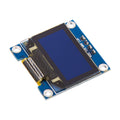
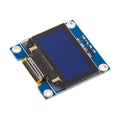
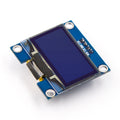
The ShillehTek 1.3" Blue OLED Display Module is a 128×64 pixel monochrome screen driven by the SH1106 controller over I2C. The larger 1.3" panel gives you noticeably more room for text, UI elements, and graphics than the 0.96" version while keeping the same simple 4-wire I2C hookup — ideal for dashboards, menus, and status screens in Arduino, ESP32, Raspberry Pi, and Pico projects.
The SH1106 controller is a close cousin of the SSD1306 but uses a 132×64 internal frame buffer (with a 2-pixel horizontal offset to the visible 128×64 area). Any library that supports SH1106 explicitly will handle this offset for you. The onboard regulator accepts 3.3V or 5V, so this module works out-of-the-box with both 3.3V and 5V microcontrollers.
At a Glance
Specifications
| Parameter | Value |
| Display Type | Passive Matrix OLED (PMOLED) |
| Pixel Color | Blue on black |
| Resolution | 128 × 64 pixels |
| Active Area | 29.42 × 14.7 mm |
| Driver Controller | SH1106 |
| Communication Protocol | I2C (TWI) |
| Default I2C Address | 0x3C (some units 0x3D) |
| Operating Voltage | 3.3V – 5V DC |
| Operating Current | ~20 mA (all pixels on) |
| Viewing Angle | > 160° |
| Operating Temperature | -30°C to 70°C |
| Module Dimensions | 35 × 33 mm |
Pinout Diagram
Wiring Guide
Arduino Wiring
On Arduino Uno, Nano, and similar ATmega328P boards the hardware I2C lines are A4 (SDA) and A5 (SCL). The module runs happily off the 5V rail and has onboard pull-up resistors on SDA and SCL, so no external resistors are needed.
| Module Pin | Arduino Pin |
|---|---|
| VCC | 5V |
| GND | GND |
| SCL | A5 (SCL) |
| SDA | A4 (SDA) |
ESP32 Wiring
The ESP32 default hardware I2C bus is on GPIO 21 (SDA) and GPIO 22 (SCL). The module accepts 3.3V directly, so run VCC from the ESP32 3V3 rail for the cleanest setup.
| Module Pin | ESP32 Pin |
|---|---|
| VCC | 3V3 |
| GND | GND |
| SCL | GPIO 22 |
| SDA | GPIO 21 |
Wire.begin(sda, scl). Avoid strapping pins (GPIO 0, 2, 12, 15) to keep boot behavior clean.
Raspberry Pi Wiring
The Raspberry Pi exposes I2C-1 on physical pins 3 (SDA) and 5 (SCL). Enable I2C first with sudo raspi-config → Interface Options → I2C → Enable, then confirm the display appears at 0x3C with i2cdetect -y 1.
| Module Pin | Raspberry Pi Pin |
|---|---|
| VCC | Pin 1 (3.3V) |
| GND | Pin 6 (GND) |
| SCL | Pin 5 (GPIO 3) |
| SDA | Pin 3 (GPIO 2) |
Raspberry Pi Pico Wiring
The Pico has two I2C blocks. This guide uses I2C0 on GP4 (SDA) and GP5 (SCL), which are the most common defaults in MicroPython examples. Power the module from 3V3(OUT).
| Module Pin | Pico Pin |
|---|---|
| VCC | 3V3(OUT) |
| GND | GND |
| SCL | GP5 (I2C0 SCL) |
| SDA | GP4 (I2C0 SDA) |
Code Examples
Arduino
// 1.3" SH1106 OLED - Arduino I2C Example
// Library: U8g2 by olikraus (Library Manager) - the recommended driver for SH1106
// Wiring: SDA -> A4, SCL -> A5

#include <U8g2lib.h>
#include <Wire.h>

// Hardware I2C constructor for 1.3" SH1106 128x64
U8G2_SH1106_128X64_NONAME_F_HW_I2C display(U8G2_R0, U8X8_PIN_NONE);

void setup() {
  display.begin();
  display.setContrast(255);

  display.clearBuffer();
  display.setFont(u8g2_font_ncenB14_tr);
  display.drawStr(0, 20, "ShillehTek");
  display.setFont(u8g2_font_6x10_tr);
  display.drawStr(0, 40, "SH1106 OLED 1.3\"");
  display.drawStr(0, 55, "128 x 64 I2C");
  display.sendBuffer();
}

void loop() {
  // Static demo - nothing to update
}
Raspberry Pi (Python)
#!/usr/bin/env python3
# 1.3" SH1106 OLED - Raspberry Pi Example
# Install: pip install luma.oled --break-system-packages

from luma.core.interface.serial import i2c
from luma.oled.device import sh1106
from luma.core.render import canvas
import time

serial = i2c(port=1, address=0x3C)
device = sh1106(serial, width=128, height=64)

while True:
    with canvas(device) as draw:
        draw.text((0, 0),  "ShillehTek",    fill="white")
        draw.text((0, 16), "SH1106 OLED",   fill="white")
        draw.text((0, 32), "128 x 64",      fill="white")
        draw.text((0, 48), time.strftime("%H:%M:%S"), fill="white")
    time.sleep(1)
Raspberry Pi Pico (MicroPython)
# 1.3" SH1106 OLED - Pico MicroPython Example
# Upload sh1106.py to the Pico (micropython-sh1106 driver)
# Wiring: SDA -> GP4, SCL -> GP5

from machine import Pin, I2C
import sh1106
import time

i2c = I2C(0, sda=Pin(4), scl=Pin(5), freq=400_000)
oled = sh1106.SH1106_I2C(128, 64, i2c, None, 0x3C)
oled.rotate(True)   # optional - flip 180 if orientation is off

oled.fill(0)
oled.text("ShillehTek",  0, 0)
oled.text("SH1106 OLED", 0, 16)
oled.text("128 x 64",    0, 32)
oled.show()

while True:
    time.sleep(1)
ESP32 (MicroPython)
# 1.3" SH1106 OLED - ESP32 MicroPython Example
# Upload sh1106.py to the ESP32 first
# Wiring: SDA -> GPIO 21, SCL -> GPIO 22

from machine import Pin, I2C
import sh1106

i2c = I2C(0, sda=Pin(21), scl=Pin(22), freq=400_000)
oled = sh1106.SH1106_I2C(128, 64, i2c, None, 0x3C)

oled.fill(0)
oled.text("ShillehTek",  0, 0)
oled.text("SH1106 OLED", 0, 16)
oled.text("ESP32 I2C",   0, 32)
oled.show()
Frequently Asked Questions
i2cdetect -y 1 on a Pi, or a Wire-based scan on Arduino) to confirm the actual address.luma.oled sh1106 device on Pi, sh1106 MicroPython module on Pico/ESP32) and the offset is handled automatically.ssd1306 MicroPython driver works without changes on the Pico 2 and Pico 2W.