

Video Tutorial (Optional)
Watch first if you want to follow the full build on a Raspberry Pi Pico W with the DHT22 in MicroPython.
Project Overview
In this project, you connect a Raspberry Pi Pico W to a DHT22 temperature and humidity sensor and read live temperature and humidity values in MicroPython.
The DHT22 is a popular environmental sensor for DIY projects because it provides accurate humidity and temperature readings at a low price.
- Time: 15 to 30 minutes
- Skill level: Beginner
- What you will build: A simple MicroPython script that repeatedly measures and prints DHT22 temperature and humidity readings from a Pico W
Parts List
From ShillehTek
- ShillehTek DHT22 Temperature and Humidity Sensor with Wires - the sensor used to measure temperature and humidity (includes wires)
- Raspberry Pi Pico 2W - the WiFi microcontroller board used in this build
External
- Jumper wires (3) - for VCC, GND, and DATA if your DHT22 does not include leads
- Thonny IDE - to install the DHT package and run your MicroPython code
Note: This tutorial assumes you already have MicroPython installed on the Pico W and that Thonny can connect to it.
Step-by-Step Guide
Step 1 - Make the physical connection
Goal: Wire the DHT22 to the Raspberry Pi Pico W so MicroPython can read the sensor.
What to do: Use 3 jumper wires to connect the DHT22 to your Pico W. Many DHT22 kits (including the ShillehTek DHT22 linked above) come with wires already packaged.
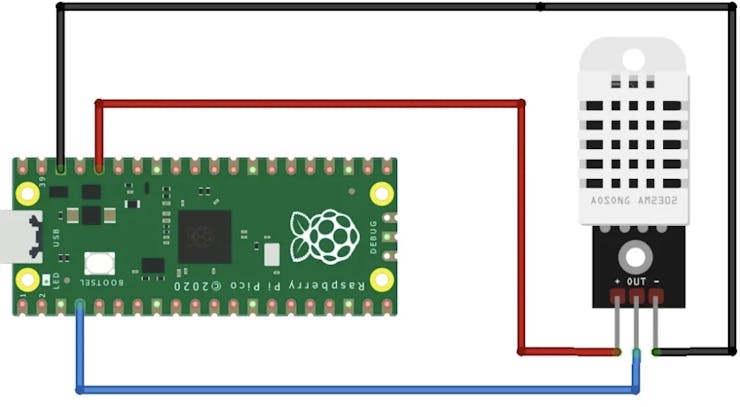
Expected result: The DHT22 is powered and connected to the Pico W with a single data line ready for reading.
Step 2 - Set up Thonny and install the DHT library
Goal: Install the DHT package in Thonny so you can use the DHT driver from MicroPython.
What to do: In Thonny, go to Tools > Manage Packages, search for DHT, and install the dht package.
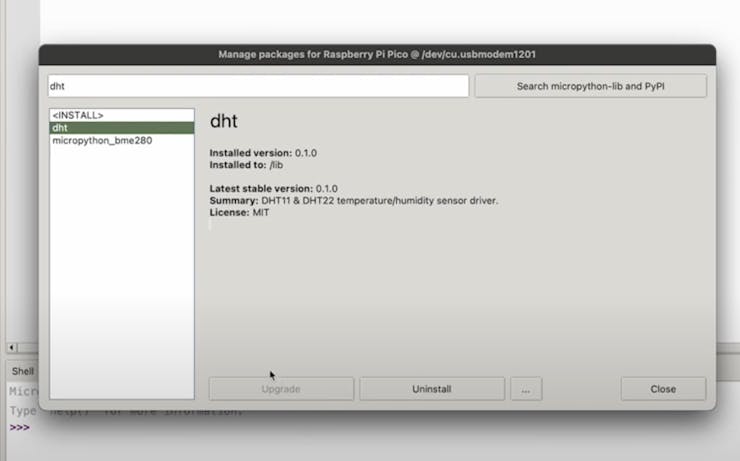
Expected result: The dht package is installed and available for import in your MicroPython script.
Step 3 - Run the MicroPython script to read temperature and humidity
Goal: Create and run a script that reads the DHT22 repeatedly using measure().
What to do: Create a new Python file on your Pico W, paste in the code from the GitHub link below, and run it in Thonny.
You can find the code here: https://github.com/shillehbean/youtube-p2/blob/main/dht22.py
The script creates a DHT22 object from the library and calls measure() each interval. To change how often it reads, adjust the time.sleep() value in the script.
Expected result: The script continually outputs temperature and humidity readings at the configured time interval.
Conclusion
You connected a Raspberry Pi Pico W to a DHT22 and used MicroPython to take repeated temperature and humidity measurements using the DHT library.
Want the parts used in this build? Grab them from ShillehTek.com. If you want help customizing this project or building a complete IoT solution, check out our IoT consulting services.
Subscribe: Youtube
Support: https://www.buymeacoffee.com/mmshilleh
Hire me at UpWork to build your IoT projects: https://www.upwork.com/freelancers/~017060e77e9d8a1157





.png?v=25000753014097803521791168436)

.png?v=68677308723310773341791168436)


