

Video Tutorial (Optional)
Watch first if you want to follow the full Raspberry Pi Pico/Pico W + BMP280 setup in real time.
Subscribe: Youtube
Project Overview
In this tutorial you connect a Raspberry Pi Pico or Pico W to a BMP280 sensor to read temperature and atmospheric pressure in MicroPython, using Thonny to run the code and print values over USB.
The BMP280 is a simple, low-cost sensor that works well for environmental monitoring projects like weather stations and altitude tracking.
- Time: 20 to 40 minutes
- Skill level: Beginner
- What you will build: A Pico/Pico W project that reads BMP280 temperature and pressure over I2C and prints the results
Note: This guide uses I2C with SDA = GP0 and SCL = GP1 and an example BMP280 I2C address of 0x76. Your module may use a different address.
Parts List
From ShillehTek
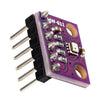
- ShillehTek Pre-Soldered BMP280 Pressure & Temperature Sensor - the temperature and pressure sensor used in this project
- ShillehTek 400-Point Solderless Breadboard - for easier solderless wiring
- ShillehTek 120pcs 20cm Dupont Wires - connect the Pico to the BMP280 pins
- Raspberry Pi Pico 2W - the WiFi microcontroller board used in this build
External
- Computer with Thonny IDE and MicroPython support - to copy files and run code
- USB cable for the Pico - power and serial output
Note: Power the BMP280 from the Pico 3.3V and GND, and use I2C for data (SDA/SCL). Do not power typical BMP280 breakout boards from 5V unless your specific module is designed for it.
Step-by-Step Guide
Step 1 - Physical setup and wiring
Goal: Wire the BMP280 to the Raspberry Pi Pico/Pico W so it can communicate over I2C.
What to do: Use your soldered BMP280, jumper wires, and an optional breadboard. Connect the sensor to the Pico as shown in the wiring diagram.
When you move to the code in later steps, the example uses SDA = GP0 and SCL = GP1, so wire your BMP280 SDA/SCL to those pins if you want to match the code exactly.

Expected result: The BMP280 is powered from 3.3V/GND and connected to the Pico I2C pins you plan to use.
Step 2 - Download and install the BMP280 library
Goal: Install the MicroPython BMP280 library on the Pico so your script can import it.
What to do: Download the library ZIP from GitHub: here.
Extract the ZIP, then locate the bmp280 folder inside the extracted contents.
Connect your Pico to your computer so it shows up as a storage device. In the Pico root, look for a folder named lib. If it does not exist, create it.
Copy the contents of the library's bmp280 folder into /lib on the Pico.
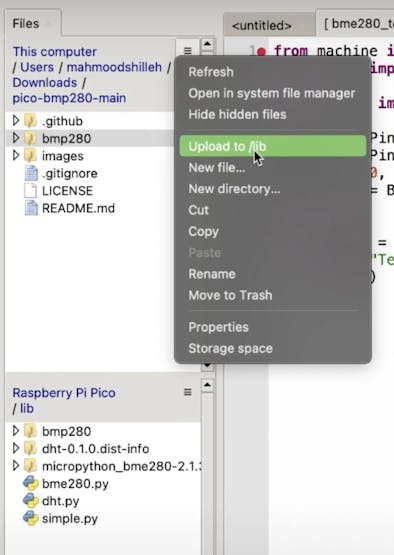
Expected result: The Pico filesystem contains a /lib folder with the BMP280 library files inside, and MicroPython can import them.
Step 3 - Run the sample code to read temperature and pressure
Goal: Read BMP280 measurements and print temperature (C) and pressure (hPa) repeatedly.
What to do: The complete code used in the video is referenced here: https://github.com/shillehbean/youtube-perks-level-1.
If you are not a channel member, follow along in the video to copy the simple sample code and understand each part of the setup.
Code:
from machine import Pin, I2C
from utime import sleep
from bmp280 import BMP280I2C

# I2C0 on the Pico: SDA=GP0, SCL=GP1
i2c0 = I2C(0, sda=Pin(0), scl=Pin(1), freq=400000)

# Address may differ depending on your specific sensor module
bmp280_i2c = BMP280I2C(i2c0, 0x76)

while True:
    readout = bmp280_i2c.measurements
    print(f"Temperature: {readout['t']} C")
    print(f"Pressure: {readout['p']} hPa")
    sleep(1)
Expected result: In the Thonny console (or serial output), you see updated temperature and pressure readings about once per second.
Conclusion
You now have a Raspberry Pi Pico/Pico W reading temperature and atmospheric pressure from a BMP280 sensor using MicroPython over I2C. This is a solid starting point for environmental monitoring projects like weather stations and altitude tracking.
Want the exact parts used in this build? Grab them from ShillehTek.com. If you want help customizing this project or building an IoT solution for your product, check out our IoT consulting services.







.png?v=25000753014097803521791168436)

.png?v=68677308723310773341791168436)


