

Project Overview
Pico W + 3.5mm TRRS audio jack breakout: In this project you will play a WAV file from a Raspberry Pi Pico W using MicroPython PWM audio and output it to a powered speaker or amplifier input (AUX).
You will convert an audio file on your Mac into a Pico-friendly WAV format, copy it onto the Pico W, then play it through a 3.5mm jack. The script also disables PWM after playback to avoid idle hiss at the end.
Important: This is for a powered speaker / amplifier input (AUX in). Do not try to drive a passive speaker directly from a Pico GPIO pin.
- Time: 15 to 30 minutes
- Skill level: Beginner
- What you will build: A Pico W WAV player that shuts off PWM after playback so the ending is quiet (no idle hiss)
Parts List
From ShillehTek
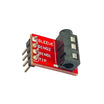
- ShillehTek Pre-Soldered 3.5mm Stereo Audio Jack Breakout Board - clean, reliable 3.5mm audio connection for AUX input devices
- ShillehTek 400-Point Breadboard - quick prototyping without soldering
- ShillehTek 120pcs 10cm Multicolored Jumper Wires - easy wiring between the Pico W and breakout
- Raspberry Pi Pico 2W - the WiFi microcontroller board used in this build
External
- MacBook - used to convert audio and copy files to the Pico
- Powered speaker, amp, or any AUX input device - required for audible output
- 3.5mm cable - connects the breakout to your speaker or amp
- Recommended: 220 ohm resistor - protects the GPIO and can help reduce pops
Note: This build uses a TRRS (4-conductor) 3.5mm breakout. Ground mapping matters. For the wiring below, use Ring2 as GND (CTIA-style mapping).
Step-by-Step Guide
Step 1 - Wire the Pico W to the 3.5mm TRRS breakout
Goal: Connect one PWM audio output pin and ground from the Pico W to the correct TRRS contacts.
What to do: Your breakout is labeled Sleeve, Ring2, Ring1, Tip. For most TRRS CTIA cables the mapping is:
- Tip = Left audio
- Ring1 = Right audio
- Ring2 = Ground
- Sleeve = Mic
For this build, we only need audio out on one channel:
- Pico GP15 to (optional but recommended 220 ohm resistor) to Tip
- Pico GND to Ring2
- Leave Ring1 and Sleeve disconnected
If you hear static: the most common issue is using the wrong ground contact on TRRS. Use Ring2 as GND for this setup (not Sleeve).
Expected result: Your Pico W is wired to feed a powered speaker or amplifier input using Tip (audio) and Ring2 (ground).
Step 2 - Convert audio on your Mac (ffmpeg)
Goal: Create a WAV file that is easy for the Pico W to stream: PCM, mono, 8-bit unsigned, 8000 Hz.
What to do: Install ffmpeg, then convert your input audio into a Pico-friendly WAV.
Code:
brew install ffmpeg

cd ~/Downloads

# Example input name from this build:
ffmpeg -y -i smb_stage_clear.wav -ac 1 -ar 8000 -acodec pcm_u8 kart.wav
Expected result: You should now have kart.wav in your Downloads folder.
Step 3 - Copy the WAV to the Pico W (mpremote)
Goal: Transfer the WAV file onto the Pico W filesystem so MicroPython can open and stream it.
What to do: Install mpremote, identify your Pico serial port, then copy the file.
Code:
python3 -m pip install --user mpremote

# Find the Pico serial port (usually /dev/cu.usbmodemXXXX)
ls /dev/cu.usb* /dev/tty.usb*

PORT=/dev/cu.usbmodemXXXX

# Copy the WAV to the Pico filesystem
mpremote connect $PORT fs cp ~/Downloads/kart.wav :kart.wav
Expected result: The file kart.wav is stored on the Pico W.
Step 4 - Play the WAV in MicroPython and disable PWM after playback
Goal: Stream the WAV out over PWM and fully shut down PWM at the end to reduce idle hiss.
What to do: Save the following as a MicroPython script (for example, play_wav.py) and run it on the Pico W.
Code:
from machine import Pin, PWM
import time

AUDIO_PIN = 15
SR = 8000

pwm = PWM(Pin(AUDIO_PIN))
pwm.freq(62500)

def play_wav_u8_mono(path="kart.wav", sr=SR, vol=0.20):
    with open(path, "rb") as f:
        hdr = f.read(44)
        if hdr[0:4] != b"RIFF" or hdr[8:12] != b"WAVE":
            raise ValueError("Not WAV")
        fmt = int.from_bytes(hdr[20:22], "little")
        ch = int.from_bytes(hdr[22:24], "little")
        rate = int.from_bytes(hdr[24:28], "little")
        bits = int.from_bytes(hdr[34:36], "little")
        if fmt != 1 or ch != 1 or bits != 8 or rate != sr:
            raise ValueError("Need PCM mono 8-bit 8000Hz")

        us = int(1_000_000 / sr)
        while True:
            chunk = f.read(512)
            if not chunk:
                break
            for b in chunk:
                x = (b - 128) / 128.0
                duty = int((0.5 + 0.5 * vol * x) * 65535)
                pwm.duty_u16(duty)
                time.sleep_us(us)

    pwm.duty_u16(0)

try:
    # Lower this if your speaker is loud
    play_wav_u8_mono("kart.wav", vol=0.18)
finally:
    # Kill PWM so there's no idle hiss/static
    try:
        pwm.duty_u16(0)
    except:
        pass
    pwm.deinit()

    # Force the pin low after PWM releases it (prevents floating noise)
    Pin(AUDIO_PIN, Pin.OUT).value(0)
If audio is distorted or too loud, lower vol (for example, try 0.10). If you did not use the 220 ohm resistor, adding it can also help.
Expected result: Your WAV plays through the AUX input device, and PWM is shut off afterward to help keep the output quiet when playback ends.
Step 5 - Push and run the script from your Mac (optional)
Goal: Copy the Python script to the Pico W and execute it from your Mac.
What to do: Use mpremote to copy and run the script over USB.
Code:
PORT=/dev/cu.usbmodemXXXX

mpremote connect $PORT fs cp ~/Downloads/play_wav.py :play_wav.py
mpremote connect $PORT run play_wav.py
Expected result: The Pico W runs play_wav.py and plays the audio without needing to manually start it on the device.
Conclusion
You built a Raspberry Pi Pico W audio-out project using a 3.5mm TRRS audio jack breakout, converted a WAV into a Pico-friendly format, and played it with MicroPython PWM. The script also deinitializes PWM and forces the pin low after playback to help prevent idle hiss.
Want the exact parts used in this build? Grab them from ShillehTek.com. If you want help integrating audio into a product demo or customizing this build, check out our IoT & firmware consulting services.





.png?v=25000753014097803521791168436)

.png?v=68677308723310773341791168436)


