

Video Tutorial (Optional)
Watch first if you want to see the full Raspberry Pi camera to YouTube Live setup end to end.
Learn how to stream video from your Raspberry Pi to YouTube Live in Python in a few simple steps. By the end, you will have a publicly viewable live stream with a simple hardware setup.
Before reading the remainder, be sure to subscribe and support the channel if you have not!
- Subscribe: Youtube
- Support: https://www.buymeacoffee.com/mmshilleh
Project Overview
Raspberry Pi + Raspberry Pi Camera: In this project, you stream live video from a Raspberry Pi Camera to YouTube Live using Python so your stream is publicly viewable with a simple setup.
- Time: 10 to 20 minutes (plus YouTube Live setup time)
- Skill level: Beginner
- What you will build: A Raspberry Pi camera live stream to YouTube Live using Python and FFmpeg
Parts List
From ShillehTek
- No ShillehTek product links were included in the original post.
External
- Raspberry Pi
- Raspberry Pi Camera module
- Internet connection (for YouTube Live)
- YouTube account with Live streaming enabled
- Software packages: python3-picamera and ffmpeg
Note: You will need a YouTube Live stream key from the YouTube Live setup page to paste into the Python script.
Step-by-Step Guide
Step 1 - Library setup
Goal: Install the required Raspberry Pi packages for camera capture and streaming.
What to do: Run the following command in a terminal on your Raspberry Pi:
sudo apt install python3-picamera ffmpegExpected result: The packages install successfully and your Pi is ready for the Python streaming script.
Step 2 - Code setup
Goal: Create your Python file using the provided streaming script.
What to do: Create a Python file on your Raspberry Pi and substitute the code from this repository link:
https://github.com/shillehbean/youtube-p2/blob/main/stream_yt.py
Expected result: You have a Python file saved locally on your Raspberry Pi containing the streaming script.
Step 3 - Add your YouTube Live stream key
Goal: Configure the script so it can publish your stream to your YouTube Live event.
What to do: Substitute your streaming key in the script. You can get the key from YouTube when you start a live stream.
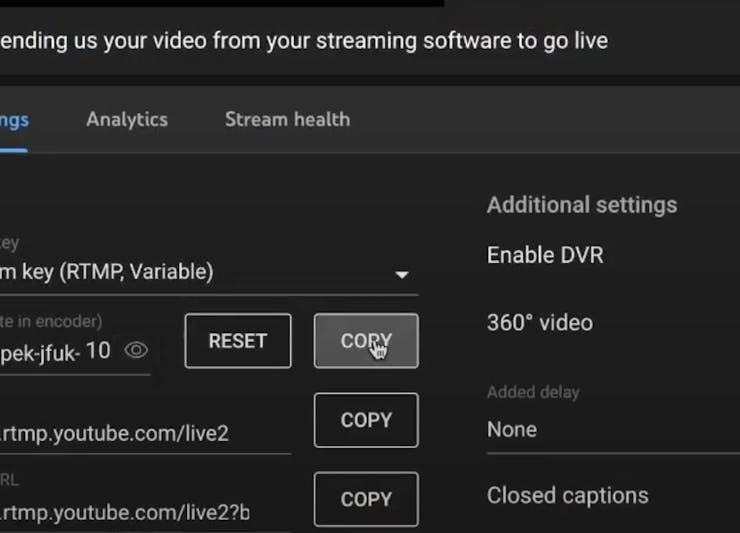
Expected result: Your script contains your YouTube Live stream key and is ready to start streaming.
Conclusion
You set up a Raspberry Pi with a Raspberry Pi Camera to stream video to YouTube Live using Python, with the required packages installed and your stream key added to the script. This gives you a simple way to create a publicly viewable live stream.
Want parts and accessories for your next build? Grab what you need from ShillehTek.com. If you want help tailoring a Raspberry Pi streaming setup for your project or product, check out our IoT consulting services.


.png?v=25000753014097803521788058985)

.png?v=68677308723310773341788058985)


