

Video Tutorial
Watch first if you want to see the HC-SR04 (RUS-04 style) ultrasonic sensor with built-in RGB LEDs running on a Raspberry Pi Pico in real time.
Direct video link: https://www.youtube.com/watch?v=LsL9RIClgHE
Project Overview
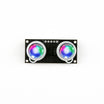
In this project, you use a Raspberry Pi Pico / Pico W with an HC-SR04 ultrasonic sensor module with built-in RGB LEDs (RUS-04 style) to measure distance and drive the onboard LEDs for a visual distance indicator.
This module behaves like a normal HC-SR04 for ultrasonic distance, but adds an RGB input that follows the WS2812 (NeoPixel-style) lighting standard, which is why a WS2812-compatible library is needed in MicroPython.
- Time: 20 to 45 minutes
- Skill level: Beginner to Intermediate
- What you will build: A distance sensor setup where the module’s built-in RGB LEDs can be controlled (random colors or distance-based color changes)
Note: Like the regular HC-SR04, this uses 5V logic. Using a Pico / Pico W (3.3V logic) is not recommended without a 5V power supply and voltage shifting. The original tutorial keeps things simple and does not implement level shifting.

Parts List
From ShillehTek
- Raspberry Pi Pico 2W - the WiFi microcontroller board used in this build
Additional parts
- HC-SR04 module with built-in RGB LEDs (RUS-04 style) - HC-SR04 RGB sensor from ShillehTek
- Jumper wires
Note: The RGB LEDs use a WS2812/NeoPixel-style single data line. The ultrasonic portion is the same 4-pin HC-SR04 style interface (VCC, GND, TRIG, ECHO).
Step-by-Step Guide
Step 1 - Wire the RGB LED input
Goal: Power and control the RGB LEDs on the module using a single WS2812-style data pin.
What to do: Connect 3 pins to power the RGB section and provide the LED data input. The original build uses GPIO28 on the Pico for the data pin (other GPIO pins should work as well).

Expected result: The module has power and the RGB data line is connected so you can control the six built-in LEDs from MicroPython.
Step 2 - Set up the ultrasonic distance wiring (HC-SR04 portion)
Goal: Wire the standard HC-SR04 ultrasonic portion (trigger/echo) so distance can be read in MicroPython.
What to do: Follow one of these references for the HC-SR04 wiring and MicroPython setup on the Pico:
- https://www.youtube.com/watch?v=AwRwlCAQlH4
- https://www.upesy.com/blogs/tutorials/hc-sr04-ultrasonic-sensor-on-rpi-pico-with-micropython-tutorial
Expected result: You can read distance from the HC-SR04 portion the same way you would with a standard HC-SR04.
Step 3 - Add the NeoPixel (WS2812) library to your device
Goal: Install a WS2812-compatible MicroPython driver so the RGB LEDs can be controlled.
What to do: Download the NeoPixel library and save it on your device as neopixel.py:
https://github.com/shillehbean/youtube-channel/blob/main/neopixel.py
Expected result: Your MicroPython filesystem contains neopixel.py and it can be imported by your RGB control script.
Step 4 - Add the RGB + ultrasonic example code
Goal: Put the main example script on your Pico so you can run the LED demos.
What to do: Download and save this file to your device (the original article adds it as a file on your Pi/device):
https://github.com/shillehbean/youtube-channel/blob/main/rgb_sr04_2.py
Expected result: You have both neopixel.py and rgb_sr04_2.py available to run in MicroPython.
Step 5 - Run the functions: fun() and change_color_with_distance()
Goal: Verify RGB control alone, then combine RGB with distance readings.
What to do: The code provides two primary functions you can call:
- fun() - Randomly changes the colors of the 6 onboard LEDs. This does not require the ultrasonic trigger/echo wiring to be set up.
- change_color_with_distance() - Changes LED color based on distance using conditional logic. This requires trigger and echo to be wired and working.

Expected result: The RGB LEDs light up with random colors using fun(), and then change based on measured distance using change_color_with_distance().
Conclusion
You now have a Raspberry Pi Pico / Pico W controlling an HC-SR04 ultrasonic sensor module with built-in WS2812-style RGB LEDs (RUS-04 style). With the NeoPixel library in MicroPython, you can run a simple random color demo or map distance readings to LED colors for a practical visual indicator.
Want parts for your next build? Shop components at ShillehTek.com. If you want help adapting this project to your hardware, polishing it for a demo, or building a custom IoT prototype, check out our IoT consulting services.
If you found the original tutorial helpful, you can also visit the author’s YouTube channel: https://www.youtube.com/@mmshilleh.





.png?v=25000753014097803521789973449)

.png?v=68677308723310773341789973449)


