

Project Overview
GPS With Arduino Step-by-Step: In this tutorial, you will connect an Arduino to a NEO-6M GPS module and stream live latitude and longitude to the Serial Monitor using TinyGPS++, then verify the coordinates in Google Maps. It is a clean starting point for projects that need location data, including vehicle trackers, data loggers, geocaches, and drone telemetry.
- Time: 30 to 45 minutes (plus a few minutes outdoors for the first GPS fix)
- Skill level: Beginner
- What you will build: An Arduino that reads the NEO-6M GPS module and streams real-time latitude and longitude to the Serial Monitor.
Parts List
From ShillehTek
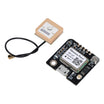
- GT-U7 NEO-6M GPS Module (Pre-Soldered) - NEO-6M GPS receiver with headers already soldered for easy breadboard use.
- Arduino Nano V3.0 (Pre-Soldered, CH340G) - compact ATmega328P board that runs the same sketch as an UNO.
- 120pcs 10cm Jumper Wires (M-F, M-M, F-F) - use four female-to-male jumpers for the GPS connections.
- 400-Point Solderless Breadboard - optional, helps keep wiring tidy.
External
- USB cable to program the Arduino and supply power
- Computer running the Arduino IDE
- An open outdoor area (or a window with clear sky view) for the first GPS fix
Note: The NEO-6M ships at 3.3V logic. Power its VCC from the Arduino's 3.3V rail (not 5V) to reduce the risk of damaging the module. The TX/RX lines are 3.3V-tolerant on most NEO-6M breakouts and commonly work with a 5V Arduino in a hobby setup.
Step-by-Step Guide
Step 1 - Wire the NEO-6M to the Arduino
Goal: Get the GPS module talking to the Arduino over a software serial link.
What to do: Make four connections between the GPS module and the Arduino:
- GPS TX to Arduino D2 (the Arduino reads on this pin)
- GPS RX to Arduino D3 (the Arduino transmits on this pin)
- GPS VCC to Arduino 3.3V (do not use the 5V rail)
- GPS GND to Arduino GND


Expected result: The GPS module powers up (LED on). After it gets a satellite fix, another LED on the breakout typically blinks about once per second to indicate a fix.
Step 2 - Install the TinyGPS++ Library
Goal: Add the library that turns raw NMEA sentences into usable latitude/longitude values.
What to do: In the Arduino IDE, go to Sketch → Include Library → Manage Libraries…. Search for TinyGPSPlus, select the entry by Mikal Hart, and click Install.


To verify, reopen Sketch → Include Library and confirm TinyGPSPlus appears in the installed list. Your sketch can then include it like this:
#include <TinyGPSPlus.h>Expected result: The IDE resolves #include <TinyGPSPlus.h> without errors.
Step 3 - Understand the Hardware and the Code Flow
Goal: Understand what the NEO-6M outputs and how the Arduino turns it into numbers you can use.
What to do: The NEO-6M GNSS receiver outputs location, altitude, and time as standard NMEA sentences over a serial UART. The Arduino reads those bytes, TinyGPS++ parses them, and your sketch prints clean latitude/longitude values to Serial.


Two libraries do the heavy lifting: TinyGPSPlus parses NMEA, and SoftwareSerial lets you use pins D2 and D3 for the GPS while keeping the hardware UART free for the Serial Monitor.
#include <TinyGPSPlus.h>
#include <SoftwareSerial.h>
Create a software serial port on D2 (RX) and D3 (TX), then declare a TinyGPS++ object to hold the parsed values:
SoftwareSerial serial_connection(2, 3);
TinyGPSPlus gps;
In setup(), open both serial ports at 9600 baud (the NEO-6M default) and print a startup banner:
void setup() {
  Serial.begin(9600);
  serial_connection.begin(9600);
  Serial.println("GPS Start");
}
In loop(), feed every available byte from the GPS into gps.encode():
while (serial_connection.available()) {
  gps.encode(serial_connection.read());
}
When gps.location.isUpdated() is true, print latitude and longitude with six decimal places. Google Maps accepts this comma-separated format:
if (gps.location.isUpdated()) {
  Serial.print(gps.location.lat(), 6);
  Serial.print(", ");
  Serial.println(gps.location.lng(), 6);
}
Expected result: You understand how bytes flow from the GPS module into TinyGPS++ and out to the Serial Monitor as latitude/longitude.
Step 4 - Upload the Full Sketch
Goal: Flash the complete GPS reading sketch to your Arduino.
What to do: Paste the full sketch into a new Arduino IDE window, select your board and port under Tools, then click Upload.
#include <TinyGPSPlus.h>
#include <SoftwareSerial.h>

SoftwareSerial serial_connection(2, 3);
TinyGPSPlus gps;

void setup() {
  Serial.begin(9600);
  serial_connection.begin(9600);
  Serial.println("GPS Start");
}

void loop() {
  while (serial_connection.available()) {
    gps.encode(serial_connection.read());
  }

  if (gps.location.isUpdated()) {
    Serial.print(gps.location.lat(), 6);
    Serial.print(", ");
    Serial.println(gps.location.lng(), 6);
  }
}
Expected result: The sketch compiles and uploads without errors.
Step 5 - Read and Verify the Coordinates
Goal: Confirm the GPS fix is real by checking it in Google Maps.
What to do: Open the Serial Monitor at 9600 baud (Tools → Serial Monitor or Ctrl+Shift+M). Move the Arduino and GPS module to a clear sky view. Outdoors is ideal; a window with a clear view of the sky is the minimum. Let it sit for 2 to 3 minutes for the first fix.
When latitude/longitude pairs start printing, copy one line and paste it into the Google Maps search bar to drop a pin at the reported location.
Expected result: Serial output like 40.712776, -74.005974, and a Google Maps pin within a few metres of your actual location.
Conclusion
You now have a working Arduino GPS pipeline: the NEO-6M receives satellite data, TinyGPS++ parses NMEA, and your sketch prints clean latitude/longitude pairs to the Serial Monitor. This is a solid base for logging, mapping, or transmitting location in larger projects.
Want the exact parts used in this build? Grab them from ShillehTek.com. If you want help customizing this project or building something for your product, check out our IoT consulting services.
Photo credit: Images in this tutorial are credited to Instructables (original guide by akramslab), which served as the reference for this ShillehTek version.


.png?v=25000753014097803521791168436)

.png?v=68677308723310773341791168436)


