

Video Tutorial (Optional)
Watch first if you want the full walkthrough of adding Telegram to your Node-RED dashboard.
Project Overview
Node-RED + BMP180 + Telegram: In this guide you will integrate a Telegram bot with your Node-RED dashboard that reads BMP180 temperature and pressure values and replies with live sensor status on demand.
- Time: 20 to 40 minutes
- Skill level: Beginner to Intermediate
- What you will build: A Telegram bot that returns live BMP180 sensor readings from your Node-RED flow when you send the command status

Parts List
From ShillehTek
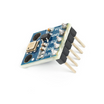
- Part 1: BMP180 dashboard guide - reference for the original Node-RED flow and sensor wiring
External
- Telegram account and BotFather (Telegram) - to create the bot and obtain a token
- node-red-contrib-telegrambot - Node-RED palette package for Telegram nodes
- Node-RED running with your BMP180 input flow (Arduino, MQTT, or other input)
Note: Keep your bot token private. The guide assumes you already have the BMP180 feeding values into Node-RED as in Part 1.
Step-by-Step Guide
Step 1 - Create a Telegram Bot
Goal: Create a Telegram bot and obtain the bot token that lets Node-RED send and receive messages.
What to do: Open Telegram, find BotFather, and send the command /newbot. Choose a name and username ending in bot. BotFather will return a token you will paste into the Telegram receiver node in Node-RED.
Example token (do not use publicly):
123456789:AAH...YourBotTokenHereExpected result: You have a bot token and can press Start in the bot chat to enable messages.
Step 2 - Install Telegram Nodes in Node-RED
Goal: Add the Telegram palette to Node-RED so you can receive commands and send replies.
What to do: In Node-RED open the menu → Manage palette → Install. Search for node-red-contrib-telegrambot and click Install.

Expected result: Telegram receiver and sender nodes appear in your Node-RED palette.
Step 3 - Update Your Flow
Goal: Wire the Telegram receiver and sender into your existing BMP180 flow and add function nodes to read and reply with the latest values.
What to do: Drag in these nodes: telegram receiver, two function nodes, and telegram sender. Connect the receiver to a function node that builds the reply, and ensure another function stores the latest readings in flow context.
Function code to respond to status command:
let cmd = msg.payload.content.toLowerCase();

if (cmd === "status") {
    let temp = flow.get("latestTemp") || "N/A";
    let pressure = flow.get("latestPressure") || "N/A";

    msg.payload = {
        chatId: msg.payload.chatId,
        type: "message",
        content: `🌡️ Temp: ${temp} °C\n🌬️ Pressure: ${pressure} hPa`
    };
    return msg;
}

return null;
Function code to store latest sensor values:
flow.set("latestTemp", msg.payload.temp);
flow.set("latestPressure", msg.payload.pressure);
return msg;
Expected result: The flow stores the latest BMP180 readings in flow context and the function node generates a chat reply when it receives the status command.
Step 4 - Test It
Goal: Verify Telegram replies with live sensor data from Node-RED.
What to do: Deploy your Node-RED flow. Open your bot in Telegram and send the message status.
Expected result: Your bot replies with a message like:
🌡️ Temp: 25.3 °C
🌬️ Pressure: 1012.9 hPa
Conclusion
You now have a Node-RED flow integrated with Telegram that returns live BMP180 temperature and pressure readings on demand. This setup gives you quick mobile access to sensor data without exposing your dashboard to the public internet.
Want the exact parts or need help building custom dashboards and automations? Grab resources from ShillehTek.com. If you want help implementing or scaling this project for a product, check out our consulting on UpWork.


.png?v=25000753014097803521791168436)

.png?v=68677308723310773341791168436)


