

Video Tutorial (Optional)
Watch first if you want to follow along with the full setup on an ESP32-S3 using Xedge32 and Lua.
Project Overview
ESP32-S3 + Xedge32: In this tutorial, you install the Xedge32 firmware on an ESP32-S3 and use Lua to connect WiFi and run your first script from the browser-based IDE.
Xedge32 is an advanced iteration of Xedge that accelerates IoT device development with a comprehensive peripheral Lua API for the ESP32. It lets you build IoT functionality without writing C code.
For more detailed information and documentation, check the Xedge32 documentation.
- Time: 20 to 40 minutes
- Skill level: Beginner
- What you will build: A working Xedge32 setup where you can run Lua commands and execute a simple Lua script on the ESP32-S3
Xedge32 is designed to simplify the development of robust, commercial IoT products and includes features like secure IoT design support, protocol options, and OTA update workflows.
Parts List
From ShillehTek
- No ShillehTek-specific parts are required for this software-focused ESP32-S3 + Xedge32 Lua tutorial.
External
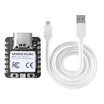
- ESP32-S3 (or ESP32-WROVER) development board
- USB cable (to connect the ESP32 to your computer)
- Computer with a modern browser (for the installer and web IDE)
- WiFi network credentials (for Station Mode)
Note: After installing Xedge32, the ESP32 boots into Access Point (AP) mode by default. Station Mode is recommended to keep internet access while connected to the device.
Step-by-Step Guide
Step 1 - Install Xedge32 firmware on the ESP32
Goal: Flash the Xedge32 firmware so your ESP32 can run Lua using the Xedge32 environment.
What to do: Connect the ESP32 to your computer over USB, then use the official web installer.
- Connect the ESP32 USB cable to your computer.
- Click the Install Xedge32 button on the Xedge32 page.
- When your browser shows a device list, select the device that includes “serial” in its name and continue the installation wizard.
- When the install completes, reboot by unplugging and replugging the USB cable.
- After reboot, the ESP32 is in Access Point mode. For details, refer to the ESP32 Access Point Mode documentation.
Expected result: The ESP32 reboots into Xedge32 and starts broadcasting a WiFi access point network.
Step 2 - Connect in AP Mode, use the IDE, then switch to Station Mode
Goal: Connect to the ESP32 in AP Mode, confirm Lua is working, and optionally switch to Station Mode so you can stay online while connected.
What to do: Reboot the device (unplug/replug) to ensure it is in AP Mode, then connect to the WiFi network it broadcasts using the password 12345678.

Once connected, open the browser-based IDE at http://xedge32.local/.

Open a shell from the top-right corner and run a simple test like printing “Hello World” to confirm everything is working.


If you want to switch to Station Mode, open LuaShell32:
- Click the three dots (...) in the upper right corner of the Xedge editor.
- Select Lua Shell.
In LuaShell32, run the following command and replace the SSID and password with your WiFi credentials:
Code:
esp32.netconnect("wifi", {ssid="your-Wi-Fi-SSID", pwd="password"})- If the connection is successful, the ESP32 remains in Station Mode.
- If the connection fails, the ESP32 reverts to Access Point Mode.
Reconnect in Station Mode:
- If your computer supports mDNS, navigate to http://xedge32.local/ (or refresh).
- If your computer does not support mDNS, find the new IP address from your router’s DHCP client list (the device typically appears as “xedge”).
Expected result: You can access the IDE and Lua shell, and the ESP32 connects to your WiFi in Station Mode when configured.
Step 3 - Create and run your first executable Lua script (.xlua)
Goal: Create an app and run an executable Lua script on Xedge32.
What to do: In the Xedge32 IDE, right-click the disk in the left menu and create a new folder.

Inside the folder, create a new app (leave the default settings). You can name the folder and app whatever you like.

Inside the app, create an executable Lua file named {name}.xlua.

Paste this factorial example into the file:
Code:
-- Function to calculate factorial
function factorial(n)
    if n == 0 then
        return 1
    else
        return n * factorial(n - 1)
    end
end

-- Main code
local number = 5  -- You can change this number to calculate a different factorial
local result = factorial(number)
print("The factorial of " .. number .. " is " .. result)
Select the app config file and check the running field.

Save and run the Lua script.

Expected result: You should see 120 in the console log, which is the factorial of 5.
Conclusion
You installed Xedge32 on an ESP32-S3, connected through the browser-based IDE, and used Lua to run both shell commands and a first executable script. This workflow makes it easier to prototype IoT behavior quickly without writing C code.
Want parts and dev gear for your next ESP32 build? Grab what you need at ShillehTek.com. If you want help customizing Xedge32 for a product or building an IoT solution end to end, check out our IoT consulting services.


.png?v=25000753014097803521791168436)

.png?v=68677308723310773341791168436)


