

Video Tutorial (Optional)
Watch first if you want the full walkthrough of ESP32, ESPresense, Mosquitto bridge, and AWS IoT integration.
Project Overview
ESP32 + ESPresense: This guide shows how to run ESPresense on an ESP32 and forward BLE device data to AWS IoT using a local Mosquitto MQTT broker as a secure bridge, enabling cloud tracking and analytics.
- Time: 30 to 90 minutes
- Skill level: Intermediate
- What you will build: A local MQTT bridge that relays ESPresense device messages from an ESP32 to AWS IoT Core
Parts List
From ShillehTek
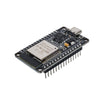
- ESP-WROOM-32 ESP32 Dev Board CP2102 USB-C Pre-Soldered - the development board used in this build
- ShillehTek resources - reference hardware and accessories for ESP32 projects
Additional parts
- Micro USB cable - connect ESP32 to your computer
- 400 Point Breadboard - optional for stable wiring and testing
Note: You will also need an AWS account. Mosquitto must be configured with paths to your AWS IoT certificates and the correct local password file for ESPresense authentication.
Step-by-Step Guide
Step 1 - AWS Setup
Goal: Create an AWS IoT Thing, generate certificates, and create a policy so your broker can authenticate and forward messages to AWS IoT.
What to do: Log in to the AWS Management Console and open IoT Core. Create a Thing under Manage -> Things and auto generate a certificate. Create a policy that grants MQTT Connect, Publish, Receive, and Subscribe permissions. Set the policy resource to * if you need access to all topics.

What to expect: Download the certificate, private key, and root CA files. Keep them secure; you will use these files to configure the Mosquitto bridge to AWS IoT.
Step 2 - Install Mosquitto
Goal: Run a local Mosquitto MQTT broker that accepts unencrypted ESPresense connections on port 1883 and bridges messages to AWS IoT on port 8883.
What to do: Install Mosquitto for your OS and start the service. Use the terminal for these commands.
macOS (Homebrew):
brew install mosquitto
brew services start mosquitto
Linux (Debian/Ubuntu):
sudo apt update
sudo apt install mosquitto mosquitto-clients
sudo systemctl enable mosquitto
sudo systemctl start mosquitto
Windows: Download Mosquitto from mosquitto.org and follow the installer instructions, then start the Mosquitto service.
Step 3 - Create Mosquitto password file
Goal: Add username and password authentication that ESPresense can use to connect to your local broker.
What to do: Create a password file with mosquitto_passwd. Replace Username with your chosen username.
# macOS (Homebrew)
mosquitto_passwd -c /opt/homebrew/etc/mosquitto/password_file Username

# Linux
sudo mosquitto_passwd -c /etc/mosquitto/password_file Username

# Windows (run as Administrator)
mosquitto_passwd -c "C:\Program Files\Mosquitto\password_file" Username
What to expect: You will be prompted to enter and confirm a password. Use the same username and password in the ESPresense configuration later.
Step 4 - Configure Mosquitto to bridge to AWS IoT
Goal: Update mosquitto.conf to accept external connections and forward espresense topic messages to AWS IoT using the certificate files you downloaded.
What to do: Open the Mosquitto configuration file for editing. Paths depend on your OS.
# macOS
nano /opt/homebrew/etc/mosquitto/mosquitto.conf

# Linux
sudo nano /etc/mosquitto/mosquitto.conf

# Windows - open mosquitto.conf in Notepad as Administrator
Append these example lines to mosquitto.conf and replace the placeholders with your values and paths:
listener 1883 0.0.0.0
allow_anonymous false
password_file /opt/homebrew/etc/mosquitto/password_file

# Replace address with your AWS IoT endpoint
connection bridge-to-aws
address your-aws-endpoint.amazonaws.com:8883

# Replace these with actual paths to your downloaded certs
bridge_cafile /path/to/AmazonRootCA1.pem
bridge_certfile /path/to/certificate.pem.crt
bridge_keyfile /path/to/private.pem.key

bridge_insecure false
try_private false
cleansession true
start_type automatic
notifications false
log_type all

# Forward messages from local espresense topic to AWS IoT
topic espresense/devices/# out 0
Note: Update the password_file path for Linux or Windows as needed. Replace the AWS endpoint and certificate file paths with your actual values.
Step 5 - Restart Mosquitto and verify
Goal: Apply the new configuration and confirm the broker is running and bridging messages.
What to do: Restart Mosquitto for your OS and check status.
# macOS
brew services restart mosquitto

# Linux
sudo systemctl restart mosquitto

# Windows (run as Administrator)
net stop mosquitto
net start mosquitto
What to expect: The broker should be active. On macOS use brew services list, on Linux use systemctl status mosquitto.

Step 6 - Install and configure ESPresense on the ESP32
Goal: Flash ESPresense firmware to the ESP32 and configure it to use your Mosquitto broker credentials and local IP.
What to do: Visit https://espresense.com/firmware, connect your device, and flash the firmware following the site instructions. After flashing, open the ESPresense configuration page, set Room name, Server to your Mosquitto local IP, Port to 1883, and the Username and Password you created.

What to expect: Once connected, ESPresense will publish BLE device messages to the local Mosquitto topic espresense/devices/#.
Step 7 - Confirm messages reach AWS IoT
Goal: Verify that messages forwarded by Mosquitto arrive in AWS IoT Core.
What to do: In the AWS IoT Core Console use the MQTT test client or subscribe to the topic espresense/devices/# to view incoming messages. Monitor message volume and consider filters or rules to control costs.

What to expect: You should see ESPresense messages relaying to AWS IoT Core. If you see many messages, consider throttling, filtering, or using AWS IoT Rules to reduce costs.
Step 8 - Stop or disable Mosquitto when not needed
Goal: Prevent continuous message forwarding and unexpected AWS charges when you are not actively testing.
What to do: Use the platform-specific commands to stop the Mosquitto service when you do not want messages forwarded.
# Stop on macOS
brew services stop mosquitto

# Stop on Linux
sudo systemctl stop mosquitto
sudo systemctl disable mosquitto

# Stop on Windows (run as Administrator)
net stop mosquitto
What to expect: Mosquitto will stop accepting connections and will not forward messages to AWS until restarted.
Conclusion
You built an ESP32 device running ESPresense that publishes BLE tracking data to a local Mosquitto broker, which securely bridges messages to AWS IoT Core using your AWS certificates. This setup provides a practical path from local BLE scanning to cloud integration for analytics and monitoring.
Want the exact parts or help reproducing this setup? Grab parts and resources at ShillehTek.com. If you need help customizing this integration or building a production-ready solution, check out our consulting: https://shillehtek.com/pages/iot-consulting.



.png?v=25000753014097803521791168436)

.png?v=68677308723310773341791168436)


