

Project Overview
Arduino UNO + TCRT5000 IR Line Tracking Sensor: In this tutorial, you will connect a TCRT5000 infrared reflective sensor module to an Arduino UNO and read analog values on the serial monitor to detect light vs. dark surfaces and close-range proximity.
- Time: 15 to 30 minutes
- Skill level: Beginner
- What you will build: An Arduino-based setup that reads analog values from the TCRT5000 sensor and displays them on the serial monitor, allowing you to detect surface color and proximity.

Parts List
From ShillehTek
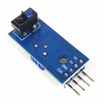
- TCRT5000 IR Reflective Line Follower Sensor for Arduino Robots - the infrared reflective sensor module with digital and analog outputs
- 120pcs Dupont Jumper Wires - for connecting the sensor to the Arduino
External
- Arduino UNO R4
- USB cable - to connect the Arduino to your computer for programming and serial monitoring
- Computer with Arduino IDE installed
Note: The TCRT5000 module operates at 5V and provides both a digital output (DOUT) with an adjustable threshold via the onboard potentiometer and an analog output (AOUT) for continuous readings. The effective sensing distance is approximately 1 mm to 8 mm, with the optimal point around 2.5 mm.
Step-by-Step Guide
Step 1 - Understand the TCRT5000 sensor module
Goal: Learn how the TCRT5000 works and identify its pins.
What to do: The TCRT5000 module contains an infrared LED emitter and an infrared phototransistor receiver. It works by emitting an IR beam and measuring the amount of light reflected back. Dark surfaces absorb more IR light and reflect less, while light surfaces reflect more. This difference in reflected light produces varying voltage levels on the output pins.
The module has four pins:
- VCC - power supply input (5V)
- GND - ground connection
- DOUT - digital output that goes HIGH or LOW based on the potentiometer threshold setting
- AOUT - analog output that provides a continuous voltage proportional to the reflected IR intensity
The onboard potentiometer lets you adjust the sensitivity threshold for the digital output. Turn it to calibrate at what reflectance level the DOUT pin switches between HIGH and LOW.

Expected result: You understand the sensor's operating principle and can identify all four pins on the module.
Step 2 - Gather the required materials
Goal: Collect everything you need for this project.
What to do: You will need an Arduino UNO, a TCRT5000 infrared reflective sensor module, and a few male-to-female jumper wires. Make sure you also have a USB cable to connect the Arduino to your computer and the Arduino IDE installed for uploading code and viewing serial output.

Expected result: All components are ready on your workbench.
Step 3 - Wire the TCRT5000 to the Arduino
Goal: Connect the sensor module to your Arduino UNO.
What to do: Use jumper wires to make the following connections between the TCRT5000 module and the Arduino:
- VCC on the sensor to 5V on the Arduino
- GND on the sensor to GND on the Arduino
- AOUT on the sensor to A0 (analog pin 0) on the Arduino
For this tutorial, you will use the analog output to get continuous readings. If you want to use the digital output instead, connect DOUT to any digital pin on the Arduino and use digitalRead() in your code.

Expected result: The TCRT5000 is wired to the Arduino and ready for programming.
Step 4 - Upload the Arduino sketch
Goal: Program the Arduino to read analog values from the TCRT5000 sensor and display them on the serial monitor.
What to do: Open the Arduino IDE, create a new sketch, and paste the following code. This program reads the analog voltage from pin A0 every 100 milliseconds and prints the value to the serial monitor.
Code:
// TCRT5000 IR Sensor Analog Read
// Reads reflected IR intensity from the TCRT5000 module

void setup() {
  // Start serial communication at 9600 baud
  Serial.begin(9600);
}

void loop() {
  // Read the analog value from pin A0
  int sensorValue = analogRead(A0);

  // Print the sensor reading to the serial monitor
  Serial.println(sensorValue);

  // Short delay between readings
  delay(100);
}
The analogRead(A0) function returns a value between 0 and 1023. Lower values indicate more reflected light (lighter surfaces closer to the sensor), while higher values indicate less reflected light (darker surfaces or greater distance). Upload the sketch to your Arduino using the Upload button.
Expected result: The sketch compiles and uploads to the Arduino without errors.
Step 5 - Test the sensor in the serial monitor
Goal: Observe the sensor readings in the serial monitor and verify detection of different surfaces.
What to do: Open the serial monitor in the Arduino IDE (Tools > Serial Monitor or Ctrl+Shift+M) and set the baud rate to 9600. You should see a stream of numbers updating every 100 milliseconds. Move a white surface in front of the sensor and note the values, then try a black surface. The readings should change noticeably between light and dark surfaces.
You can also adjust the distance between the sensor and the surface. The optimal detection range is around 2.5 mm from the sensor face. If you want to use the digital output, turn the onboard potentiometer to set the threshold where DOUT switches between HIGH and LOW.

Expected result: The serial monitor displays varying values that correspond to the reflectance of the surface in front of the sensor. White or light surfaces produce lower values and dark surfaces produce higher values.
Conclusion
You connected a TCRT5000 infrared reflective sensor to an Arduino UNO and read analog values that change based on surface color and distance. This is a practical building block for line-following robots, edge-detection systems, and simple proximity sensing applications. Using the analog output gives you continuous readings, and the digital output plus the onboard potentiometer provides a simple on/off threshold trigger.
Want the exact parts used in this build? Grab them from ShillehTek.com. If you want help customizing this project or building something for your product, check out our IoT consulting services.


.png?v=25000753014097803521791168436)

.png?v=68677308723310773341791168436)


