

Project Overview
Arduino + BME280 to ROS 2 on Raspberry Pi: In this project, you connect an Arduino to a BME280 environmental sensor, then send readings over USB serial to a Raspberry Pi running ROS 2 Humble so the Pi can publish the data to a ROS 2 topic in real time.
This pattern is useful for weather stations, robotics projects, greenhouses, or any build where a microcontroller reads sensors and a Linux computer handles ROS networking and visualization.
- Time: 30 to 60 minutes
- Skill level: Intermediate
- What you will build: A ROS 2 Python node that publishes Arduino BME280 temperature, humidity, and pressure readings from serial
Parts List
From ShillehTek
- ShillehTek.com - parts and more hardware and ROS tutorials
External
- Arduino Uno, Nano, or similar - reads the sensor and streams values over Serial
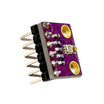
- BME280 sensor (I2C module) - measures temperature, humidity, and pressure
- Raspberry Pi (any model with Ubuntu and ROS 2 Humble installed) - runs the ROS 2 Python node
- USB cable for Arduino - provides power and USB serial data connection
- Jumper wires (female-female) - connect BME280 to Arduino via I2C
Note: BME280 modules vary. Some are 3.3V only, while others include a regulator/level shifting. Power your specific module appropriately, and confirm the I2C address (the example uses 0x76).
Step-by-Step Guide
Step 1 - Wire the BME280 to the Arduino (I2C)
Goal: Connect the BME280 module to the Arduino over I2C so the Arduino can read temperature, humidity, and pressure.
What to do: Wire the sensor to your Arduino using the standard Uno I2C pins.
Wiring map:
BME280     →     Arduino
VCC        →     5V (or 3.3V depending on your module)
GND        →     GND
SDA        →     A4
SCL        →     A5
Expected result: The BME280 is powered and connected to the Arduino I2C bus (SDA to A4, SCL to A5 on an Uno).
Step 2 - Upload the Arduino sketch to print CSV over Serial
Goal: Read BME280 values on the Arduino and output them as comma-separated values over Serial.
What to do: Upload the following code to your Arduino. It prints temp,hum,pres every 2 seconds.
Code:
#include <Wire.h>
#include <Adafruit_Sensor.h>
#include <Adafruit_BME280.h>

Adafruit_BME280 bme;

void setup() {
  Serial.begin(9600);
  while (!Serial);

  if (!bme.begin(0x76)) {
    Serial.println("BME280 not found!");
    while (1);
  }

  Serial.println("BME280 found.");
}

void loop() {
  float temp = bme.readTemperature();
  float hum = bme.readHumidity();
  float pres = bme.readPressure() / 100.0F;

  Serial.print(temp);
  Serial.print(",");
  Serial.print(hum);
  Serial.print(",");
  Serial.println(pres);

  delay(2000);
}
Expected result: In the Arduino Serial Monitor, you see a startup message and then repeating lines like 24.1,49.3,981.2.
Step 3 - Install and source ROS 2 Humble on the Raspberry Pi
Goal: Ensure ROS 2 Humble is installed and available in your shell.
What to do: Install ROS 2 Humble (ros-base) and source the setup script.
Code:
sudo apt update
sudo apt install ros-humble-ros-base
source /opt/ros/humble/setup.bash
Expected result: ROS 2 commands (like ros2) are available in the terminal.
Step 4 - Create a ROS 2 Python package
Goal: Create a workspace and ament_python package to hold your serial-to-topic node.
What to do: Create the workspace and generate a Python package named bme280_reader.
Code:
mkdir -p ~/ros2_ws/src
cd ~/ros2_ws/src
ros2 pkg create --build-type ament_python bme280_reader
Expected result: A new package exists at ~/ros2_ws/src/bme280_reader.
Step 5 - Add the ROS 2 Python node that reads Serial and publishes
Goal: Read CSV lines from the Arduino serial device and publish them to a ROS 2 topic.
What to do: Create this file at ~/ros2_ws/src/bme280_reader/bme280_reader/bme280_serial_node.py.
Code:
import rclpy
from rclpy.node import Node
import serial
from std_msgs.msg import Float32MultiArray

class BME280SerialNode(Node):
    def __init__(self):
        super().__init__('bme280_serial_reader')
        self.publisher_ = self.create_publisher(Float32MultiArray, 'bme280_data', 10)

        try:
            self.ser = serial.Serial('/dev/ttyACM1', 9600, timeout=1)
            self.get_logger().info("Connected to /dev/ttyACM1")
        except Exception as e:
            self.get_logger().error(f"Serial error: {e}")
            exit(1)

        self.timer = self.create_timer(2.0, self.read_serial)

    def read_serial(self):
        try:
            line = self.ser.readline().decode('utf-8').strip()
            if line:
                self.get_logger().info(f"RAW: {line}")
                parts = line.split(',')
                if len(parts) == 3:
                    temp = float(parts[0])
                    hum = float(parts[1])
                    pres = float(parts[2])
                    msg = Float32MultiArray(data=[temp, hum, pres])
                    self.publisher_.publish(msg)
        except Exception as e:
            self.get_logger().warn(f"Failed to read: {e}")

def main(args=None):
    rclpy.init(args=args)
    node = BME280SerialNode()
    rclpy.spin(node)
    node.destroy_node()
    rclpy.shutdown()
Expected result: You have a ROS 2 node file that opens the Arduino port, parses three CSV values, and publishes them as a Float32MultiArray on bme280_data.
Step 6 - Update setup.py to register the console script
Goal: Make the node runnable via ros2 run.
What to do: In ~/ros2_ws/src/bme280_reader/setup.py, add the following entry point:
Code:
entry_points={
    'console_scripts': [
        'bme280_serial_node = bme280_reader.bme280_serial_node:main',
    ],
},
Expected result: ROS 2 can discover your executable name bme280_serial_node from the package.
Step 7 - Build the workspace and run the node
Goal: Compile and launch your ROS 2 package, then start publishing sensor data.
What to do: Build with colcon, source the install overlay, and run the node.
Code:
cd ~/ros2_ws
colcon build
source install/setup.bash
ros2 run bme280_reader bme280_serial_node
Expected result: The node logs raw serial lines and publishes messages on the bme280_data topic.
Step 8 - View the published ROS 2 topic data
Goal: Confirm your Raspberry Pi is publishing Arduino sensor readings to ROS 2.
What to do: In a new terminal, source the workspace and echo the topic.
Code:
source ~/ros2_ws/install/setup.bash
ros2 topic echo /bme280_data
Expected result: You see messages like:
data: [24.1, 49.3, 981.2]
---
Conclusion
You connected an Arduino reading a BME280 sensor to a Raspberry Pi running ROS 2 Humble, then published temperature, humidity, and pressure values to a ROS 2 topic over serial. This integration pattern is a practical way to bring real hardware sensor data into your ROS 2 projects.
Want the exact parts used in this build? Grab them from ShillehTek.com. If you want help customizing this project or integrating sensors into your ROS 2 stack, check out our IoT consulting services.




.png?v=25000753014097803521791168436)

.png?v=68677308723310773341791168436)


