Overview
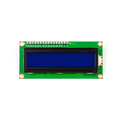
The LCD1602 16x2 Keypad Shield is an all-in-one user-interface board that plugs straight onto an Arduino Uno (or any Uno-compatible board). It combines a 16-character by 2-line HD44780 LCD with a 5-button keypad (SELECT, LEFT, UP, DOWN, RIGHT) plus a separate hardware reset button — turning your Arduino into a complete embedded device with a screen and inputs in one click.
What makes this shield clever is the keypad: instead of using 5 GPIO pins for the buttons, all five share a single analog pin (A0) through a resistor ladder. Each button produces a different analog voltage, so a single analogRead() tells you which button is pressed. This frees up the rest of your GPIOs for the LCD and your project's sensors.
Because it's a shield, wiring is essentially zero — drop it on the Uno's headers and you're done. The remaining pins (D0-D3, D11-D13, A1-A5, plus 5V/3.3V/GND/VIN) are broken out on the right edge for connecting other modules.
At a Glance
Specifications
| Parameter | Value |
| LCD Format | 16 characters × 2 lines (HD44780) |
| Operating Voltage | 5V DC (from Arduino) |
| Logic Voltage | 5V |
| Operating Current | ~25 mA (display + backlight) |
| Keypad Buttons | SELECT, LEFT, UP, DOWN, RIGHT |
| Keypad Read Method | Resistor ladder on A0 |
| LCD RS Pin | Digital 8 |
| LCD Enable Pin | Digital 9 |
| LCD Data Pins | Digital 4, 5, 6, 7 |
| Backlight Adjust | On-board trimmer |
| Form Factor | Arduino Uno R3 shield |
| Dimensions | ~80 × 58 × 22 mm |
Pinout Diagram

Wiring Guide
Arduino Uno (Plug-and-Play)
This shield is designed for the Arduino Uno R3 form factor. Align the headers, push it down firmly, and that's it — no jumper wires required.
Arduino Mega 2560
The shield fits on a Mega thanks to header alignment, but A0 on a Mega is the same pin used for the keypad — so the keypad still works. The Mega's extra pins (D14 and up) remain free for your project.
| Shield Pin | Mega Pin | Function |
|---|---|---|
| D4-D7 | D4-D7 | LCD data lines |
| D8 | D8 | LCD RS |
| D9 | D9 | LCD Enable |
| A0 | A0 | Keypad analog read |
| 5V / GND | 5V / GND | Power |
Complete Pin Reference
If you ever need to debug this shield or use the same pins manually, here is the full mapping the shield uses internally.
| Function | Arduino Pin | Notes |
|---|---|---|
| LCD RS | D8 | |
| LCD RW | GND | Hardwired to ground |
| LCD Enable | D9 | |
| LCD D4 | D4 | |
| LCD D5 | D5 | |
| LCD D6 | D6 | |
| LCD D7 | D7 | |
| Backlight | D10 | PWM-controllable on Uno |
| Keypad | A0 | Resistor ladder, see thresholds below |
Keypad Analog Thresholds
| Button | A0 Reading |
|---|---|
| RIGHT | 0 - 50 |
| UP | 50 - 150 |
| DOWN | 150 - 300 |
| LEFT | 300 - 500 |
| SELECT | 500 - 750 |
| None pressed | > 1000 |
Code Examples
Arduino — LCD Hello World
// LCD1602 Keypad Shield - Hello World
// Uses the standard LiquidCrystal library.
// LCD pins: RS=8, E=9, D4=4, D5=5, D6=6, D7=7

#include <LiquidCrystal.h>

LiquidCrystal lcd(8, 9, 4, 5, 6, 7);

void setup() {
  lcd.begin(16, 2);
  lcd.print("ShillehTek LCD");
  lcd.setCursor(0, 1);
  lcd.print("Press a button");
}

void loop() {
  // Nothing to do — second example handles input
}
Arduino — Reading the Keypad
// LCD1602 Keypad Shield - Read Buttons via A0 Resistor Ladder
// Prints the active button on the LCD.

#include <LiquidCrystal.h>

LiquidCrystal lcd(8, 9, 4, 5, 6, 7);

enum Button { BTN_NONE, BTN_RIGHT, BTN_UP, BTN_DOWN, BTN_LEFT, BTN_SELECT };

Button readButton() {
  int v = analogRead(A0);
  if (v < 50)   return BTN_RIGHT;
  if (v < 150)  return BTN_UP;
  if (v < 300)  return BTN_DOWN;
  if (v < 500)  return BTN_LEFT;
  if (v < 750)  return BTN_SELECT;
  return BTN_NONE;
}

void setup() {
  lcd.begin(16, 2);
  lcd.print("Press a button:");
}

void loop() {
  Button b = readButton();
  lcd.setCursor(0, 1);
  switch (b) {
    case BTN_RIGHT:  lcd.print("RIGHT          "); break;
    case BTN_UP:     lcd.print("UP             "); break;
    case BTN_DOWN:   lcd.print("DOWN           "); break;
    case BTN_LEFT:   lcd.print("LEFT           "); break;
    case BTN_SELECT: lcd.print("SELECT         "); break;
    default:         lcd.print("(none)         "); break;
  }
  delay(100);
}
Arduino — Menu Skeleton
// LCD1602 Keypad Shield - Simple Menu Skeleton
// UP/DOWN moves the cursor, SELECT triggers the action.

#include <LiquidCrystal.h>

LiquidCrystal lcd(8, 9, 4, 5, 6, 7);

const char* items[] = {"Start", "Settings", "About"};
const int itemCount = 3;
int cursor = 0;
unsigned long lastInput = 0;

int readButton() {
  int v = analogRead(A0);
  if (v < 50)   return 1;  // RIGHT
  if (v < 150)  return 2;  // UP
  if (v < 300)  return 3;  // DOWN
  if (v < 500)  return 4;  // LEFT
  if (v < 750)  return 5;  // SELECT
  return 0;
}

void drawMenu() {
  lcd.clear();
  lcd.print("Menu:");
  lcd.setCursor(0, 1);
  lcd.print("> ");
  lcd.print(items[cursor]);
}

void setup() {
  lcd.begin(16, 2);
  drawMenu();
}

void loop() {
  int b = readButton();
  if (b && millis() - lastInput > 200) {
    lastInput = millis();
    if (b == 2 && cursor > 0)              cursor--;
    if (b == 3 && cursor < itemCount - 1) cursor++;
    if (b == 5) {
      lcd.clear();
      lcd.print("Selected:");
      lcd.setCursor(0, 1);
      lcd.print(items[cursor]);
      delay(1500);
    }
    drawMenu();
  }
}