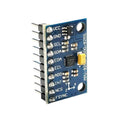
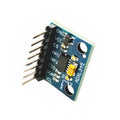
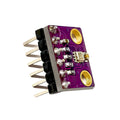
Overview
The ADXL345 is a small, low-power 3-axis digital accelerometer that measures static gravity (for tilt sensing) and dynamic acceleration from motion or shock. It outputs X, Y, and Z acceleration data over I2C or SPI, with selectable measurement ranges from plus/minus 2g all the way up to plus/minus 16g and 13-bit resolution in full-resolution mode.
This pre-soldered ShillehTek module makes the ADXL345 easy to drop into Arduino, Raspberry Pi, ESP32, and Pico projects. It's especially popular for Klipper 3D printer resonance testing and input-shaping calibration, motion-activated alarms, tilt-controlled robots, vibration loggers, and impact detection.
Built-in features go well beyond just reading acceleration: there's hardware tap and double-tap detection, free-fall detection, activity and inactivity sensing, and a 32-level FIFO buffer that lets you stream data without needing the host to read every sample in real time.
At a Glance
Specifications
| Parameter | Value |
| Sensor IC | Analog Devices ADXL345 |
| Module Supply Voltage | 3V to 5V (LDO regulator on board) |
| Sensor Operating Voltage | 2.0V to 3.6V (chip), 3.3V regulated |
| Operating Current | 40 microamps (measurement mode) |
| Standby Current | 0.1 microamps |
| Measurement Ranges | +/- 2g, +/- 4g, +/- 8g, +/- 16g (selectable) |
| Resolution | 10-bit fixed, or 13-bit at full resolution |
| Sensitivity (full-res, +/-2g) | 256 LSB / g |
| Output Data Rates | 0.1 Hz to 3200 Hz |
| I2C Speed | Up to 400 kHz (Fast Mode) |
| I2C Addresses | 0x53 (SDO LOW) or 0x1D (SDO HIGH) |
| SPI Speed | Up to 5 MHz (3- or 4-wire) |
| FIFO Buffer | 32 samples (X, Y, Z each) |
| Built-in Functions | Tap, double-tap, free-fall, activity, inactivity |
Pinout Diagram

Wiring Guide
Arduino Wiring (I2C)
Wire the ADXL345 to an Arduino Uno over I2C using SDA (A4) and SCL (A5). The on-board LDO accepts 5V on the 5V pin and regulates it to 3.3V for the chip, so it's safe to power straight from Arduino. CS must be tied HIGH to enable I2C mode.
| ADXL345 Pin | Arduino Pin |
|---|---|
| 5V | 5V |
| GND | GND |
| SDA | A4 (SDA) |
| SCL | A5 (SCL) |
| CS | 3.3V (tied HIGH for I2C) |
ESP32 Wiring (I2C)
The ESP32 is a 3.3V device, so the ADXL345 module is a perfect match. Use the default I2C pins (GPIO 21 for SDA, GPIO 22 for SCL) or any other GPIO pair you assign in software.
| ADXL345 Pin | ESP32 Pin |
|---|---|
| 3V3 | 3.3V |
| GND | GND |
| SDA | GPIO 21 |
| SCL | GPIO 22 |
| CS | 3.3V (tied HIGH for I2C) |
Raspberry Pi Wiring (I2C)
Wire the ADXL345 to the Raspberry Pi's hardware I2C bus. Make sure I2C is enabled in raspi-config first. The Pi's GPIO is 3.3V and matches the ADXL345 perfectly.
| ADXL345 Pin | Raspberry Pi Pin |
|---|---|
| 3V3 | Pin 1 (3.3V) |
| GND | Pin 6 (GND) |
| SDA | Pin 3 (GPIO 2 - SDA) |
| SCL | Pin 5 (GPIO 3 - SCL) |
| CS | Pin 1 (3.3V) - tied HIGH for I2C |
i2cdetect -y 1 on the Pi. You should see device 0x53 (or 0x1D if SDO is tied HIGH) in the address grid.
Raspberry Pi Pico Wiring (I2C)
The Pico has two I2C buses. The wiring below uses I2C0 on GP4 (SDA) and GP5 (SCL). The Pico is 3.3V so it pairs cleanly with the ADXL345.
| ADXL345 Pin | Pico Pin |
|---|---|
| 3V3 | Pin 36 (3V3 OUT) |
| GND | Pin 38 (GND) |
| SDA | Pin 6 (GP4 - I2C0 SDA) |
| SCL | Pin 7 (GP5 - I2C0 SCL) |
| CS | Pin 36 (3V3) - tied HIGH for I2C |
Code Examples
Arduino
// ADXL345 3-Axis Accelerometer - Arduino I2C Example
// Library: Adafruit ADXL345 (install via Library Manager)
// Wiring: SDA -> A4, SCL -> A5, 5V -> 5V, GND -> GND, CS -> 3.3V

#include
#include
#include

Adafruit_ADXL345_Unified accel = Adafruit_ADXL345_Unified(12345);

void setup() {
  Serial.begin(9600);
  Serial.println("ADXL345 starting...");

  if (!accel.begin()) {
    Serial.println("No ADXL345 detected. Check wiring and CS pin.");
    while (1);
  }

  accel.setRange(ADXL345_RANGE_4_G);
  Serial.println("ADXL345 ready.");
}

void loop() {
  sensors_event_t event;
  accel.getEvent(&event);

  Serial.print("X: "); Serial.print(event.acceleration.x); Serial.print(" m/s^2  ");
  Serial.print("Y: "); Serial.print(event.acceleration.y); Serial.print(" m/s^2  ");
  Serial.print("Z: "); Serial.print(event.acceleration.z); Serial.println(" m/s^2");

  delay(200);
}
Raspberry Pi (Python)
#!/usr/bin/env python3
# ADXL345 - Raspberry Pi I2C Example
# Install: sudo apt install python3-smbus
# Wiring: SDA -> GPIO 2, SCL -> GPIO 3, 3V3 -> 3.3V, GND -> GND, CS -> 3.3V

import smbus2
import time

ADDR = 0x53          # default I2C address
POWER_CTL = 0x2D
DATA_FORMAT = 0x31
DATAX0 = 0x32
SCALE = 0.0039 * 9.80665  # +/-2g, full-res: 3.9 mg/LSB -> m/s^2

bus = smbus2.SMBus(1)

def setup():
    bus.write_byte_data(ADDR, DATA_FORMAT, 0x08)  # full-res, +/-2g
    bus.write_byte_data(ADDR, POWER_CTL, 0x08)    # measurement mode

def read_axes():
    raw = bus.read_i2c_block_data(ADDR, DATAX0, 6)
    x = int.from_bytes(raw[0:2], 'little', signed=True) * SCALE
    y = int.from_bytes(raw[2:4], 'little', signed=True) * SCALE
    z = int.from_bytes(raw[4:6], 'little', signed=True) * SCALE
    return x, y, z

setup()
try:
    while True:
        x, y, z = read_axes()
        print("X: {:6.2f}  Y: {:6.2f}  Z: {:6.2f}  m/s^2".format(x, y, z))
        time.sleep(0.2)
except KeyboardInterrupt:
    print("Stopped by user")
Raspberry Pi Pico (MicroPython)
# ADXL345 - Raspberry Pi Pico MicroPython Example
# Wiring: SDA -> GP4, SCL -> GP5, 3V3 -> 3V3 OUT, GND -> GND, CS -> 3V3

from machine import I2C, Pin
import time

ADDR = 0x53
POWER_CTL = 0x2D
DATA_FORMAT = 0x31
DATAX0 = 0x32
SCALE = 0.0039 * 9.80665  # +/-2g, full-res

i2c = I2C(0, sda=Pin(4), scl=Pin(5), freq=400000)

# Configure: full-res, +/-2g, then enable measurement mode
i2c.writeto_mem(ADDR, DATA_FORMAT, b'\x08')
i2c.writeto_mem(ADDR, POWER_CTL, b'\x08')

while True:
    raw = i2c.readfrom_mem(ADDR, DATAX0, 6)
    x = int.from_bytes(raw[0:2], 'little')
    y = int.from_bytes(raw[2:4], 'little')
    z = int.from_bytes(raw[4:6], 'little')
    # Convert unsigned to signed 16-bit
    if x > 32767: x -= 65536
    if y > 32767: y -= 65536
    if z > 32767: z -= 65536
    print("X: {:6.2f}  Y: {:6.2f}  Z: {:6.2f}  m/s^2".format(
        x * SCALE, y * SCALE, z * SCALE))
    time.sleep(0.2)
ESP32 (MicroPython)
# ADXL345 - ESP32 MicroPython Example
# Wiring: SDA -> GPIO 21, SCL -> GPIO 22, 3V3 -> 3.3V, GND -> GND, CS -> 3.3V

from machine import I2C, Pin
import time

ADDR = 0x53
POWER_CTL = 0x2D
DATA_FORMAT = 0x31
DATAX0 = 0x32
SCALE = 0.0039 * 9.80665

i2c = I2C(0, sda=Pin(21), scl=Pin(22), freq=400000)

i2c.writeto_mem(ADDR, DATA_FORMAT, b'\x08')  # full-res, +/-2g
i2c.writeto_mem(ADDR, POWER_CTL, b'\x08')    # measurement mode

while True:
    raw = i2c.readfrom_mem(ADDR, DATAX0, 6)
    x = int.from_bytes(raw[0:2], 'little')
    y = int.from_bytes(raw[2:4], 'little')
    z = int.from_bytes(raw[4:6], 'little')
    if x > 32767: x -= 65536
    if y > 32767: y -= 65536
    if z > 32767: z -= 65536
    print("X: {:6.2f}  Y: {:6.2f}  Z: {:6.2f}  m/s^2".format(
        x * SCALE, y * SCALE, z * SCALE))
    time.sleep(0.2)