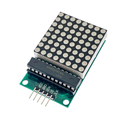
Overview
The ShillehTek MAX7219 4-in-1 Dot Matrix Display Module is a 32×8 red LED display built from four cascaded 8×8 dot matrices driven by four MAX7219 LED driver ICs. It's the fastest way to add scrolling text, numbers, icons, animations, and bar graphs to any Arduino, ESP32, Raspberry Pi, or Pico project — from message signs and clocks to retro score displays and notification tickers.
The module talks over a standard 3-wire SPI bus (DIN, CLK, CS), leaves plenty of GPIOs free, and can be daisy-chained with additional 4-in-1 modules through the DOUT pin on the opposite side. Operating voltage is 5V, and libraries are available in every major language so you can be scrolling text within a few lines of code.
At a Glance
Specifications
| Parameter | Value |
| Display Type | 4x cascaded 8x8 LED dot matrix |
| Total Pixels | 32 × 8 = 256 red LEDs |
| LED Color | Red |
| Driver IC | MAX7219 (one per 8x8 block) |
| Communication Protocol | SPI (Clock, Data-In, Chip-Select) |
| Operating Voltage | 5V DC |
| Typical Current (all on) | ~320 mA (80 mA per module) |
| Brightness Levels | 16 (hardware-controlled) |
| Cascading | Chainable via DOUT on far side |
| Module Dimensions | 128 × 32 × 14 mm |
| Mounting Holes | 4x M3 on corners |
Pinout Diagram

The 4-in-1 module exposes the five input pins (VCC, GND, DIN, CS, CLK) on one side and five matching output pins (VCC, GND, DOUT, CS, CLK) on the opposite side. Drive the module from the input side and, if you want a longer ticker, connect the output side of the first module to the input side of a second identical module.
Wiring Guide
Arduino Wiring
Most libraries (LedControl, MD_Parola, MD_MAX72XX) use the Arduino hardware SPI pins. On an Uno or Nano that means MOSI on pin 11 and SCK on pin 13. CS can be any free digital pin — the examples below use pin 10.
| Module Pin | Arduino Pin |
|---|---|
| VCC | 5V |
| GND | GND |
| DIN | D11 (MOSI) |
| CS | D10 |
| CLK | D13 (SCK) |
ESP32 Wiring
The ESP32 hardware VSPI bus uses GPIO 23 (MOSI) and GPIO 18 (SCK). CS can be any free GPIO — GPIO 5 is a common choice. Power the module from the ESP32 5V (VIN / VUSB) pin, not the 3V3 rail.
| Module Pin | ESP32 Pin |
|---|---|
| VCC | 5V (VIN / VUSB) |
| GND | GND |
| DIN | GPIO 23 (VSPI MOSI) |
| CS | GPIO 5 |
| CLK | GPIO 18 (VSPI SCK) |
Raspberry Pi Wiring
Raspberry Pi SPI0 is on physical pins 19 (MOSI), 23 (SCLK), and 24 (CE0). Enable SPI first with sudo raspi-config → Interface Options → SPI → Enable. Power the module from the 5V rail.
| Module Pin | Raspberry Pi Pin |
|---|---|
| VCC | Pin 2 (5V) |
| GND | Pin 6 (GND) |
| DIN | Pin 19 (GPIO 10, MOSI) |
| CS | Pin 24 (GPIO 8, CE0) |
| CLK | Pin 23 (GPIO 11, SCLK) |
luma.led_matrix library handles the 4 cascaded blocks cleanly with cascaded=4. Set block_orientation=-90 if your text displays rotated or mirrored.
Raspberry Pi Pico Wiring
The Pico's SPI0 bus uses GP19 (MOSI) and GP18 (SCK). CS can be any GPIO — GP17 is the SPI0 CS default. Power the module from VBUS (5V from USB) or an external 5V source, and share grounds with the Pico.
| Module Pin | Pico Pin |
|---|---|
| VCC | VBUS (5V) |
| GND | GND |
| DIN | GP19 (SPI0 MOSI) |
| CS | GP17 (SPI0 CSn) |
| CLK | GP18 (SPI0 SCK) |
Code Examples
Arduino
// MAX7219 4-in-1 Dot Matrix - Arduino Scrolling Text
// Library: MD_Parola + MD_MAX72XX (Library Manager)
// Wiring: DIN -> D11, CS -> D10, CLK -> D13

#include <MD_Parola.h>
#include <MD_MAX72xx.h>
#include <SPI.h>

#define HARDWARE_TYPE MD_MAX72XX::FC16_HW
#define MAX_DEVICES   4     // number of 8x8 blocks in the chain
#define CS_PIN        10

MD_Parola display = MD_Parola(HARDWARE_TYPE, CS_PIN, MAX_DEVICES);

void setup() {
  display.begin();
  display.setIntensity(5);       // 0 (dim) - 15 (bright)
  display.displayClear();
  display.displayScroll("ShillehTek MAX7219", PA_LEFT, PA_SCROLL_LEFT, 80);
}

void loop() {
  if (display.displayAnimate()) {
    display.displayReset();
  }
}
Raspberry Pi (Python)
#!/usr/bin/env python3
# MAX7219 4-in-1 Dot Matrix - Raspberry Pi Scrolling Text
# Install: pip install luma.led_matrix --break-system-packages

from luma.core.interface.serial import spi, noop
from luma.core.render import canvas
from luma.core.legacy import text, show_message
from luma.core.legacy.font import proportional, CP437_FONT
from luma.led_matrix.device import max7219
import time

serial = spi(port=0, device=0, gpio=noop())
device = max7219(serial, cascaded=4, block_orientation=-90, rotate=0)
device.contrast(0x30)   # 0x00 - 0xFF

show_message(device, "ShillehTek MAX7219",
             fill="white", font=proportional(CP437_FONT),
             scroll_delay=0.04)
Raspberry Pi Pico (MicroPython)
# MAX7219 4-in-1 Dot Matrix - Pico MicroPython Scrolling Text
# Upload max7219.py to the Pico (micropython-max7219 driver)
# Wiring: DIN -> GP19, CS -> GP17, CLK -> GP18

from machine import Pin, SPI
import max7219
import time

spi = SPI(0, baudrate=10_000_000, polarity=0, phase=0,
          sck=Pin(18), mosi=Pin(19))
cs  = Pin(17, Pin.OUT)

display = max7219.Matrix8x8(spi, cs, 4)  # 4 blocks cascaded
display.brightness(5)                    # 0 - 15
display.fill(0)

message = " ShillehTek MAX7219 "
while True:
    for pos in range(len(message) * 8):
        display.fill(0)
        display.text(message, -pos, 0, 1)
        display.show()
        time.sleep(0.04)
ESP32 (MicroPython)
# MAX7219 4-in-1 Dot Matrix - ESP32 MicroPython Scrolling Text
# Upload max7219.py to the ESP32 first
# Wiring: DIN -> GPIO 23, CS -> GPIO 5, CLK -> GPIO 18

from machine import Pin, SPI
import max7219
import time

spi = SPI(2, baudrate=10_000_000, polarity=0, phase=0,
          sck=Pin(18), mosi=Pin(23))
cs  = Pin(5, Pin.OUT)

display = max7219.Matrix8x8(spi, cs, 4)
display.brightness(5)
display.fill(0)

message = " ShillehTek ESP32 MAX7219 "
while True:
    for pos in range(len(message) * 8):
        display.fill(0)
        display.text(message, -pos, 0, 1)
        display.show()
        time.sleep(0.04)
Frequently Asked Questions
HARDWARE_TYPE to FC16_HW. In luma.led_matrix set block_orientation=-90. These two settings match how the 4-in-1 PCB routes the LEDs on most FC16-style modules.MAX_DEVICES (Arduino) or cascaded (Python) to the total number of 8x8 blocks in the chain — 8 for two 4-in-1 modules, 12 for three, and so on.setIntensity(3)) or power the VCC pin from a dedicated 5V/1A supply while sharing grounds with the microcontroller.setIntensity(), contrast(), or brightness(). Start around 3-5 for indoor use — the display is easily bright enough for a desktop and higher values waste power.