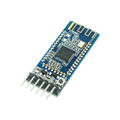
Overview
The HC-05 is a popular Bluetooth Classic (SPP) module that adds wireless serial communication to any microcontroller. It speaks the Serial Port Profile, which means once paired with your phone, laptop, or another HC-05, the link looks exactly like a wired UART — write bytes on one side and they pop out the other.
This 6-pin variant exposes the EN/Key pin (for entering AT command mode), STATE pin (connection status output), Vcc, GND, TX, and RX. It works as both a master and a slave, default baud rate is 9600, and the default pairing PIN is 1234 or 0000. Unlike BLE modules, the HC-05 is best for streaming continuous data to/from older phones, laptops, and microcontrollers — not for modern iOS, which dropped Classic SPP support.
At a Glance
Specifications
| Parameter | Value |
| Bluetooth Version | Bluetooth 2.0 + EDR (Classic) |
| Profile | SPP (Serial Port Profile) |
| Operating Voltage (VCC pin) | 3.6V - 6V (5V typical) |
| Logic Level | 3.3V (TX output, RX input) |
| Operating Current | ~30 mA (paired/streaming), 8 mA (idle) |
| RF Frequency | 2.4 GHz ISM band |
| Modulation | FHSS / GFSK |
| Default UART Baud | 9600 bps (data mode), 38400 bps (AT command mode) |
| Default Pairing PIN | 1234 or 0000 |
| Range | ~10 meters (open air) |
| Operating Temperature | -20°C to +75°C |
| Pins | EN/Key, VCC, GND, TX, RX, STATE |
Pinout Diagram

Wiring Guide
Arduino Wiring
The HC-05's RX pin is 3.3V — feeding 5V from the Arduino TX directly will eventually damage it. Always use a voltage divider (or level shifter) on the Arduino-TX-to-HC-05-RX line. The HC-05 TX side is fine to read directly into the Arduino RX (5V interprets 3.3V as HIGH).
| HC-05 Pin | Arduino Pin | Details |
|---|---|---|
| VCC | 5V | |
| GND | GND | |
| TX | D2 (RX, SoftSerial) | 3.3V signal — OK to read directly |
| RX | D3 (TX, SoftSerial) | Via 1k+2k voltage divider |
| EN/Key | Optional D9 | HIGH for AT mode entry |
| STATE | Optional D8 | HIGH when paired |
ESP32 Wiring
ESP32 is 3.3V logic, so no level shifting is needed on either line. Power the HC-05 from VIN (5V) for best RF performance — feeding it from 3.3V works but may reduce range.
| HC-05 Pin | ESP32 Pin |
|---|---|
| VCC | VIN (5V) |
| GND | GND |
| TX | GPIO 16 (RX2) |
| RX | GPIO 17 (TX2) |
| STATE | Any input GPIO (optional) |
Raspberry Pi Wiring
Raspberry Pi GPIO is 3.3V, so the HC-05 TX/RX pins connect directly. Disable the serial console first (raspi-config > Interface Options > Serial Port > "No" to login shell, "Yes" to serial port hardware) so /dev/serial0 is free.
| HC-05 Pin | Raspberry Pi Pin |
|---|---|
| VCC | Pin 2 (5V) |
| GND | Pin 6 (GND) |
| TX | Pin 10 (GPIO 15, RXD) |
| RX | Pin 8 (GPIO 14, TXD) |
Raspberry Pi Pico Wiring
The Pico's UART pins are 3.3V — wire HC-05 TX/RX directly. Use UART0 on GP0/GP1 for simplest MicroPython setup.
| HC-05 Pin | Pico Pin |
|---|---|
| VCC | VBUS (5V) or VSYS |
| GND | GND |
| TX | GP1 (UART0 RX) |
| RX | GP0 (UART0 TX) |
Code Examples
Arduino
// HC-05 Bluetooth - Arduino Echo Example
// Pair from your phone with "Serial Bluetooth Terminal" app
// Default PIN: 1234 (or 0000)

#include <SoftwareSerial.h>

// HC-05 TX -> D2, HC-05 RX (via divider) -> D3
SoftwareSerial bt(2, 3);

void setup() {
  Serial.begin(9600);
  bt.begin(9600);
  Serial.println("HC-05 ready. Pair and send text.");
}

void loop() {
  // Phone -> Arduino
  if (bt.available()) {
    String msg = bt.readString();
    Serial.print("Got: ");
    Serial.println(msg);
    bt.print("Echo: ");
    bt.println(msg);
  }
  // Arduino -> phone
  if (Serial.available()) {
    bt.write(Serial.read());
  }
}
Arduino — AT Command Mode
// Configure HC-05 with AT commands
// 1. Wire EN/Key pin HIGH (3.3V) BEFORE powering the module
// 2. The LED should blink slowly (~2 Hz) instead of fast
// 3. Open Serial Monitor at 38400 baud, "Both NL & CR"
// 4. Type AT and you should see OK
//
// Common commands:
//   AT+NAME=MyHC05         (set device name)
//   AT+PSWD="2580"         (set pairing PIN)
//   AT+UART=115200,0,0     (change baud rate)
//   AT+ROLE=0              (slave) or AT+ROLE=1 (master)

#include <SoftwareSerial.h>
SoftwareSerial bt(2, 3);

void setup() {
  Serial.begin(38400);
  bt.begin(38400);
}

void loop() {
  if (bt.available()) Serial.write(bt.read());
  if (Serial.available()) bt.write(Serial.read());
}
Raspberry Pi (Python) — Send/Receive
#!/usr/bin/env python3
# Install: pip install pyserial
# Disable serial console first via raspi-config

import serial
import time

bt = serial.Serial('/dev/serial0', 9600, timeout=1)
bt.reset_input_buffer()

print("HC-05 ready - pair from phone, then send text")
while True:
    if bt.in_waiting:
        line = bt.readline().decode(errors='ignore').strip()
        print(f"Got: {line}")
        bt.write(f"Echo: {line}\n".encode())
    time.sleep(0.05)
Raspberry Pi Pico (MicroPython)
# HC-05 on Pico - MicroPython Echo Example
from machine import UART, Pin
import time

uart = UART(0, baudrate=9600, tx=Pin(0), rx=Pin(1))
print("HC-05 ready")

while True:
    if uart.any():
        data = uart.readline()
        if data:
            text = data.decode().strip()
            print("Got:", text)
            uart.write("Echo: " + text + "\n")
    time.sleep_ms(50)
Frequently Asked Questions
1234. Some firmware variants use 0000. You can change it with the AT command AT+PSWD="newpin" while in AT command mode.AT+NAME=MyDevice and AT+UART=115200,0,0 (the last two zeros are stop bits and parity).