

Project Overview
ESP32 + soil moisture sensor: In this project, you will connect a soil moisture sensor module to an ESP32, read the analog value, convert it into a percentage, and view the result in the Arduino IDE Serial Monitor.
You will also build a simple Wi-Fi web page hosted by the ESP32 so you can check soil moisture readings from your phone or laptop on the same network.
- Time: 20 to 45 minutes
- Skill level: Beginner
- What you will build: An ESP32 soil moisture monitor with serial output and a simple browser-based dashboard
Parts List
From ShillehTek
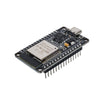
- ESP-WROOM-32 ESP32 Dev Board CP2102 USB-C Pre-Soldered - the development board used in this build
- Soil Moisture Sensor Module - provides analog output based on moisture level in the soil (includes 5-pin Dupont cable)
- ShillehTek 120pcs 10cm Multicolored Jumper Wire - for connecting the sensor to the ESP32
- ShillehTek 400-Point Breadboard (optional) - for a cleaner solderless setup
External
- USB cable - for powering and programming the ESP32
Note: Many basic soil moisture modules provide an analog output that changes depending on how wet or dry the soil is. This guide focuses on reading that analog signal with the ESP32.
Step-by-Step Guide
Step 1 - Wire the soil moisture sensor to the ESP32
Goal: Connect the module so the ESP32 can read the analog moisture signal.
What to do: Connect the sensor module power, ground, and analog output to the ESP32. Use an ADC-capable GPIO pin for the analog signal input.
- Sensor VCC to the correct power pin for your module
- Sensor GND to ESP32 GND
- Sensor AO to an ESP32 ADC pin

Expected result: The ESP32 is physically connected to the sensor and ready to read changing moisture values.
Step 2 - Read the analog value in Arduino IDE
Goal: Confirm that the ESP32 can read the raw sensor output.
What to do: Use analogRead() on the GPIO pin connected to the sensor output. On the ESP32, the ADC reading typically ranges from 0 to 4095.
Expected result: You should see a raw value that changes when the sensor moves between dry and wet soil.
Step 3 - Convert the reading into a moisture percentage
Goal: Make the sensor reading easier to understand.
What to do: Convert the raw ADC value into a percentage using a simple calculation.
Code:
Moisture % = 100 - ((analogReading / 4095.00) * 100)Expected result: Instead of just printing a raw ADC value, the ESP32 shows a percentage estimate for soil moisture.
Step 4 - Upload the serial monitor example
Goal: Test the sensor quickly before adding Wi-Fi features.
What to do: Upload the following sketch, then open the Serial Monitor and observe how the value changes as the sensor is placed in dry and wet soil.
Code:
int moisturePercent;
int sensorAnalog;

// Change this to the ADC pin you are using
const int sensorPin = 34;

void setup() {
  Serial.begin(115200);
}

void loop() {
  sensorAnalog = analogRead(sensorPin);
  moisturePercent = 100 - ((sensorAnalog / 4095.00) * 100);

  Serial.print("Moisture = ");
  Serial.print(moisturePercent);
  Serial.println("%");

  delay(1000);
}
Expected result: The Serial Monitor should display a moisture percentage that updates once per second.
Step 5 - Add Wi-Fi credentials for the web version
Goal: Prepare the ESP32 to join your local Wi-Fi network.
What to do: Add your Wi-Fi name and password in the sketch before uploading the web server version.
Code:
const char* ssid = "YOUR_WIFI_NAME";
const char* password = "YOUR_WIFI_PASSWORD";
Expected result: The ESP32 will connect to your Wi-Fi and print its local IP address in the Serial Monitor.
Step 6 - Host a simple moisture dashboard from the ESP32
Goal: Serve the moisture reading on a web page instead of only in the Serial Monitor.
What to do: Use WiFi.h and WebServer.h to create a basic page and a second route that returns the current moisture percentage.
Expected result: Visiting the ESP32 IP address in a browser will load a small dashboard showing the current moisture level.
Step 7 - Upload the ESP32 web server sketch
Goal: View live moisture readings from a browser on your phone or computer.
What to do: Upload the following sketch, open the Serial Monitor, copy the printed IP address, and visit it in a browser on the same Wi-Fi network.
Code:
#include <WiFi.h>
#include <WebServer.h>

WebServer server(80);

int moisturePercent;
int sensorAnalog;

// Change this to the ADC pin you are using
const int sensorPin = 34;

const char* ssid = "YOUR_WIFI_NAME";
const char* password = "YOUR_WIFI_PASSWORD";

const char html_page[] PROGMEM = R"rawliteral(


  <meta name="viewport" content="width=device-width, initial-scale=1">
  <title>ESP32 Soil Moisture</title>
  <style>
    body { font-family: Arial, sans-serif; text-align: center; padding: 30px; }
    h1 { font-size: 28px; }
    p { font-size: 32px; }
  </style>


  <h1>Soil Moisture With ESP32</h1>
  <p>Moisture Level: <span id="MoistureVal">0</span>%</p>

  <script>
    setInterval(function() {
      var xhttp = new XMLHttpRequest();
      xhttp.onreadystatechange = function() {
        if (this.readyState == 4 && this.status == 200) {
          document.getElementById("MoistureVal").innerHTML = this.responseText;
        }
      };
      xhttp.open("GET", "/readMoisture", true);
      xhttp.send();
    }, 500);
  </script>


)rawliteral";

void MainPage() {
  server.send(200, "text/html", html_page);
}

void SoilMoisture() {
  String moistureValue = String(moisturePercent);
  server.send(200, "text/plain", moistureValue);
}

void setup() {
  Serial.begin(115200);

  WiFi.mode(WIFI_STA);
  WiFi.begin(ssid, password);

  Serial.print("Connecting to ");
  Serial.println(ssid);

  while (WiFi.waitForConnectResult() != WL_CONNECTED) {
    Serial.print(".");
    delay(100);
  }

  Serial.println();
  Serial.print("Connected. Local IP: ");
  Serial.println(WiFi.localIP());

  server.on("/", MainPage);
  server.on("/readMoisture", SoilMoisture);
  server.begin();
}

void loop() {
  sensorAnalog = analogRead(sensorPin);
  moisturePercent = 100 - ((sensorAnalog / 4095.00) * 100);

  server.handleClient();

  Serial.print("Moisture = ");
  Serial.print(moisturePercent);
  Serial.println("%");

  delay(1000);
}
Expected result: The ESP32 serves a simple live page that updates the displayed moisture value automatically.
Step 8 - Verify the readings and web page update
Goal: Confirm the readings are stable and the web page loads and refreshes as expected.
What to do: Compare readings in dry soil versus damp soil, and confirm your browser is on the same Wi-Fi network as the ESP32. Verify the ADC pin and wiring match what you used in the sketch.
- Confirm the analog output is connected to an ESP32 ADC pin
- Double-check the power and ground wiring
- Confirm your Serial Monitor baud rate matches the sketch
- Make sure your browser device is on the same Wi-Fi network
- Test the sensor in dry soil and damp soil to compare values
Expected result: You get stable moisture readings in both the Serial Monitor and the browser-based dashboard.
Conclusion
You built an ESP32 soil moisture monitor that can show readings in the Arduino IDE and through a simple Wi-Fi web page. This is a strong beginner project for plant monitoring, smart watering, and basic environmental sensing.
Want the exact parts used in this build? Grab the ESP32, soil moisture sensor, jumper wires, and breadboard from ShillehTek.com. If you want help customizing this project or building something for your product, check out our IoT consulting services.


.png?v=25000753014097803521791168436)

.png?v=68677308723310773341791168436)


