

Project Overview
ESP32 with 2.8 inch TFT LCD Touchscreen (ILI9341): This guide shows how to wire and program a 2.8 inch SPI TFT LCD touchscreen module (ILI9341 + XPT2046) to an ESP32 so it displays text and reports touch coordinates and pressure on-screen and in the Serial Monitor.
- Time: 20 to 30 minutes
- Skill level: Beginner to Intermediate
- What you will build: A touchscreen interface on the ESP32 that displays text and responds to touch input with coordinate and pressure readings.

Parts List
From ShillehTek
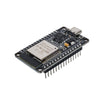
- ESP32 WROOM Dev Board (USB-C, Pre-Soldered) - the microcontroller that runs your code and communicates with the display via SPI
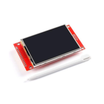
- 2.8 inch SPI TFT LCD Touchscreen Module 240x320 (ILI9341) - the display and touchscreen used in this project
- ShillehTek 400-Point Breadboard - for prototyping the wiring connections
- ShillehTek 120pcs Multicolored Dupont Jumper Wires - for connecting the display pins to the ESP32
External
- USB-C cable - to program the ESP32 and provide power
- Computer with Arduino IDE installed
Note: The TFT display VCC pin can accept either 5V or 3.3V depending on the J1 solder bridge on the back of the board. By default, J1 is open, meaning VCC should be connected to 5V. If J1 is closed (bridged), connect VCC to 3.3V instead.
Step-by-Step Guide
Step 1 - Introducing the TFT LCD Touchscreen Display
Goal: Understand the display module you will be working with.
What to do: The 2.8 inch TFT LCD used in this project communicates over SPI and uses the ILI9341 driver. It supports a 240x320 pixel resolution, which is enough for text, shapes, and simple images. The touchscreen overlay also communicates over SPI using a separate chip select line. The module additionally includes an SD card slot for loading files if needed.

Step 2 - Wire the TFT Display to the ESP32
Goal: Connect all display and touchscreen pins to the correct ESP32 GPIOs.
What to do: Wire the TFT LCD and touchscreen pins to the following ESP32 GPIOs. Use these exact pins for the code and library configuration to work correctly.

Use this pin mapping table:
| TFT LCD / Touchscreen Pin | ESP32 GPIO |
|---|---|
| T_IRQ | GPIO 36 |
| T_OUT | GPIO 39 |
| T_DIN | GPIO 32 |
| T_CS | GPIO 33 |
| T_CLK | GPIO 25 |
| SDO (MISO) | GPIO 12 |
| LED | GPIO 21 |
| SCK | GPIO 14 |
| SDI (MOSI) | GPIO 13 |
| D/C | GPIO 2 |
| RESET | EN/RESET |
| CS | GPIO 15 |
| GND | GND |
| VCC | 5V (or 3.3V)* |


Expected result: All 14 wires are connected between the ESP32 and the TFT display module. Double-check every connection before powering on.
Step 3 - Install the Required Arduino Libraries
Goal: Install the TFT_eSPI and XPT2046_Touchscreen libraries in the Arduino IDE.
What to do: Open the Arduino IDE and go to Sketch > Include Library > Manage Libraries. Search for and install the following two libraries:
1. TFT_eSPI by Bodmer - handles all communication with the TFT display.

2. XPT2046_Touchscreen by Paul Stoffregen - handles touchscreen input reading.

Expected result: Both libraries appear as "Installed" in the Library Manager.
Step 4 - Configure the User_Setup.h File
Goal: Replace the default TFT_eSPI configuration file with one that matches the pin wiring.
What to do: The TFT_eSPI library requires a User_Setup.h file with the correct pin definitions. A ready-to-use configuration file is provided in the original Random Nerd Tutorials guide (linked below), so you do not need to edit anything manually.
First, download the User_Setup.h file from Random Nerd Tutorials.

Windows steps:
- In the Arduino IDE, go to File > Preferences.
- Copy the Sketchbook location path shown in the Preferences window.
- Open that path in File Explorer and browse to the
librariesfolder. - Open the
TFT_eSPIfolder. - Replace the existing
User_Setup.hwith the downloaded file.


Mac steps:
- In the Arduino IDE, go to Arduino IDE > Settings and copy the Sketchbook location path.
- Open that path in Finder and navigate to the Arduino folder.
- Open the
librariesfolder. - Open the
TFT_eSPIfolder. - Copy the downloaded
User_Setup.hfile into the TFT_eSPI folder, replacing the existing one.


Note: Use the specific User_Setup.h file linked in the original tutorial. Other versions found online may have different pin assignments and will not work with this wiring setup.
Expected result: The User_Setup.h file in your libraries/TFT_eSPI/ folder matches the pin wiring from Step 2.
Step 5 - Upload the Code
Goal: Upload the touchscreen test sketch to the ESP32.
What to do: Copy the code below into the Arduino IDE. Go to Tools > Board and select ESP32 > ESP32 Dev Module. Select the correct COM port under Tools > Port, then click Upload.

Code:
#include <SPI.h>
#include <TFT_eSPI.h>
#include <XPT2046_Touchscreen.h>

TFT_eSPI tft = TFT_eSPI();

// Touchscreen pins
#define XPT2046_IRQ 36   // T_IRQ
#define XPT2046_MOSI 32  // T_DIN
#define XPT2046_MISO 39  // T_OUT
#define XPT2046_CLK 25   // T_CLK
#define XPT2046_CS 33    // T_CS

SPIClass touchscreenSPI = SPIClass(VSPI);
XPT2046_Touchscreen touchscreen(XPT2046_CS, XPT2046_IRQ);

#define SCREEN_WIDTH 320
#define SCREEN_HEIGHT 240
#define FONT_SIZE 2

int x, y, z;

void printTouchToSerial(int touchX, int touchY, int touchZ) {
  Serial.print("X = ");
  Serial.print(touchX);
  Serial.print(" | Y = ");
  Serial.print(touchY);
  Serial.print(" | Pressure = ");
  Serial.print(touchZ);
  Serial.println();
}

void printTouchToDisplay(int touchX, int touchY, int touchZ) {
  tft.fillScreen(TFT_WHITE);
  tft.setTextColor(TFT_BLACK, TFT_WHITE);

  int centerX = SCREEN_WIDTH / 2;
  int textY = 80;

  String tempText = "X = " + String(touchX);
  tft.drawCentreString(tempText, centerX, textY, FONT_SIZE);

  textY += 20;
  tempText = "Y = " + String(touchY);
  tft.drawCentreString(tempText, centerX, textY, FONT_SIZE);

  textY += 20;
  tempText = "Pressure = " + String(touchZ);
  tft.drawCentreString(tempText, centerX, textY, FONT_SIZE);
}

void setup() {
  Serial.begin(115200);

  // Start SPI for the touchscreen and initialize
  touchscreenSPI.begin(XPT2046_CLK, XPT2046_MISO, XPT2046_MOSI, XPT2046_CS);
  touchscreen.begin(touchscreenSPI);
  touchscreen.setRotation(1);

  // Start the TFT display
  tft.init();
  tft.setRotation(1);

  tft.fillScreen(TFT_WHITE);
  tft.setTextColor(TFT_BLACK, TFT_WHITE);

  int centerX = SCREEN_WIDTH / 2;
  int centerY = SCREEN_HEIGHT / 2;

  tft.drawCentreString("Hello, world!", centerX, 30, FONT_SIZE);
  tft.drawCentreString("Touch screen to test", centerX, centerY, FONT_SIZE);
}

void loop() {
  if (touchscreen.tirqTouched() && touchscreen.touched()) {
    TS_Point p = touchscreen.getPoint();

    x = map(p.x, 200, 3700, 1, SCREEN_WIDTH);
    y = map(p.y, 240, 3800, 1, SCREEN_HEIGHT);
    z = p.z;

    printTouchToSerial(x, y, z);
    printTouchToDisplay(x, y, z);

    delay(100);
  }
}
Expected result: The code compiles and uploads without errors. The TFT display should show "Hello, world!" and "Touch screen to test" on a white background.

Step 6 - Test the Touchscreen
Goal: Verify that touch input is working correctly.
What to do: Press the touchscreen with your finger or a stylus. The display should update to show the X and Y coordinates along with the pressure value. Open the Arduino IDE Serial Monitor (baud rate 115200) to see the same data printed there as well.


Expected result: Each time you touch the screen, the X, Y, and Pressure values update on both the display and the Serial Monitor. Note that this is a resistive touchscreen with 240x320 pixel resolution.
Note: If the touchscreen appears to be mirrored or upside down, try changing touchscreen.setRotation(1) to touchscreen.setRotation(3) in the setup() function.
Conclusion
You wired and programmed a 2.8 inch TFT LCD touchscreen display (ILI9341) with an ESP32 using the Arduino IDE. With TFT_eSPI and XPT2046_Touchscreen installed and a matching User_Setup.h configuration, the test sketch displays text and reports touch coordinates and pressure in real time.
Reference credits for the original guide and many of the images used here go to Random Nerd Tutorials.
Want the exact parts used in this build? Grab them from ShillehTek.com. If you want help customizing this project or building something for your product, check out our IoT consulting services.




.png?v=25000753014097803521791168436)

.png?v=68677308723310773341791168436)


