

Project Overview
Arduino Nano + MG90S/SG90 servo motor: In this tutorial you connect an Arduino Nano to a servo motor like an SG90 or MG90S and control its position using the built-in Servo.h library.
Servo motors are great when you need controlled movement to a specific angle, which makes them useful for robotics, automation, pan-and-tilt systems, and small mechanical projects.
- Time: 20 to 40 minutes
- Skill level: Beginner
- What you will build: An Arduino project that moves a servo between positions with simple example code
Note: Most hobby servos rotate through a limited range, often around 0 to 180 degrees. Exact pulse timing can vary slightly depending on the specific servo model.
Parts List
From ShillehTek
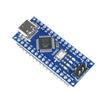
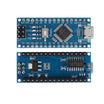
- Arduino Nano V3.0 ATmega328P CH340C Type-C (or compatible) - sends the servo control signal; matches this tutorial
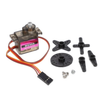
- MG90S Metal Gear 9g Micro Servo Motor 180° for RC Plane - metal-gear micro servo for position control (drop-in SG90 class size)
- ShillehTek 120pcs 10cm Multicolored Jumper Wire - connect Nano and servo
- ShillehTek 400-Point Breadboard (optional) - solderless wiring for the demo setup
External
- Arduino IDE - to upload and run the sketch
- USB cable for your Arduino board - for power and programming
- SG90 servo (optional) - lighter plastic-gear alternative if you do not use the MG90S
Note: Small servos may work directly from an Arduino in light-duty demos, but for heavier loads or unstable behavior, use a proper external power source and connect grounds together.
Step-by-Step Guide
Step 1 - Understand how a servo motor works
Goal: Learn what makes a servo different from a regular DC motor.
What to know: A servo motor is built for precise position control. Instead of spinning freely like a standard DC motor, it moves to a commanded angle and tries to hold that position. This is why servos are used in robotic arms, steering systems, camera mounts, and similar projects.
Expected result: You understand that the Arduino sends timed pulses to tell the servo where to move.
Step 2 - Wire the servo to the Arduino Nano
Goal: Connect the servo so the Arduino can control its position.
What to do: Connect the servo signal wire to a PWM-capable digital pin on the Arduino Nano, such as D9. Then connect the servo power wire to the appropriate power rail and the ground wire to GND.

Typical servo wire colors are:
- Brown or black: GND
- Red: VCC
- Orange, yellow, or white: Signal

Expected result: The servo is connected to power, ground, and one Arduino signal pin.
Step 3 - Choose between SG90 and MG90S
Goal: Pick the servo that best fits your project.
What to know: The SG90 is a lightweight and popular beginner servo. The MG90S is similar in size but usually offers a bit more torque, faster response, and metal gears for better durability.
If your project has a light mechanical load, the SG90 is often enough. If you want better durability or slightly stronger performance, the MG90S is usually the better choice.
Expected result: You know which servo to test first based on your load and durability needs.
Step 4 - Upload a simple angle control sketch
Goal: Move the servo between 0 and 180 degrees with smooth motion.
What to do: Open the Arduino IDE and upload the following sketch. It uses the built-in Servo.h library to move the servo gradually from one position to another.
Code:
#include "Servo.h"

#define SERVO1_PIN 9

#define MIN_ANGLE 0
#define MAX_ANGLE 180
#define DEFAULT_ANGLE 90

int servoAngle = DEFAULT_ANGLE;

Servo Servo1;

void setup()
{
  Servo1.attach(SERVO1_PIN);
  Servo1.write(DEFAULT_ANGLE);
}

void loop()
{
  graduallyApplyServoAngle(MAX_ANGLE);
  delay(1000);

  graduallyApplyServoAngle(MIN_ANGLE);
  delay(1000);
}

void graduallyApplyServoAngle(int angle)
{
  int limitedAngle = limitServoAngle(angle);

  while (servoAngle != limitedAngle) {
    if (servoAngle > limitedAngle) {
      servoAngle--;
    }

    if (servoAngle < limitedAngle) {
      servoAngle++;
    }

    Servo1.write(servoAngle);
    delay(5);
  }
}

int limitServoAngle(int angle)
{
  return constrain(angle, MIN_ANGLE, MAX_ANGLE);
}
Expected result: The servo sweeps smoothly toward one end, pauses, returns back, and repeats.
Step 5 - Control the servo using pulse width in microseconds
Goal: Get finer control over servo movement.
What to do: Instead of commanding degrees directly, you can send pulse widths in microseconds. This gives you more control when tuning a specific servo model.
Many hobby servos are roughly centered near 1500 microseconds, with lower values toward one end and higher values toward the other. The actual usable range can vary.
Code:
#include "Servo.h"

#define SERVO1_PIN 9

#define MIN_MS 0
#define MAX_MS 2000
#define DEFAULT_MS 1000

int servoPulse = DEFAULT_MS;

Servo Servo1;

void setup()
{
  Servo1.attach(SERVO1_PIN);
  Servo1.writeMicroseconds(DEFAULT_MS);
}

void loop()
{
  graduallyApplyServoPulse(MAX_MS);
  delay(1000);

  graduallyApplyServoPulse(MIN_MS);
  delay(1000);
}

void graduallyApplyServoPulse(int pulse)
{
  int limitedPulse = limitServoPulse(pulse);

  while (servoPulse != limitedPulse) {
    if (servoPulse > limitedPulse) {
      servoPulse--;
    }

    if (servoPulse < limitedPulse) {
      servoPulse++;
    }

    Servo1.writeMicroseconds(servoPulse);
  }
}

int limitServoPulse(int pulse)
{
  return constrain(pulse, MIN_MS, MAX_MS);
}
Expected result: You can fine-tune the servo’s movement more precisely than with simple angle commands alone.
Step 6 - Fine-tune the minimum and maximum pulse values
Goal: Match your code to the actual limits of your servo.
What to do: Test the servo carefully and adjust the pulse range if needed. While many servos respond near 1 ms, 1.5 ms, and 2 ms for minimum, center, and maximum positions, not every unit behaves exactly the same.
Small adjustments can improve accuracy and help prevent the servo from pushing too hard against its internal stop points.
Expected result: The servo moves more accurately and reliably for your specific hardware.
Conclusion
You now have an Arduino Nano controlling an SG90 or MG90S servo motor with both angle-based commands and direct pulse-width control. This is a strong starting point for robotics, automation, and motion-based electronics projects.
Want the exact parts used in this build? Grab them from ShillehTek.com. If you want help customizing this project or building something for your product, check out our IoT consulting services.




.png?v=25000753014097803521791168436)

.png?v=68677308723310773341791168436)


