Overview
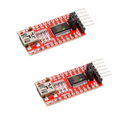
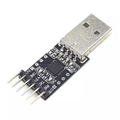
The FT232RL USB-to-TTL serial cable is a self-contained USB-to-UART bridge built around FTDI's FT232RL chip — plug one end into your computer's USB port, and the other end gives you 6 pre-wired serial signals (TX, RX, VCC, GND, CTS, RTS) on a 0.1" header that drops straight onto a breadboard or directly onto a header pin row. It eliminates the need for an external USB-to-serial breakout and is one of the most reliable ways to talk to bare microcontrollers (ATmega328, ATtiny, ESP8266/ESP32 in bootloader mode), legacy serial peripherals, GPS modules, or to simply add a USB serial port to your project for debugging.
FTDI drivers are bundled with Windows, macOS, and Linux out of the box, and the chip is recognised by every Arduino IDE, esptool, PlatformIO, screen, minicom, and PuTTY. CTS and RTS are exposed in addition to the basic TX/RX pair, which makes this cable suitable for hardware-flow-control applications and for triggering DTR-style auto-reset on Arduino-compatible boards.
Common use cases: programming bootloader-only microcontrollers, debugging headless Raspberry Pi or router consoles, talking to GPS / GSM / LoRa modules, communicating with industrial PLCs through a TTL converter, and as a general-purpose serial diagnostic tool.
At a Glance
Specifications
| Parameter | Value |
| Bridge IC | FTDI FT232RL |
| USB Standard | USB 2.0 Full Speed (12 Mbps) |
| USB Connector | Type-A male |
| TTL Connector | 6-pin 0.1" (2.54 mm) female header |
| Logic Voltage | 5V TTL |
| VCC Pin Output | 5V from USB bus, ~500 mA max (USB-limited) |
| Baud Rate Range | 300 bps to 3 Mbps |
| Cable Length | ~1 m |
| Driver | FTDI VCP (built into Windows 10/11, macOS, Linux) |
| Operating Temperature | -40°C to +85°C |
Pin Assignments
The 6-pin header follows FTDI's standard wire-color convention. Look at the header from the side that faces the PCB:
| Pin | Color | Signal | Description |
| 1 | Black | GND | Ground (common reference) |
| 2 | Brown | CTS | Clear To Send (input to PC) |
| 3 | Red | VCC | +5V power output (from USB) |
| 4 | Orange | TXD | Transmit data (output from PC) |
| 5 | Yellow | RXD | Receive data (input to PC) |
| 6 | Green | RTS | Request To Send (output from PC) |
Wiring Guide
Programming a Bare ATmega328 / Arduino Pro Mini (5V)
Connect TX-to-RX (cross-over) and feed power directly from the cable's VCC pin.
| FT232RL | ATmega / Pro Mini |
|---|---|
| VCC (Red) | VCC |
| GND (Black) | GND |
| TXD (Orange) | RXD |
| RXD (Yellow) | TXD |
| RTS or DTR (Green) | RST (via 0.1 µF cap for auto-reset) |
ESP8266 / ESP32 (3.3V Logic)
| FT232RL | ESP Module |
|---|---|
| GND (Black) | GND |
| TXD (Orange) | RX (through 1k / 2.2k divider) |
| RXD (Yellow) | TX (3.3V is read fine as logic-high by 5V FTDI) |
| VCC | Do NOT connect to ESP 3.3V |
Raspberry Pi Headless Console
Use this cable to access a Pi serial console without a monitor. Enable serial in raspi-config first.
| FT232RL | Raspberry Pi (40-pin header) |
|---|---|
| GND (Black) | Pin 6 (GND) |
| TXD (Orange) | Pin 10 (GPIO15 / RXD) |
| RXD (Yellow) | Pin 8 (GPIO14 / TXD) |
| VCC | Leave disconnected — Pi has its own power |
screen /dev/tty.usbserial-* 115200 on macOS/Linux or PuTTY on Windows.
Code Examples
Arduino IDE: upload to a Pro Mini / bare ATmega328
1. Wire the cable per the table above (TX-to-RX, RX-to-TX, plus VCC, GND).
2. In Arduino IDE: Tools → Board → "Arduino Pro or Pro Mini".
3. Tools → Processor → ATmega328P (5V, 16 MHz).
4. Tools → Port → choose the FTDI device (usually "USB Serial" / "/dev/tty.usbserial-XXXX").
5. Click Upload. The cable's RTS line auto-resets the board (with the 0.1uF cap) and uploads.
Linux / macOS: open a serial monitor with screen
# List available FTDI devices (macOS)
ls /dev/tty.usbserial-*

# Open at 115200 baud
screen /dev/tty.usbserial-A50285BI 115200

# Linux equivalent
ls /dev/ttyUSB*
screen /dev/ttyUSB0 115200

# Exit screen with: Ctrl+A then K, confirm with y
Python (pyserial): scripted communication
import serial
import time

# Open the FTDI cable at 9600 baud
ser = serial.Serial('/dev/tty.usbserial-A50285BI', 9600, timeout=1)
time.sleep(2)  # let the connection settle

ser.write(b'AT
')        # send a command
response = ser.readline()    # read one line back
print(response.decode().strip())

ser.close()