Overview
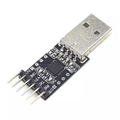
The FT232RL Mini USB to TTL Serial Converter is a compact USB-to-UART adapter built around the popular FTDI FT232RL chip. It bridges your computer's USB port to a 3.3V or 5V TTL serial line, letting you talk to microcontrollers, flash firmware, and debug embedded devices without needing a dedicated programmer.
This module is the go-to tool for programming Arduino Pro Mini boards, flashing ESP8266 (ESP-01) modules, debugging Raspberry Pi serial consoles, and connecting any microcontroller's UART to a PC. A jumper on the board lets you select 3.3V or 5V output on the VCC pin, so the same module works safely with both logic levels.
FTDI chips are well supported across Windows, macOS, and Linux. Drivers are bundled with most operating systems, and tools like the Arduino IDE, esptool.py, PuTTY, and minicom recognize the converter as a standard COM/tty serial port the moment you plug it in.
At a Glance
Specifications
| Parameter | Value |
| Driver IC | FTDI FT232RL |
| USB Interface | USB 2.0 Full Speed (Mini USB) |
| Power Source | USB bus-powered (5V from host) |
| VCC Output | 3.3V or 5V (jumper selectable) |
| Logic Levels (TX/RX) | Match selected VCC (3.3V or 5V) |
| Operating Current | ~40-50 mA typical |
| Maximum Baud Rate | 3 Mbps (3,000,000 baud) |
| Data Format | 5/6/7/8 data bits, 1/1.5/2 stop bits |
| Parity | None / Odd / Even / Mark / Space |
| Indicator LEDs | Power, TX, RX |
| OS Support | Windows, macOS, Linux (FTDI VCP) |
| Operating Temperature | 0°C to 60°C |
Pinout Diagram

The 6-pin main header on the left side is what you'll use for almost every project: DTR, RX, TX, VCC, CTS, GND. The extra pads around the FT232RL chip expose advanced FTDI signals (RTS, DSR, DCD, RI, TXDEN, SLEEP, PWREN) for users who need full RS-232-style flow control. The yellow jumper near the chip selects whether VCC outputs 3.3V or 5V — set it before powering the board.
Wiring Guide
Programming an Arduino Pro Mini
The Arduino Pro Mini has no onboard USB, so you flash sketches through a USB-to-serial adapter. The FT232RL connects to the Pro Mini's 6-pin programming header, and the DTR pin handles the auto-reset that triggers the bootloader.
| FT232RL Pin | Pro Mini Pin |
|---|---|
| DTR | DTR (GRN) |
| RX | TXO |
| TX | RXI |
| VCC | VCC |
| CTS | (not connected) |
| GND | GND (BLK) |
Flashing an ESP-01 / ESP8266
The ESP-01 module is 3.3V only. Set the FT232RL voltage jumper to 3.3V before connecting anything. To enter flash mode, GPIO0 must be pulled to GND while the module powers on or resets.
| FT232RL Pin | ESP-01 Pin | Details |
|---|---|---|
| VCC (3.3V) | VCC | Also connect to CH_PD |
| GND | GND | Also tie GPIO0 to GND for flashing |
| TX | RX | UART crossover |
| RX | TX | UART crossover |
| (unused) | RST | Pulse to GND momentarily to reset |
Raspberry Pi Serial Console
You can use the FT232RL to access the Raspberry Pi's serial console without a network connection. This is invaluable for headless Pi setup and debugging boot issues. The Pi's UART runs at 3.3V, so set the FT232RL jumper to 3.3V.
| FT232RL Pin | Raspberry Pi Pin | Details |
|---|---|---|
| GND | Pin 6 (GND) | Common ground required |
| TX | Pin 10 (GPIO 15 / RXD) | UART crossover |
| RX | Pin 8 (GPIO 14 / TXD) | UART crossover |
| VCC | (do NOT connect) | Pi has its own power supply |
raspi-config under "Interface Options → Serial Port". Then open a terminal at 115200 baud (e.g., screen /dev/ttyUSB0 115200 or PuTTY on Windows).
Loopback Test
The fastest way to confirm a new FT232RL works is the loopback test. With nothing else connected, jumper TX to RX. Anything you type in a terminal program should echo straight back to you.
| FT232RL Pin | Connect To |
|---|---|
| TX | RX (jumper directly) |
| GND | (no external connection needed) |
Code Examples
Arduino IDE: Upload to Pro Mini
// Blink sketch for Arduino Pro Mini, uploaded via FT232RL
// Steps in Arduino IDE:
//  1. Tools -> Board: Arduino Pro or Pro Mini
//  2. Tools -> Processor: ATmega328P (5V, 16 MHz) or (3.3V, 8 MHz)
//  3. Tools -> Port: select the FT232RL COM/tty port
//  4. Click Upload

const int LED = 13;

void setup() {
  pinMode(LED, OUTPUT);
  Serial.begin(9600);
  Serial.println("Pro Mini online via FT232RL");
}

void loop() {
  digitalWrite(LED, HIGH);
  delay(500);
  digitalWrite(LED, LOW);
  delay(500);
}
Python: Read Serial Data on Any Platform
#!/usr/bin/env python3
# Read lines from any device connected to the FT232RL.
# Install dependency: pip install pyserial

import serial
import time

# Replace with your port:
#   Linux/macOS: '/dev/ttyUSB0' (Linux) or '/dev/tty.usbserial-XXXX' (macOS)
#   Windows:    'COM3', 'COM4', etc.
PORT = '/dev/ttyUSB0'
BAUD = 9600

with serial.Serial(PORT, BAUD, timeout=1) as ser:
    time.sleep(2)  # let the device reset on DTR toggle
    print(f"Listening on {PORT} at {BAUD} baud. Ctrl+C to stop.")
    try:
        while True:
            line = ser.readline().decode('utf-8', errors='replace').rstrip()
            if line:
                print(line)
    except KeyboardInterrupt:
        print("\nStopped.")
esptool.py: Flash an ESP8266
# Flash a firmware image to an ESP-01 / ESP8266 via the FT232RL.
# Requires: pip install esptool
# Hold GPIO0 to GND while powering on the ESP-01 to enter flash mode.

# 1. Verify the ESP8266 is responding
esptool.py --port /dev/ttyUSB0 --baud 115200 chip_id

# 2. Erase existing flash (optional but recommended)
esptool.py --port /dev/ttyUSB0 --baud 115200 erase_flash

# 3. Write new firmware (replace path with your .bin file)
esptool.py --port /dev/ttyUSB0 --baud 115200 write_flash 0x00000 firmware.bin

# After flashing: disconnect GPIO0 from GND and reset the ESP-01 to run.
Linux/macOS: Open a Terminal Console
# Find the FT232RL port (Linux: /dev/ttyUSB*; macOS: /dev/tty.usbserial-*)
ls /dev/ttyUSB* 2>/dev/null
ls /dev/tty.usbserial-* 2>/dev/null

# Open a serial console at 115200 baud (common for Raspberry Pi)
# Linux/macOS: screen
screen /dev/ttyUSB0 115200

# Exit screen with: Ctrl+A then K, then Y to confirm.

# Alternative: minicom (Linux)
sudo apt install minicom
minicom -D /dev/ttyUSB0 -b 115200