Overview
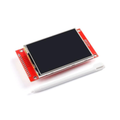
The ShillehTek 1.8" TFT LCD Display is a 128 × 160 pixel color display based on the popular ST7735 controller. It speaks SPI, runs from 3.3V, and is pre-soldered on both sides for a clean, breadboard-friendly hookup. With 65,536 colors (16-bit RGB565), it's a great upgrade from monochrome OLEDs when you need full-color graphs, logos, or small UI screens.
The board includes a built-in microSD card slot on the back, sharing the same SPI bus as the display. That makes it easy to load BMP images, log data, or stream sprites — without adding a separate SD breakout board.
This module works with Arduino, ESP32, Raspberry Pi, Pico, and STM32 using the ubiquitous Adafruit_GFX + Adafruit_ST7735 (or TFT_eSPI) libraries. With pre-soldered headers on both sides, you can drop it directly into a breadboard or solder it to a custom PCB without rework.
At a Glance
Specifications
| Parameter | Value |
| Display Size | 1.8" diagonal |
| Resolution | 128 × 160 pixels |
| Color Depth | 16-bit (RGB565), 65k colors |
| Display Controller | ST7735 / ST7735S |
| Operating Voltage | 3.3V (logic and supply) |
| Logic Tolerance | 3.3V (use level shifter on 5V boards) |
| Interface | 4-wire SPI |
| Backlight | White LED (LED pin to 3.3V) |
| Onboard Storage | microSD card slot (separate SPI CS) |
| Driver Pins | VCC, GND, CS, RESET, A0/DC, SDA/MOSI, SCK, LED |
| SD Card Pins | SD_CS, SD_MOSI, SD_MISO, SD_SCK |
| PCB Color | Red, V1.1 |
| Module Dimensions | ~57 × 35 × 7 mm |
Pinout Diagram

Wiring Guide
Arduino Wiring
The ST7735 expects 3.3V logic. The Arduino Uno is a 5V board, so the safe approach is to drive the display through a logic-level converter or a 1k/2k voltage divider on each input line. Connect the display's VCC to the Arduino 5V — the on-board regulator brings it down to 3.3V for the display chip.
| TFT Pin | Arduino Pin | Details |
|---|---|---|
| VCC | 5V | On-board regulator drops to 3.3V |
| GND | GND | |
| CS | Digital 10 | Via 1k/2k divider |
| RESET | Digital 9 | Via 1k/2k divider |
| A0 (DC) | Digital 8 | Via 1k/2k divider |
| SDA (MOSI) | Digital 11 | Via 1k/2k divider |
| SCK | Digital 13 | Via 1k/2k divider |
| LED | 3.3V | Backlight, can be PWM-controlled |
ESP32 Wiring
The ESP32 is 3.3V native, so no level shifters are needed. Use the ESP32's hardware SPI bus (VSPI: SCK=18, MOSI=23) for best performance.
| TFT Pin | ESP32 GPIO |
|---|---|
| VCC | 3.3V |
| GND | GND |
| CS | GPIO 5 |
| RESET | GPIO 4 |
| A0 (DC) | GPIO 2 |
| SDA (MOSI) | GPIO 23 |
| SCK | GPIO 18 |
| LED | 3.3V |
Raspberry Pi Wiring
The Raspberry Pi has hardware SPI on its 40-pin GPIO header. Use SPI0 (MOSI=GPIO10, SCLK=GPIO11). Enable SPI in raspi-config first.
| TFT Pin | Raspberry Pi Pin | Details |
|---|---|---|
| VCC | Pin 1 (3.3V) | |
| GND | Pin 6 (GND) | |
| CS | Pin 24 (GPIO 8 / CE0) | |
| RESET | Pin 22 (GPIO 25) | |
| A0 (DC) | Pin 18 (GPIO 24) | |
| SDA (MOSI) | Pin 19 (GPIO 10) | |
| SCK | Pin 23 (GPIO 11) | |
| LED | Pin 17 (3.3V) |
Raspberry Pi Pico Wiring
The Pico is a 3.3V board so you can drive the display directly. Use SPI0 on GP18 (SCK) and GP19 (MOSI). The Pico's MicroPython framebuf module pairs nicely with ST7735.
| TFT Pin | Pico Pin |
|---|---|
| VCC | 3V3 (Pin 36) |
| GND | GND |
| CS | GP17 |
| RESET | GP20 |
| A0 (DC) | GP16 |
| SDA (MOSI) | GP19 (SPI0 TX) |
| SCK | GP18 (SPI0 SCK) |
| LED | 3V3 |
Code Examples
Arduino — Adafruit ST7735 Hello World
// 1.8" TFT LCD ST7735 - Arduino Example
// Libraries: Adafruit_GFX, Adafruit_ST7735, SPI

#include <Adafruit_GFX.h>
#include <Adafruit_ST7735.h>
#include <SPI.h>

#define TFT_CS    10
#define TFT_RST    9
#define TFT_DC     8

Adafruit_ST7735 tft = Adafruit_ST7735(TFT_CS, TFT_DC, TFT_RST);

void setup() {
  // Use INITR_BLACKTAB for the red 1.8" 128x160 board
  tft.initR(INITR_BLACKTAB);
  tft.setRotation(1);
  tft.fillScreen(ST77XX_BLACK);

  tft.setCursor(8, 8);
  tft.setTextColor(ST77XX_WHITE);
  tft.setTextSize(2);
  tft.println("ShillehTek");

  tft.setCursor(8, 36);
  tft.setTextColor(ST77XX_GREEN);
  tft.setTextSize(1);
  tft.println("1.8\" TFT 128x160");

  tft.drawRect(4, 4, 152, 120, ST77XX_RED);
}

void loop() {}
ESP32 — TFT_eSPI
// 1.8" TFT LCD ST7735 - ESP32 with TFT_eSPI
// Configure your pins in TFT_eSPI/User_Setup.h:
//   #define ST7735_DRIVER
//   #define TFT_WIDTH  128
//   #define TFT_HEIGHT 160
//   #define ST7735_BLACKTAB
//   #define TFT_MOSI 23
//   #define TFT_SCLK 18
//   #define TFT_CS    5
//   #define TFT_DC    2
//   #define TFT_RST   4

#include <TFT_eSPI.h>

TFT_eSPI tft = TFT_eSPI();

void setup() {
  tft.init();
  tft.setRotation(1);
  tft.fillScreen(TFT_BLACK);

  tft.setTextColor(TFT_WHITE);
  tft.setTextSize(2);
  tft.setCursor(8, 8);
  tft.println("ShillehTek");

  tft.setTextColor(TFT_CYAN);
  tft.setTextSize(1);
  tft.setCursor(8, 36);
  tft.println("ESP32 + ST7735");
}

void loop() {}
Raspberry Pi Pico (MicroPython)
# 1.8" TFT LCD ST7735 - Pico MicroPython Example
# Requires st7735py.py and sysfont.py from GuyCarver/MicroPython_ST7735.
# Pins: SCK=GP18, MOSI=GP19, DC=GP16, RST=GP20, CS=GP17

from machine import Pin, SPI
import st7735

spi = SPI(0, baudrate=20_000_000,
          sck=Pin(18), mosi=Pin(19))

display = st7735.ST7735(
    spi,
    width=128, height=160,
    cs=Pin(17, Pin.OUT),
    dc=Pin(16, Pin.OUT),
    rst=Pin(20, Pin.OUT),
)

display.fill(st7735.color565(0, 0, 0))
display.text("ShillehTek", 8, 8, st7735.color565(255, 255, 255))
display.text("Pico ST7735", 8, 24, st7735.color565(0, 255, 0))
display.show()