Overview
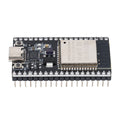
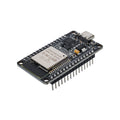
The ESP32-S3 DevKitC-1 is Espressif's official reference development board built around the powerful ESP32-S3 SoC. It pairs a dual-core Xtensa LX7 processor running at 240 MHz with Wi-Fi 4 (802.11 b/g/n) and Bluetooth 5 (LE) with Mesh support, giving you a modern, high-performance platform for IoT prototypes, AI-at-the-edge experiments, and connected product development.
Compared to the classic ESP32, the S3 brings more GPIO (up to 45 programmable pins), native USB support, vector instructions for machine learning acceleration, and a much larger pool of touch pins (14). This particular DevKitC-1 module ships with pre-soldered headers, dual USB-C ports (one CP2102 UART and one native USB), and an onboard addressable RGB LED on GPIO38 — everything you need to plug it into a breadboard and start building.
The board works out of the box with the Arduino IDE, ESP-IDF, PlatformIO, MicroPython, and CircuitPython. It's a great step up from UNO-class boards for projects that need serious processing power, wireless connectivity, or camera/audio peripherals.
At a Glance
Specifications
| Parameter | Value |
| Chip / Module | ESP32-S3-WROOM-1 |
| CPU | Dual-core Xtensa LX7, up to 240 MHz |
| Operating Voltage | 3.3V (5V input via USB-C) |
| Wi-Fi | 802.11 b/g/n (2.4 GHz) |
| Bluetooth | Bluetooth 5 (LE), BLE Mesh |
| SRAM | 512 KB |
| ROM | 384 KB |
| Flash | 8 MB (typical) or 16 MB variants |
| GPIO Pins | 45 programmable GPIOs |
| Touch Pins | 14 capacitive touch channels |
| ADC | 2× 12-bit SAR ADC, 20 channels |
| Communication | UART ×3, I2C ×2, SPI ×4, I2S ×2, TWAI (CAN), USB OTG |
| USB Interfaces | CP2102 USB-to-UART + native USB-OTG |
| Onboard LED | Addressable RGB LED on GPIO38 (WS2812) |
| Dimensions | ~68 × 28 mm |
Pinout Diagram

Wiring Guide
Powering the DevKitC-1
Power the DevKitC-1 through either USB-C port. The UART port (labeled USB) uses the CP2102 chip for flashing and serial monitor, while the USB port is connected directly to the ESP32-S3's native USB peripheral. For most projects, start with the UART port — it's the most forgiving for uploads.
| ESP32-S3 DevKitC-1 Pin | Function |
|---|---|
| 5V / VBUS | 5V input from USB |
| 3V3 | 3.3V regulated output (up to 500 mA) |
| GND | Ground (multiple pins) |
| EN | Chip enable (active high, has pull-up) |
I2C Peripheral Wiring
The default I2C pins on the ESP32-S3 are GPIO8 (SDA) and GPIO9 (SCL), though you can remap I2C to almost any GPIO via software.
| I2C Device Pin | ESP32-S3 Pin |
|---|---|
| VCC | 3V3 |
| GND | GND |
| SDA | GPIO8 |
| SCL | GPIO9 |
SPI Peripheral Wiring
The ESP32-S3 exposes multiple SPI peripherals. The default hardware SPI (FSPI / SPI2) maps to GPIO10 (CS), GPIO11 (MOSI), GPIO12 (SCK), and GPIO13 (MISO).
| SPI Device Pin | ESP32-S3 Pin |
|---|---|
| VCC | 3V3 |
| GND | GND |
| SCK | GPIO12 |
| MOSI | GPIO11 |
| MISO | GPIO13 |
| CS | GPIO10 (or any free GPIO) |
UART Wiring
UART0 is shared with the CP2102 for programming and Serial Monitor output. For connecting external UART devices (GPS, LoRa, etc.), use UART1 or UART2 on any two free GPIOs.
| External Device | ESP32-S3 Pin |
|---|---|
| VCC | 3V3 (or 5V if device supports) |
| GND | GND |
| Device TX | GPIO18 (ESP32 RX) |
| Device RX | GPIO17 (ESP32 TX) |
Code Examples
Onboard RGB LED (GPIO38)
// ESP32-S3 DevKitC-1 onboard RGB LED (WS2812 on GPIO38).
// Install "Adafruit NeoPixel" from Library Manager.

#include <Adafruit_NeoPixel.h>

#define LED_PIN   38
#define NUM_LEDS  1

Adafruit_NeoPixel led(NUM_LEDS, LED_PIN, NEO_GRB + NEO_KHZ800);

void setup() {
  led.begin();
  led.setBrightness(40);
  led.show();
}

void loop() {
  led.setPixelColor(0, led.Color(255, 0, 0)); led.show(); delay(500);
  led.setPixelColor(0, led.Color(0, 255, 0)); led.show(); delay(500);
  led.setPixelColor(0, led.Color(0, 0, 255)); led.show(); delay(500);
}
Wi-Fi Station Connect
#include <WiFi.h>

const char* ssid     = "YOUR_WIFI_SSID";
const char* password = "YOUR_WIFI_PASSWORD";

void setup() {
  Serial.begin(115200);
  delay(500);
  Serial.println("Connecting to WiFi...");

  WiFi.mode(WIFI_STA);
  WiFi.begin(ssid, password);
  while (WiFi.status() != WL_CONNECTED) {
    delay(500);
    Serial.print(".");
  }

  Serial.println();
  Serial.print("Connected! IP: ");
  Serial.println(WiFi.localIP());
  Serial.print("RSSI: ");
  Serial.println(WiFi.RSSI());
}

void loop() { }
I2C Scanner
#include <Wire.h>

#define SDA_PIN 8
#define SCL_PIN 9

void setup() {
  Serial.begin(115200);
  Wire.begin(SDA_PIN, SCL_PIN);
  delay(500);
  Serial.println("I2C Scanner starting...");
}

void loop() {
  byte count = 0;
  for (byte addr = 1; addr < 127; addr++) {
    Wire.beginTransmission(addr);
    if (Wire.endTransmission() == 0) {
      Serial.print("Found device at 0x");
      if (addr < 16) Serial.print("0");
      Serial.println(addr, HEX);
      count++;
    }
  }
  Serial.print("Total: "); Serial.println(count);
  delay(3000);
}
Capacitive Touch Read
// The ESP32-S3 has 14 touch-capable pins: T1-T14 (GPIO1 - GPIO14).
// Touch a wire connected to the pin to see the value change.

#define TOUCH_PIN T1   // GPIO1

void setup() {
  Serial.begin(115200);
}

void loop() {
  uint32_t value = touchRead(TOUCH_PIN);
  Serial.print("Touch value: ");
  Serial.println(value);
  if (value > 30000) Serial.println("Touched!");
  delay(200);
}
Frequently Asked Questions
board = esp32-s3-devkitc-1 in your platformio.ini. Pair it with platform = espressif32 and framework = arduino (or espidf) depending on your workflow.Related Tutorials
We're building out step-by-step ESP32-S3 tutorials — check the ShillehTek Blog for the latest guides on Wi-Fi, Bluetooth, sensor integration, and AI-at-the-edge projects using this board.