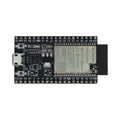
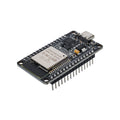
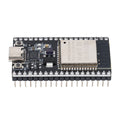
Overview
The ShillehTek ESP32-C6-N4 Pre-Soldered Development Board is a modern Wi-Fi 6, Bluetooth LE 5, and IEEE 802.15.4 (Zigbee / Thread / Matter) module built around Espressif's ESP32-C6-WROOM-1. It ships with headers already soldered so you can drop it straight into a breadboard and start building connected projects — from Matter smart home devices to Thread mesh sensors, Zigbee coordinators, and classic Wi-Fi IoT nodes.
The board exposes 22 usable GPIOs, a 12-bit ADC with 7 channels, hardware SPI, UART, I2C, and a native USB Serial/JTAG interface — meaning you can program and debug over USB-C without any external USB-to-UART chip. There's also an onboard RGB LED on GPIO8, a RESET button, and a BOOT button for entering download mode manually.
The "N4" in the name refers to the 4 MB of onboard flash. With 512 KB of SRAM, a 32-bit RISC-V core clocked at 160 MHz, and low-power modes down to the microamp range, the ESP32-C6 is a great fit for battery-powered Matter and Thread devices, Wi-Fi sensors, BLE beacons, and any project where modern wireless protocols matter.
At a Glance
Specifications
| Parameter | Value |
| Module | Espressif ESP32-C6-WROOM-1 |
| CPU | 32-bit RISC-V single-core @ 160 MHz |
| Wi-Fi | IEEE 802.11 b/g/n/ax (Wi-Fi 6) 2.4 GHz |
| Bluetooth | Bluetooth LE 5.3, Mesh |
| 802.15.4 | Zigbee 3.0, Thread 1.3, Matter ready |
| SRAM / ROM | 512 KB (21 KB cache) / 320 KB |
| Flash Memory | 4 MB (N4 variant) |
| Operating Voltage | 3.3V (logic level), 5V tolerant on VIN/5V pin |
| GPIO Pins | 22 usable (GPIO0-11, GPIO15-23) |
| ADC | 12-bit, 7 channels (ADC1_CH0-CH6) |
| Communication | 3x SPI, 2x UART, 1x I2C, RMT, TWAI® (CAN), SDIO Slave |
| USB Interface | Native USB-C Serial/JTAG on GPIO12/GPIO13 |
| Onboard LEDs | Power, RGB (GPIO8) |
| Buttons | RESET, BOOT (GPIO9) |
| Current Draw | ~80 mA active, ~5 µA deep sleep |
| Dimensions | ~51 × 25 mm |
Pinout Diagram

Wiring Guide
Powering the ESP32-C6
The board accepts power from either the USB-C port or the 5V pin. All GPIO pins operate at 3.3V logic — do not connect 5V signals directly to any GPIO.
| Source | Pin / Port | Details |
|---|---|---|
| USB-C | USB port | 5V from host, stepped down to 3.3V onboard — easiest for programming |
| Regulated 5V | 5V0 pin | 5V external supply, routed through the onboard regulator |
| Regulated 3.3V | 3V3 pin | Bypasses the regulator — feed clean 3.3V only |
I2C Peripheral Wiring
The ESP32-C6 supports flexible pin muxing for I2C. Any two GPIOs can be assigned as SDA and SCL via software. GPIO6 (SDA) and GPIO7 (SCL) are the conventional defaults and also support Low-Power I2C.
| I2C Peripheral Pin | ESP32-C6 Pin |
|---|---|
| VCC | 3V3 (most 3.3V sensors) or 5V if sensor is 5V tolerant |
| GND | GND |
| SDA | GPIO6 |
| SCL | GPIO7 |
SPI Peripheral Wiring
The ESP32-C6 exposes hardware FSPI (Fast SPI) on the pins labeled FSPIHD, FSPIWP, FSPICLK, FSPID, FSPIQ, and FSPICS0-CS5. Use the defaults below, or remap via software.
| SPI Peripheral Pin | ESP32-C6 Pin |
|---|---|
| VCC | 3V3 |
| GND | GND |
| SCK (Clock) | GPIO6 (FSPICLK) |
| MISO | GPIO2 (FSPIQ) |
| MOSI | GPIO7 (FSPID) |
| CS (Chip Select) | GPIO16 (FSPICS0) or any GPIO |
Wire.begin(sda, scl) — the flexible GPIO matrix lets you route any peripheral to any pin.
UART Wiring
The ESP32-C6 has two UART peripherals. UART0 is connected to the USB-C programming port (GPIO16/GPIO17). UART1 is available on any other GPIOs you choose.
| UART Signal | Default Pin |
|---|---|
| U0TXD (Serial Monitor) | GPIO16 |
| U0RXD (Serial Monitor) | GPIO17 |
| UART1 TX | Any GPIO (configurable) |
| UART1 RX | Any GPIO (configurable) |
Code Examples
Blink the Onboard RGB LED
// Blink the onboard WS2812 RGB LED on GPIO8.
// Requires the "Adafruit NeoPixel" library (install via Library Manager).

#include <Adafruit_NeoPixel.h>

#define LED_PIN   8
#define NUM_LEDS  1

Adafruit_NeoPixel strip(NUM_LEDS, LED_PIN, NEO_GRB + NEO_KHZ800);

void setup() {
  strip.begin();
  strip.setBrightness(30);
}

void loop() {
  strip.setPixelColor(0, strip.Color(255, 0, 0)); strip.show(); delay(500);
  strip.setPixelColor(0, strip.Color(0, 255, 0)); strip.show(); delay(500);
  strip.setPixelColor(0, strip.Color(0, 0, 255)); strip.show(); delay(500);
}
Connect to Wi-Fi
// Connect the ESP32-C6 to your 2.4 GHz Wi-Fi network and print its IP.
// In Arduino IDE: Tools > Board > ESP32 Arduino > ESP32C6 Dev Module

#include <WiFi.h>

const char* ssid     = "YOUR_WIFI_SSID";
const char* password = "YOUR_WIFI_PASSWORD";

void setup() {
  Serial.begin(115200);
  delay(1000);

  Serial.print("Connecting to ");
  Serial.println(ssid);

  WiFi.begin(ssid, password);
  while (WiFi.status() != WL_CONNECTED) {
    delay(500);
    Serial.print(".");
  }

  Serial.println();
  Serial.print("Connected! IP address: ");
  Serial.println(WiFi.localIP());
}

void loop() {
  // nothing here
}
I2C Scanner
// Scan the I2C bus and report every device address found.
// Default pins: SDA=GPIO6, SCL=GPIO7.

#include <Wire.h>

void setup() {
  Wire.begin(6, 7);
  Serial.begin(115200);
  Serial.println("I2C Scanner");
}

void loop() {
  byte error, address;
  int nDevices = 0;

  Serial.println("Scanning...");
  for (address = 1; address < 127; address++) {
    Wire.beginTransmission(address);
    error = Wire.endTransmission();
    if (error == 0) {
      Serial.print("Found device at 0x");
      if (address < 16) Serial.print("0");
      Serial.println(address, HEX);
      nDevices++;
    }
  }

  if (nDevices == 0) Serial.println("No I2C devices found");
  delay(5000);
}
BLE Scanner
// Scan for nearby BLE devices and print their addresses and RSSI.
// Uses the built-in NimBLE-Arduino stack included with esp32 board v3.x.

#include <BLEDevice.h>
#include <BLEScan.h>
#include <BLEAdvertisedDevice.h>

BLEScan* pBLEScan;
const int scanTime = 5;  // seconds

void setup() {
  Serial.begin(115200);
  BLEDevice::init("");
  pBLEScan = BLEDevice::getScan();
  pBLEScan->setActiveScan(true);
  pBLEScan->setInterval(100);
  pBLEScan->setWindow(99);
}

void loop() {
  Serial.println("Scanning BLE...");
  BLEScanResults results = pBLEScan->start(scanTime, false);
  Serial.printf("Found %d devices\n", results.getCount());
  for (int i = 0; i < results.getCount(); i++) {
    BLEAdvertisedDevice d = results.getDevice(i);
    Serial.printf("  %s  RSSI: %d\n", d.getAddress().toString().c_str(), d.getRSSI());
  }
  pBLEScan->clearResults();
  delay(2000);
}
Frequently Asked Questions
Tools > Partition Scheme.platformio.ini use board = esp32-c6-devkitc-1 and platform = espressif32 (version 6.6 or later for full C6 support). The Arduino and ESP-IDF frameworks are both supported.Related Tutorials
We're building out tutorials for the ESP32-C6 — check back soon. In the meantime, the wiring patterns for 3.3V I2C and SPI sensors are shared across all ESP32 boards, so our existing ESP32-S6 tutorials are a great starting point.