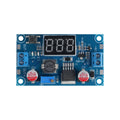
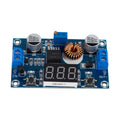
Overview
The XL4015 is a 5A high-efficiency synchronous buck converter that takes a wide DC input (4-38V) and steps it down to any adjustable output between 1.25V and 36V. With 96% peak efficiency and built-in current limiting, it's a workhorse module for powering motors, LED arrays, Raspberry Pi boards, or any 5V/12V load from a higher-voltage battery or wall adapter.
Onboard you'll find a turn-once trim potentiometer for setting the output voltage, two large 220µF electrolytic capacitors for input/output smoothing, and through-hole solder pads for sturdy connections. This is the basic version without an integrated voltmeter — pair it with a multimeter or a small panel meter when dialing in the output.
At a Glance
Specifications
| Parameter | Value |
| IC | XL4015 |
| Topology | Step-down (buck) |
| Input Voltage Range | 4V - 38V DC |
| Output Voltage Range | 1.25V - 36V DC (adjustable) |
| Output Current | 5A continuous (with adequate cooling), 8A peak |
| Conversion Efficiency | Up to 96% (depends on Vin/Vout ratio) |
| Switching Frequency | 180 kHz |
| Output Ripple | ~50 mV peak-to-peak |
| Load Regulation | ±0.5% |
| Voltage Regulation | ±2.5% |
| Operating Temperature | -40°C to +85°C |
| Module Dimensions | Approx. 52 x 26 x 14 mm |
Pinout Diagram

Wiring Guide
Basic Setup — Setting the Output Voltage
Before wiring anything to your project, dial in the output. Connect a power source to IN+/IN-, then probe OUT+/OUT- with a multimeter and turn the trimpot until you read the voltage you want. Do this with no load connected.
| Step | Action |
|---|---|
| 1 | Connect input source (e.g., 12V battery) to IN+ and IN- (mind polarity) |
| 2 | Power on the source |
| 3 | Place multimeter probes across OUT+ and OUT- |
| 4 | Turn the brass-screw trimpot clockwise to increase, counter-clockwise to decrease |
| 5 | Once stable at target voltage, power down and connect your load to OUT+/OUT- |
Power a Raspberry Pi from 12V
Set the output to 5.1V before connecting the Pi (Raspberry Pi 4 needs a steady 5.1V to avoid undervoltage warnings). Wire OUT+ to a 5V GPIO pin or via a USB-C breakout.
| Module Pin | Connection |
|---|---|
| IN+ | 12V battery / wall supply + |
| IN- | Battery / supply ground |
| OUT+ | Pi 5V (e.g., GPIO Pin 2 or 4) |
| OUT- | Pi GND (e.g., Pin 6) |
Power an Arduino UNO from 12V or higher
The UNO accepts 5V at the 5V pin or 7-12V at the barrel jack. Use this module to drop a higher voltage to either rail.
| Set Output To | Wire OUT+ To |
|---|---|
| 5V | Arduino 5V pin (bypasses onboard regulator) |
| 9V | Arduino VIN pin |
Power LED Strips (5V or 12V)
For 5V WS2812 strips or 12V analog LED strips, set the output to the strip's rated voltage. Use thick wires (18-20 AWG) for runs over 1m to avoid voltage drop.
| Strip Type | Output Setting | Notes |
|---|---|---|
| WS2812 (5V) | 5.0V | Add 1000µF cap across V/GND at strip start |
| WS2811 (12V) | 12.0V | Match input voltage closely to avoid load on regulator |
| Analog 12V strip | 12.0V | 5A is enough for ~5m of standard density |
Code Examples
The XL4015 is a passive analog regulator — there is no microcontroller-side code to run. The "code" is in setting the trimpot before connecting your load. The examples below show how to monitor the output voltage from a microcontroller (useful for closed-loop battery management).
Arduino — Monitor Output Voltage with Voltage Divider
// Monitor XL4015 output rail with Arduino ADC
// Voltage divider: OUT+ -- 30k -- A0 -- 10k -- GND
// Divides up to 22V down to ~5.5V at A0 (Arduino 5V tolerant)

const int sensePin = A0;
const float DIV_RATIO = (30000.0 + 10000.0) / 10000.0;  // = 4.0

void setup() {
  Serial.begin(9600);
}

void loop() {
  int raw = analogRead(sensePin);
  float vAtPin = raw * (5.0 / 1023.0);
  float vRail = vAtPin * DIV_RATIO;
  Serial.print("Rail voltage: ");
  Serial.print(vRail, 2);
  Serial.println(" V");
  delay(500);
}
Raspberry Pi (Python) — ADS1115 Monitor
#!/usr/bin/env python3
# Use ADS1115 (16-bit ADC) to monitor XL4015 output
# Same divider: 30k + 10k from OUT+ to GND, ADS A0 reads middle

import time
import board, busio
from adafruit_ads1x15.ads1115 import ADS1115
from adafruit_ads1x15.analog_in import AnalogIn

i2c = busio.I2C(board.SCL, board.SDA)
ads = ADS1115(i2c)
chan = AnalogIn(ads, 0)

DIV_RATIO = 4.0  # 30k+10k / 10k

while True:
    rail = chan.voltage * DIV_RATIO
    print(f"Rail: {rail:.2f} V")
    time.sleep(0.5)